To celebrate the 5th Birthday of Microsoft Teams on March 14th 2022, I’m publishing this article help you rediscover one of the early features of Teams. After all, a birthday is a great opportunity to send Praise!
I’m often struck by how often people seem to think using the Praise feature in Teams is a bit of a gimmick. Maybe it’s partly due to the stereotypical British tendency to downplay achievements and adding a rainbow unicorn picture to a message to let someone know you appreciated them is not understated.
However, when you received that thank you message or congratulations on a job well done, didn’t it make you feel good? Now add the rainbow unicorn image to it and I challenge you not to smile.
Let’s share those smiles, send the praise and then look back to the history of praise received and sent and relive those smiles again 🙂
Here’s how!
From Chat & Channel Messages
You can send praise with a Teams message in chat or in a channel using the Praise icon
Image of Teams Message compose box showing Praise icon highlighted
To compose your Praise message:
Use the Praise button to open compose box
Select badge
Enter Note (optional)
Choose Preview
Send
Image of a composed Praise message
From Viva Insights
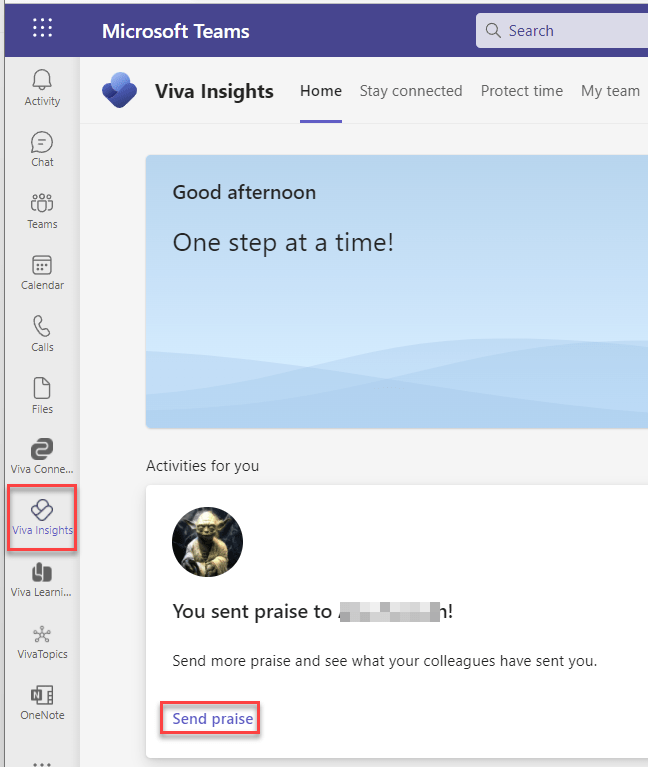
You can also send praise using Viva Insights in Microsoft Teams. On the Home tab of Viva Insights, you will see a card for Praise which includes a link to Send praise.
Image of Viva Insights App Home Tab with the Send Praise link highlighted on the Praise card under Activities for you heading
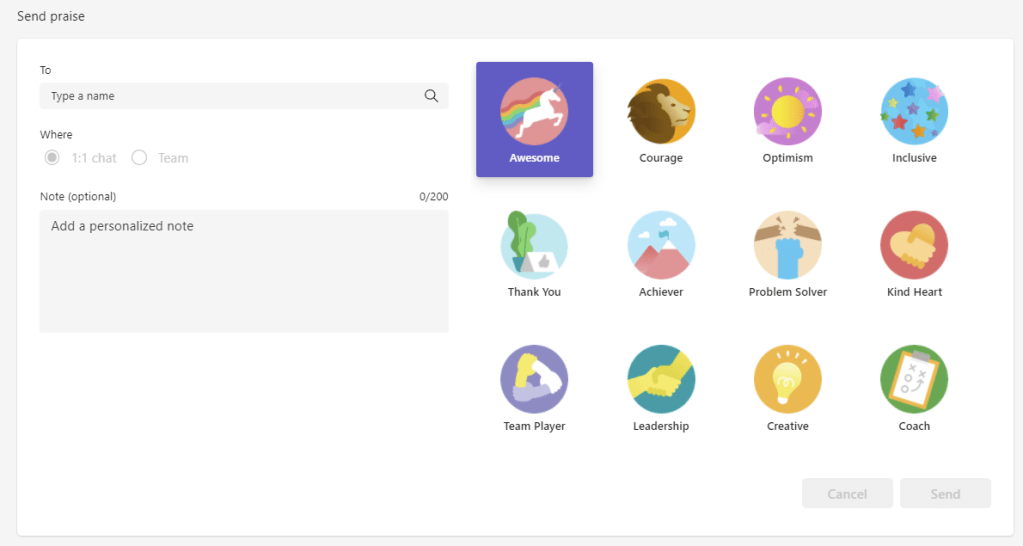
This gives you a similar compose praise experience as from the message compose box, but does also offer the choice of posting to 1:1 Chat or into a Team.
Image of Praise compose box where you can select badge, enter name, choose where to post and add an optional note
Scheduling Praise with Viva Insights
If you would like regular reminders to send Praise, perhaps at the end of each working week, Viva Insights includes a Praise shedule.
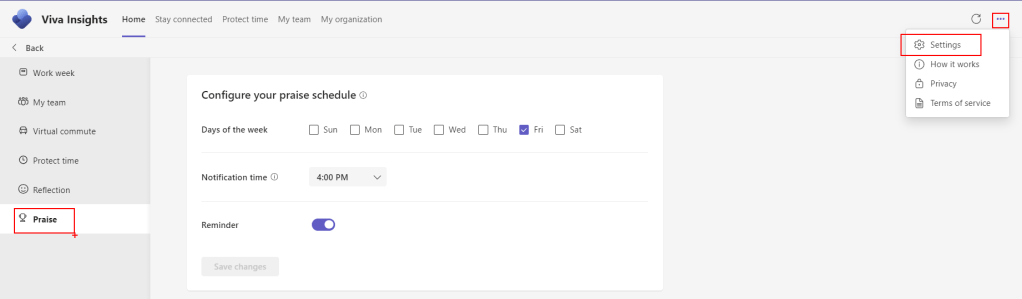
To see the praise schedule use the … menu at the top right of any Viva Insights screen and choose Settings then Praise to set the day(s) and time of day for the reminders.
Image of Viva Insights Settings screen with the menu highlighted and displaying weekday and time selector for Praise reminders
Praise History
Whilst Praise has been with us from the early days of Microsoft Teams, Praise history is a new feature and links to Viva Insights.
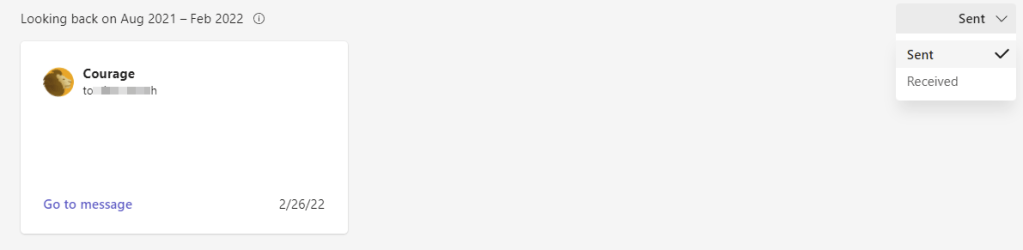
You can access the Praise history in the Home tab of Viva Insights, using the link on the Home tab to Send praise. Below the compose praise screen is your praise history. With a selector at the top right to choose sent or received praise and a card for each message sent or received over the previous 6 months.
Image showing one sent Praise message in Praise history with sent/received selector open
Whilst we await the release of Shared Channels to Public Preview by end March 2022, there are a couple of things Administrators can be doing to prepare for, or indeed block, Shared Channels in Microsoft Teams.
DISCLAIMER: I am writing this article based on the information from the public announcements of Shared Channels (aka Teams Connect) and the settings discovered in my production tenant at the time of writing. It is possible that these features will change before and during public preview.
EDIT: For those who read this post on its original format, it has been updated. Cross Tenant access settings were not correct. B2B Direct Connect settings are the ones which control shared channels
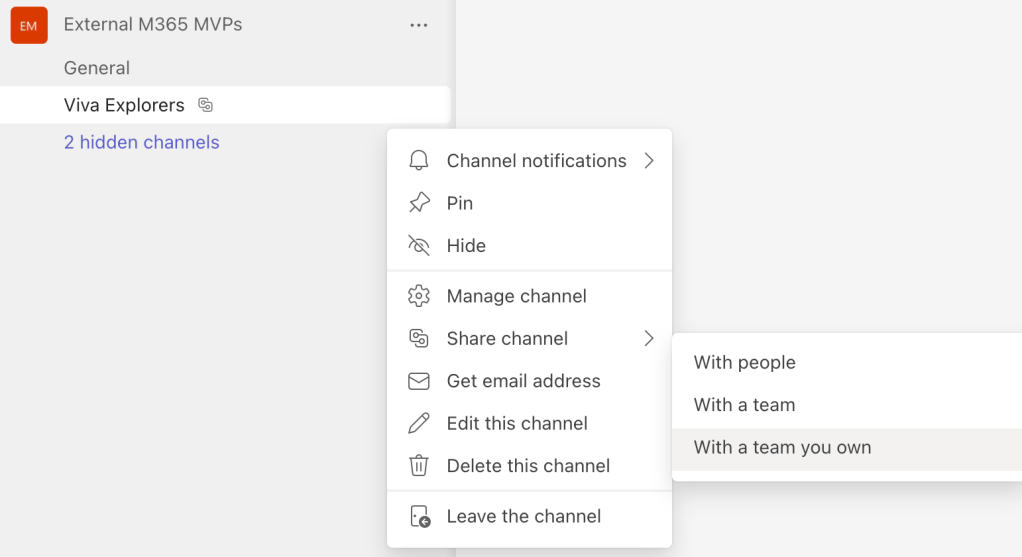
Firstly, what are Shared Channels? Shared Channels were originally (and officially still are) called Teams Connect. They give you the ability to invite people to a channel in Teams, rather than the whole Team. They differ from Private Channels in that you do not need to be a member of the Team to be a member of a Shared Channel. Another big advantage of Shared Channels is that you will not need to switch tenants to see channels you are a member of regardless what organisation hosts the channel. Finally you will be able to invite whole Teams to a Shared Channel rather then just individuals and this includes Teams in other organisations.
The table below summarises the different features between the 3 types of channels in Teams
Standard Channel
Private Channel
Shared Channel
All Team Members are members of the channel
Only invited Team Members are members of the channel
Anyone can be invited to the channel without needing to be a member of the Team
Supports External members
Supports External Members
Full range of Tabs
Limited range of Tabs (Notable exclusions are Planner & Channel Calendar)
(TBC, expected to mirror private channels) Limited range of Tabs (Notable exclusions are Planner & Channel Calendar)
Can invite Internal Teams, Internal Users, Guest Users with MSA & AAD
Expected to support only B2B AAD users & Teams, both Internal & Guests, as relies on cross tenant access settings which do not include options other than for AAD.
Definitions
AAD = Azure Active Directory (Enterprise/Business/Education/Government)
B2B = Business to Business (refers to a relationship between two AAD tenants)
MSA = Microsoft Account (Personal/Family)
NOTES: I’ve kept these definitions purposefully simplistic. There are lots of nuances and details when working with identity (accounts) across organisations.
Whilst we expect the documentation on Shared Channels to be released with the public preview, there is already some useful information available on cross tenant access setting for Azure AD on Microsoft Docs. This feature will underpin collaboration between organisations, which Shared Channels will rely on.
In my production tenant, which is set to Targeted Release for Everyone, I do have these Cross Tenant Access Settings in the Azure AD Portal. In addition Shared Channel settings have appeared in the Teams Policies when working via PowerShell, though not in the Teams Admin Center.
If you wish to enable your users to use Shared Channels during the Public Preview, you will need to:
Configure Cross Tenant Sharing Settings
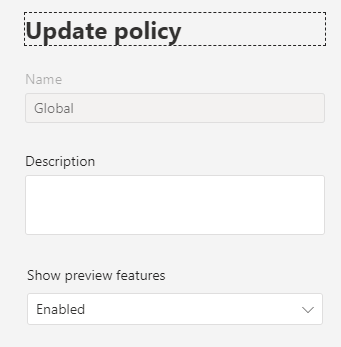
Allow access to the Public Preview in Teams via an Update Policy for Teams
Allow use of Shared Channels via the Teams Policy
If you wish to BLOCK Shared Channels for now, then you should disable B2B direct connect in Cross Tenant Sharing. This is the DEFAULT state tenants. You do not need to change the Teams policies for public preview and channel settings, however you may wish to use the Teams policies in place of disabling cross tenant sharing if you wish to allow selected users to test the features.
Disable Shared Channels
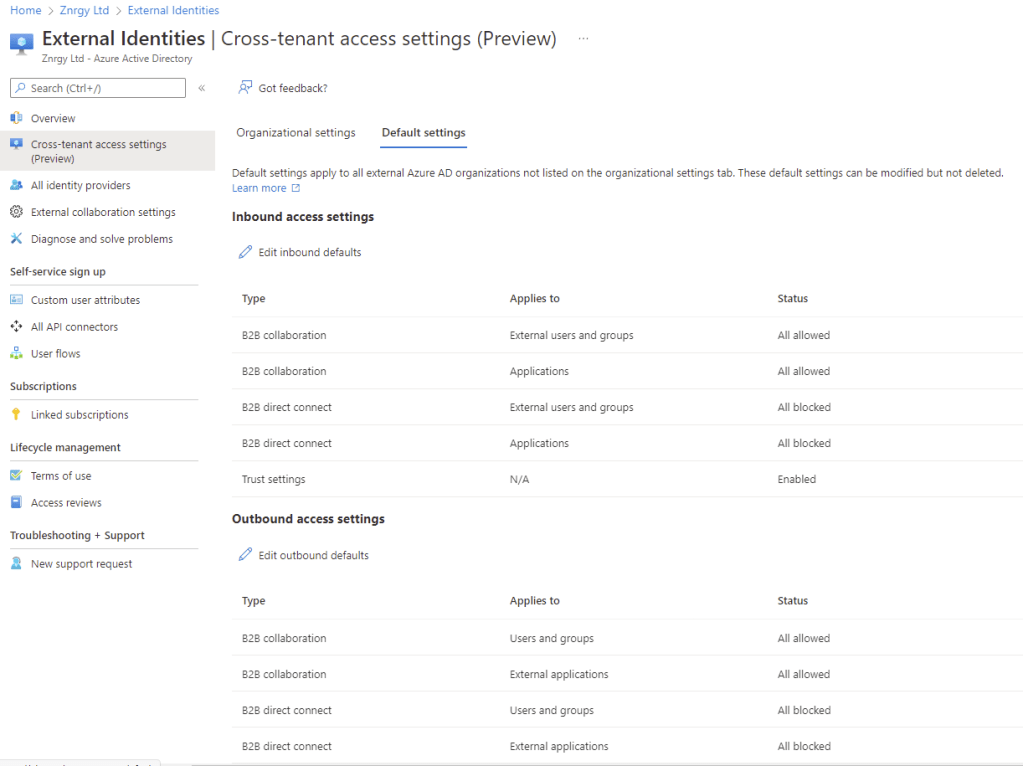
To Block all Shared Channel Features within your tenant and for users in your tenant, you need to configure default Cross Tenant Sharing to block all inbound and outbound collaboration. To do this:
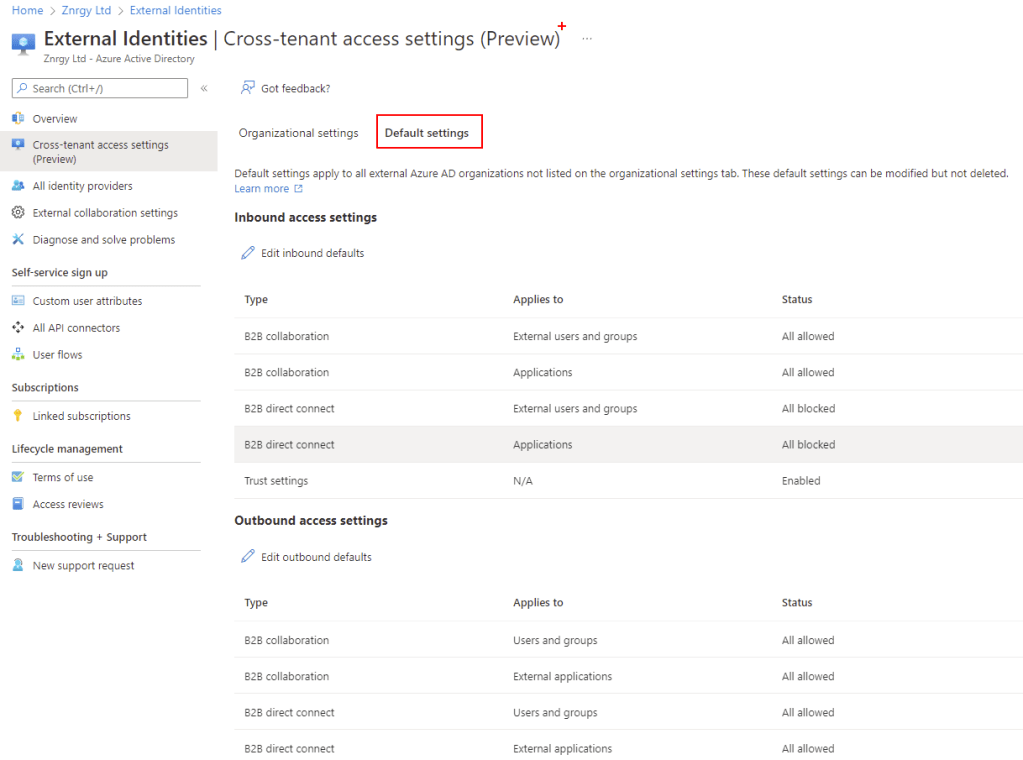
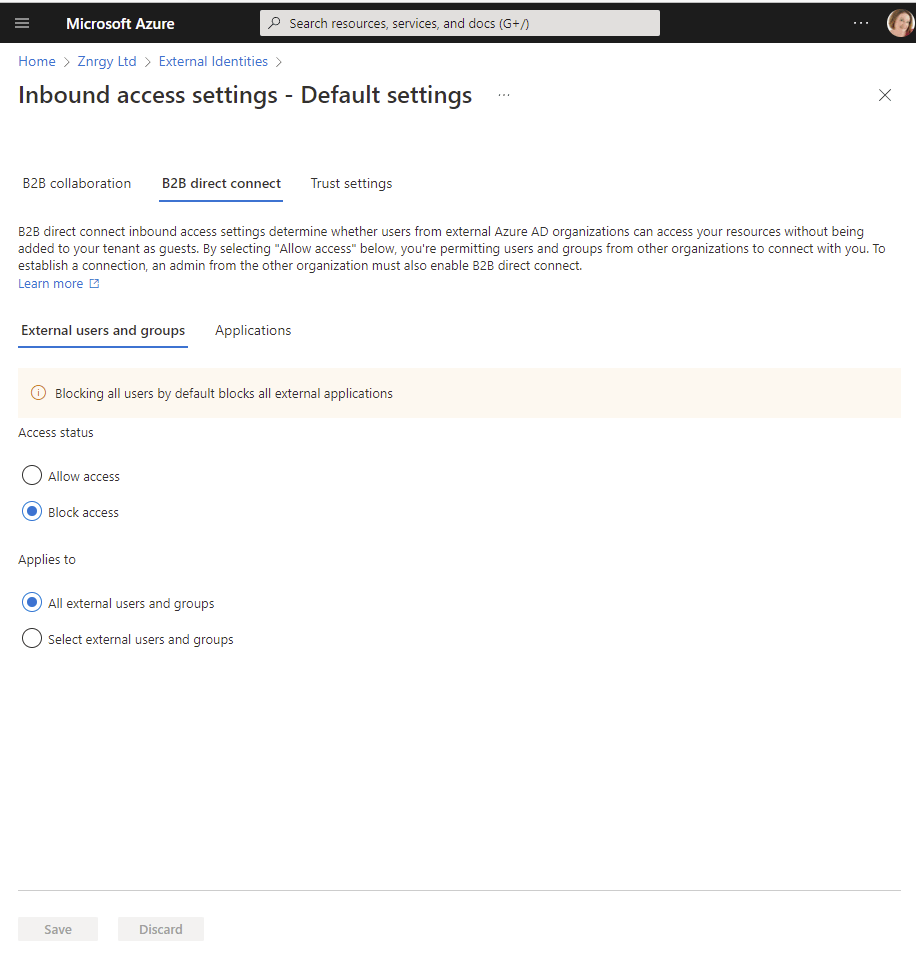
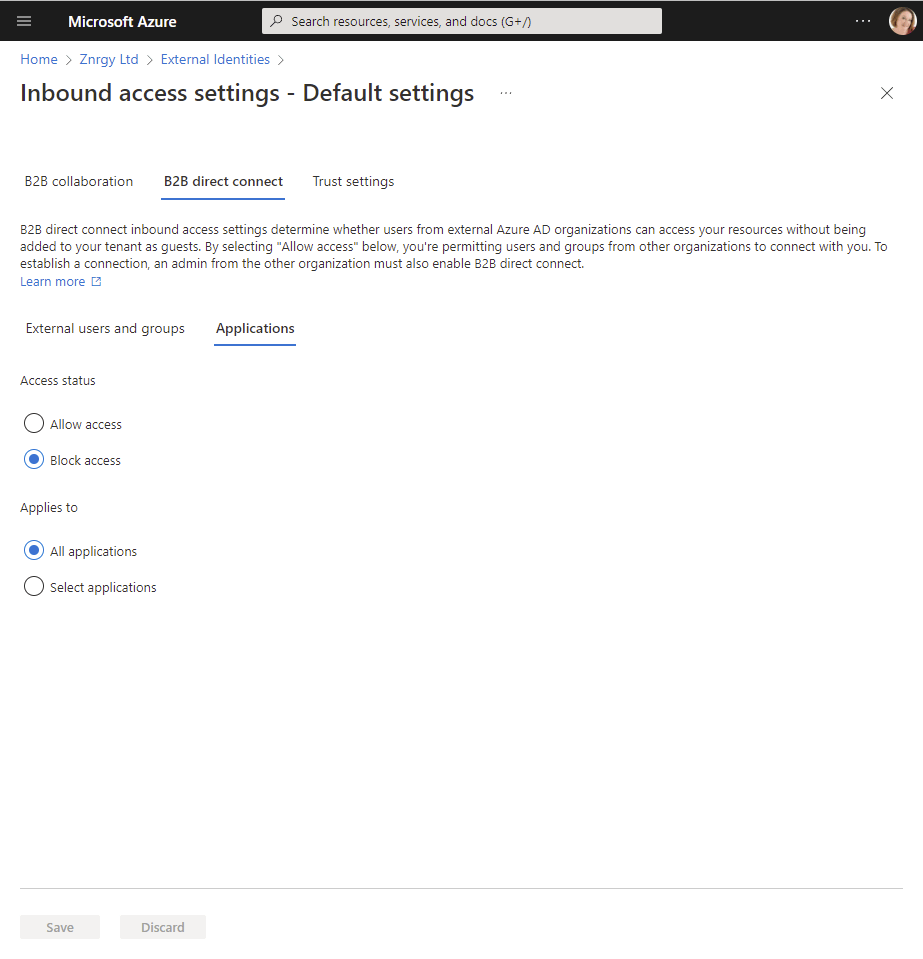
Select Edit inbound defaults then select Block Access for B2B direct connect for All External users and groups
Select Applications and choose Block Access
Save your changes
Under Trust settings ensure all boxes are unticked and Save changes
Choose Edit outbound defaults then B2B direct connect
Block access for both Users & groups and External Applications
Save your changes
The Default settings should now look like this:
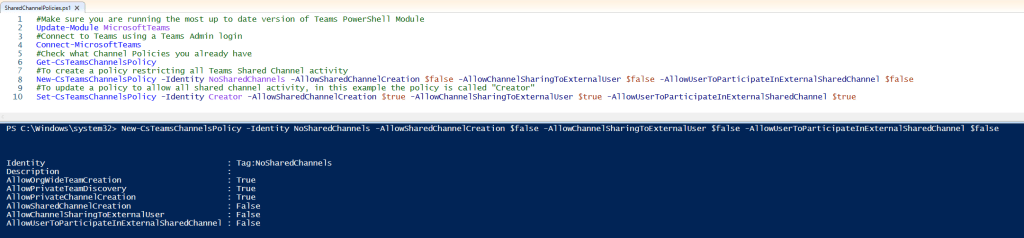
For the avoidance of confusion amongst users it is probably advisable to block all shared Channel activity in Teams too. Currently you need to modify policies using Powershell. This example would create a new Teams policy to block all Shared Channels called “No Shared Channels”:
NOTE: In the Teams Admin Center the Shared Channel settings do not show in that policy for all.
To block all shared channel features in the Global Policy, you would use
Set-CsTeamsChannelsPolicy -Identity Global -AllowSharedChannelCreation $false -AllowChannelSharingToExternalUser $false -AllowUserToParticipateInExternalSharedChannel $false
Teams policies can be assigned to individual users or Groups using Teams Admin Center, as well as using Powershell. For details on the various methods of assigning Teams policies to users, please refer to this article on Microsoft Docs.
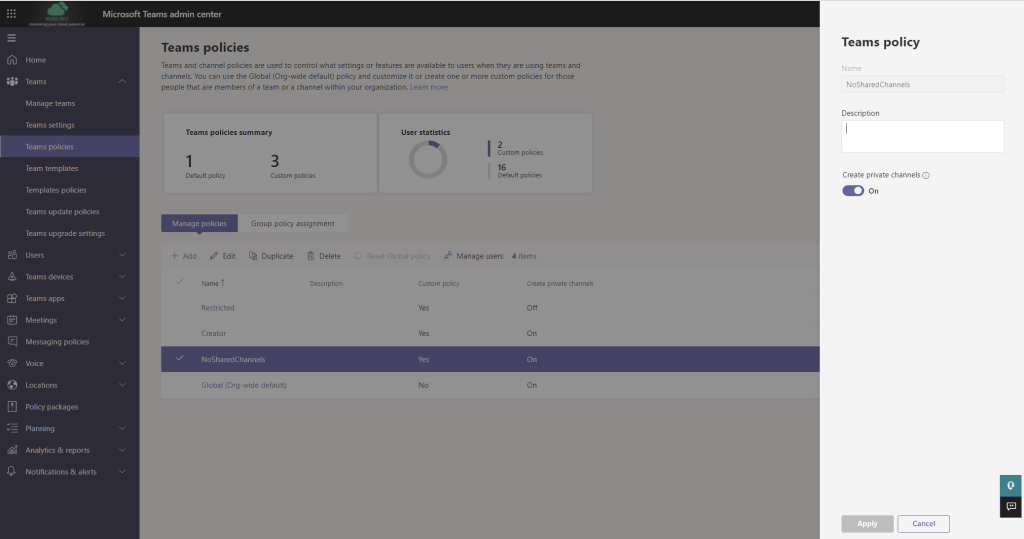
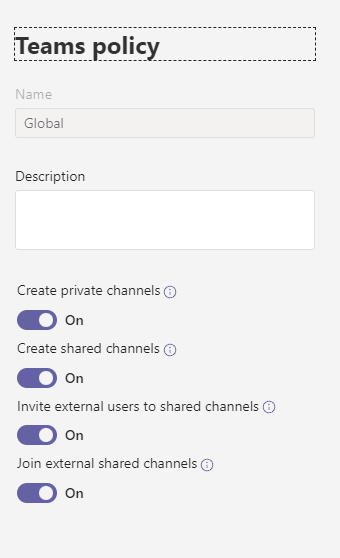
When the shared channels features show in the Teams Admin Center the features can be configured as follows to block shared channels.
Allowing Shared Channels
To Permit Shared Channels with Specific Organisations is a 3 step process:
Step 1 – Configure Cross Tenant Sharing
Step 2 – Teams Update Policy
Step 3 – Teams Policy for Channel Settings
These instructions, assume you want to open communication with a specific organization, whilst it is possible to open communication with any organization, the recommended approach is to configure access per organization as shown here.
Step 1 – Configure Cross Tenant Sharing for a Specific Domain
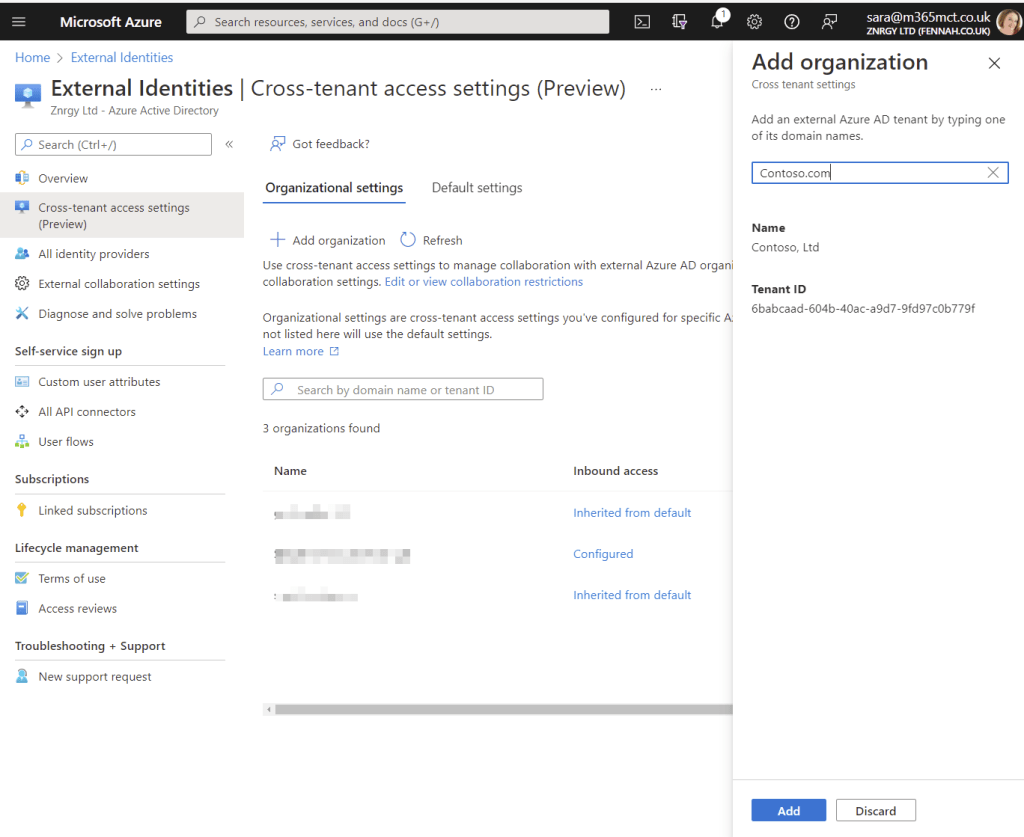
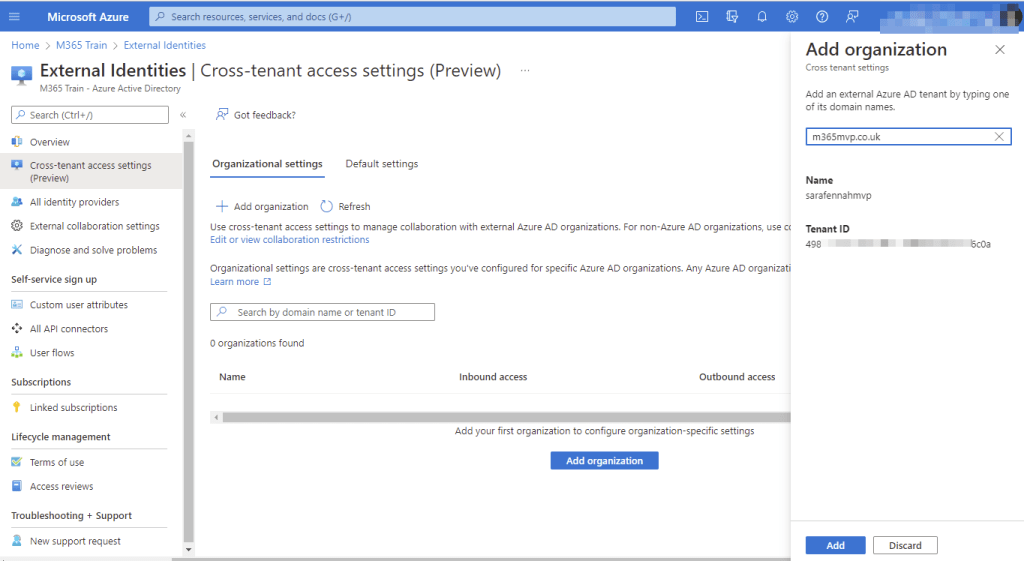
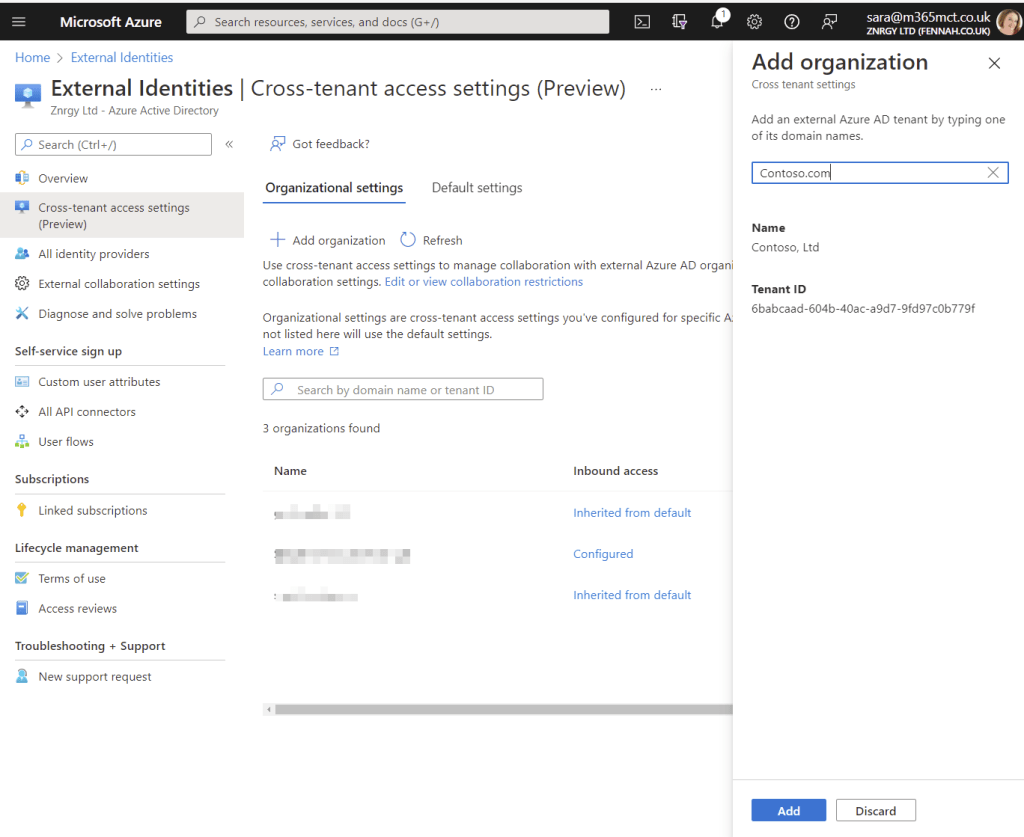
Search for the organization using domain name. Please remember that many organisations have multiple domain names registered. To avoid confusion, it is best to check with a Microsoft 365 administrator at the partner organisation for the domain. This will also allow you to verify tenant ID before opening up collaboration to ensure you are opening your doors to the correct organization!
Select Add
The new tenant will be added with both inbound and outbound settings inherited from default settings.

To customise the inbound settings click Inherited from default link
Under B2B collaboration for both External users and groups and Applications select Customize settings and choose Allow access on both for either All users or selected users/apps.
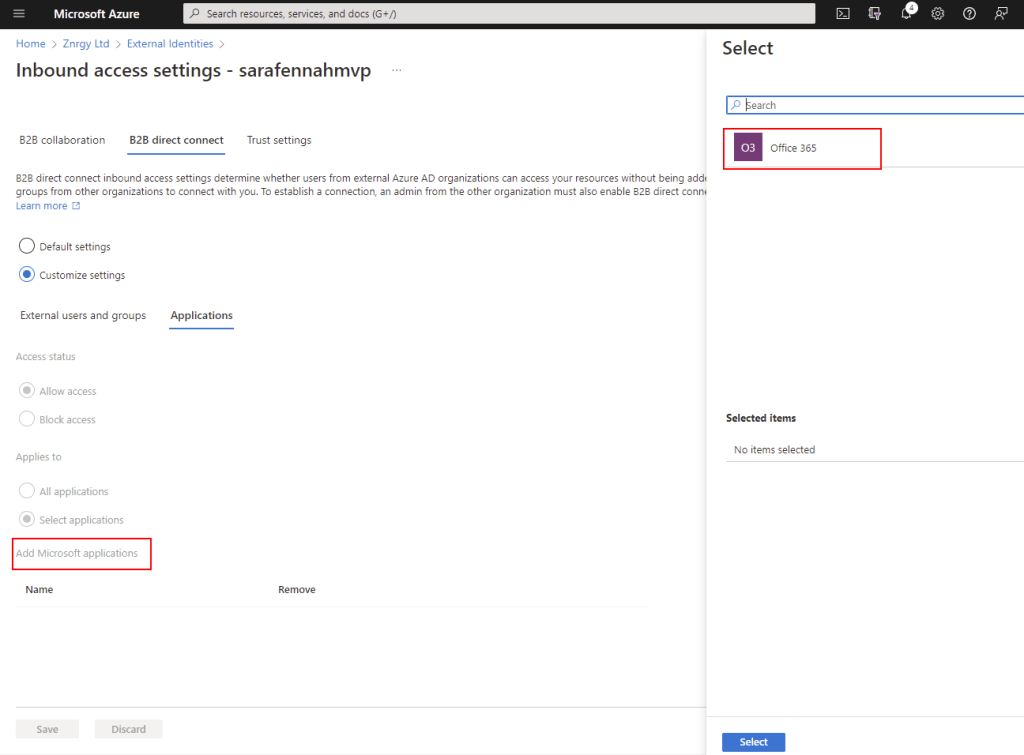
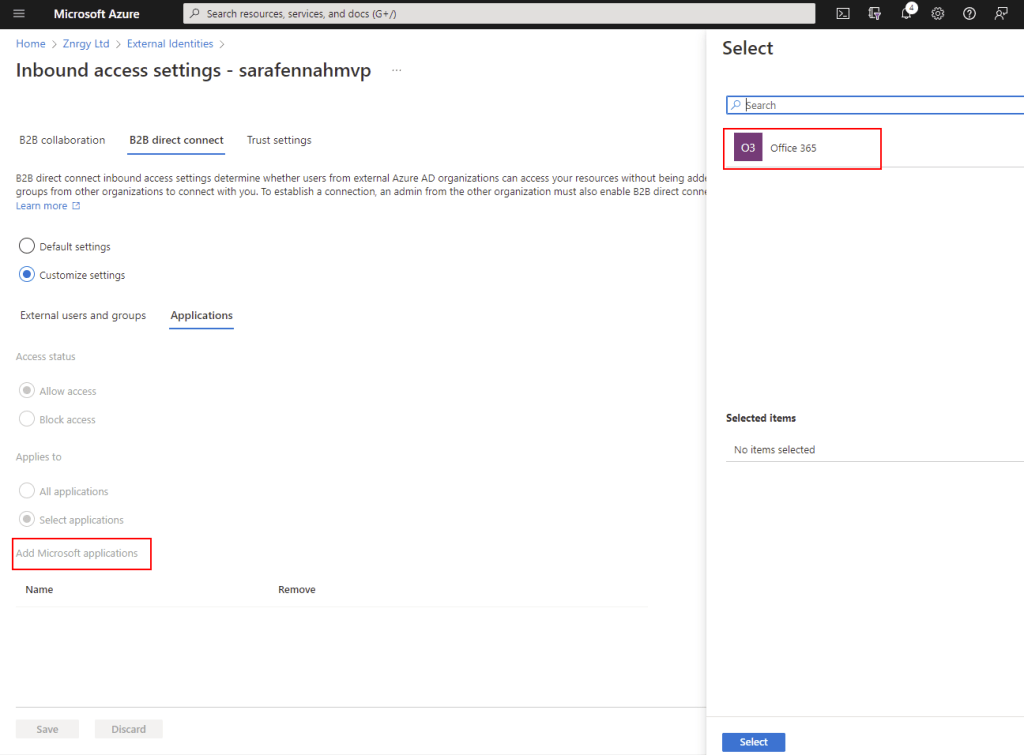
Under B2B direct connect for both External users and groups and Applications select Customize settings and choose Allow access on both for either All users or selected users/apps. For Teams Shared Channels, if you choose selected applications you will need to add Office 365
Verify Trust settings. The exact configuration is not specified for Shared Channels. In terms or barrier to usage, I would recommend enabling Trust multi-factor authentication from Azure AD tenant as a minimum to reduce sign in and authorization friction for external users in shared channels.
Step 2 – Teams Update Policy
To use Shared Channels curing preview, users will need to be allowed to use Teams Public Preview. For details about enabling and using public preview see this article on Microsoft Docs.
Step 3 – Teams Policy for Channel Settings
For testing purposes it is recommended that you create a new Teams Policy which can be assigned to selected users for testing. The following script will create a policy called Creator which permits the use of Shared Channels.
If you are using a test tenant, you may wish to set the default Global policy to allow Shared Channels using:
Set-CsTeamsChannelsPolicy -Identity Global -AllowSharedChannelCreation $true -AllowChannelSharingToExternalUser $true -AllowUserToParticipateInExternalSharedChannel $true
You will then need to assign the policies to appropriate users. For details on the various methods of assigning Teams policies to users, please refer to this article on Microsoft Docs.
Once the settings appear in the Teams Admin Center, to permit shared channels the policy should be configured as follows:
Below is a screen shot of the script file I used preparing this article which you can download below.
For a while now we have seen many marketing and briefing images showing Viva Topics in Microsoft Teams, but there has not been an app, we can switch on.
“Transform your Topic Center into an app in Teams, by using your Topic Center URL by using a simple script available at https://aka.ms/TopicsApp“
The link takes you to the download for the original Viva Connections app install script. This means you are actually using the PowerShell Script from the first release of Viva Connections to create a Topics app in Teams. For anyone who ran the PowerShell script to create the v1 Viva Connections app, this process will be familiar. However this time you will be providing details for your topic center.
This is actually a nice easy way to deploy a web page as a Teams App. As the script provided by Microsoft, generates a full app manifest which includes recognising the user signed in to the Teams application.
Prepare
Extract the downloaded zip file to access the PowerShell script and also the ReadMe & License file.
When you run the script, you will be asked for the following information, so gather it ready:
Name – The name of your app, as it should appear in Teams app bar
App short description – A short description for your app which will appear in Teams app catalogue (max 80 characters)
App long description – A long description for your app which will appear in Teams app catalogue (max 4000 characters)
Privacy policy – The URL of the privacy policy for custom Teams apps in your company. Can be left blank (press enter to move on) and the default SharePoint privacy policy from Microsoft will be used.
Terms of use – The URL of the terms of use for custom Teams apps in your company. Can be left blank (press enter to move on) and the default SharePoint privacy policy from Microsoft will be used.
Organization name – Your organization name. This will be visible on the app page in Teams app catalogue under “Created By”.
Organization website – URL of Your organization’s public website. This will be linked to your company’s app name on the app page in in Teams app catalogue in “Created By” section.
Icons – You will need to upload two PNG icons which will be for the app icon in Teams; a 192X192 pixel coloured icon for Teams app catalogue and a 32X32 pixel monochrome icon for Teams app bar.
Running the Script
You can also run the script directly from Windows Explorer, from the right click menu.
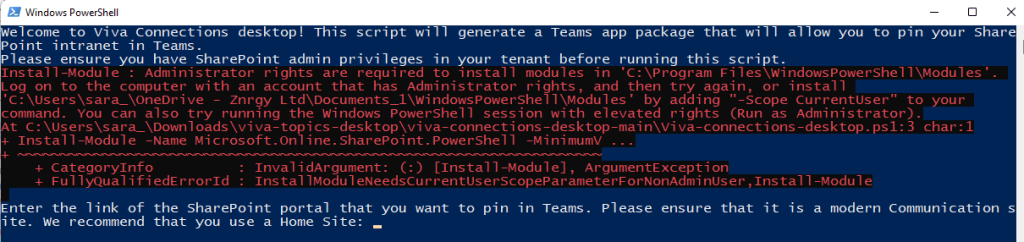
This will run without admin rights on the computer, so you will see an error installing the PowerShell module. If the SharePoint Online module is already installed you can simply continue and ignore the error.
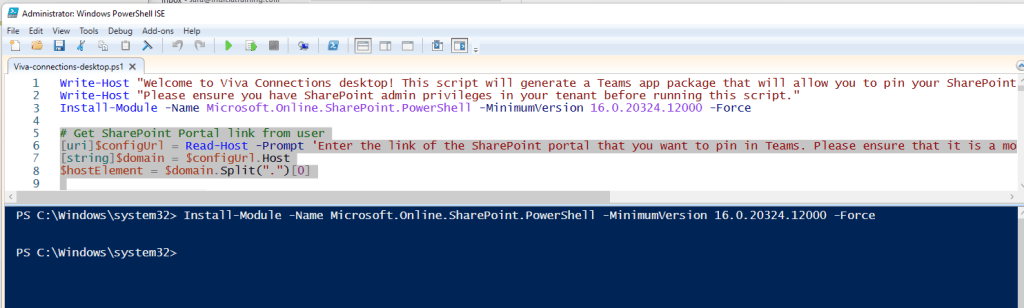
As I am running the script in PowerPoint ISE, I ran line 3 first then highlighted the remainder of the script to run that.
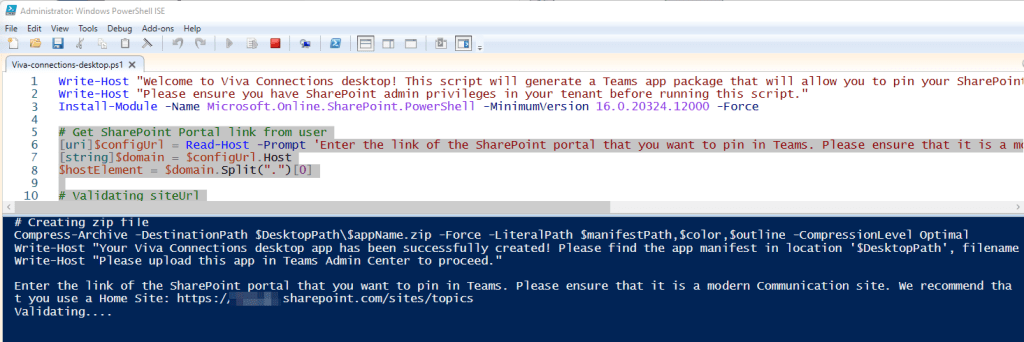
Prompt 1 is for the URL of the site. The script does ask for the home site, but as we are using it for Viva Topics, you should enter the URL of your Topic Center here.
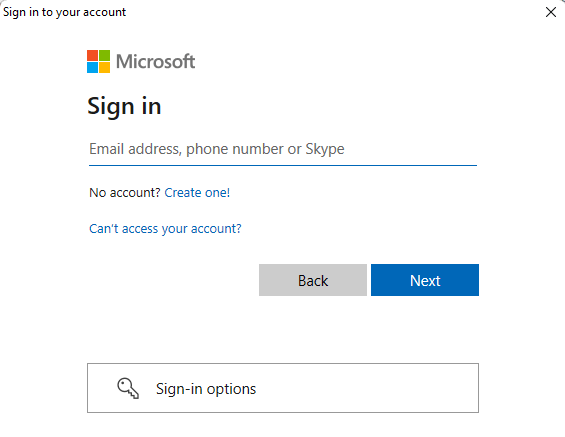
Press Enter to continue and log in when prompted. You will need an account with SharePoint admin rights, as the PowerShell you are running needs those permissions.
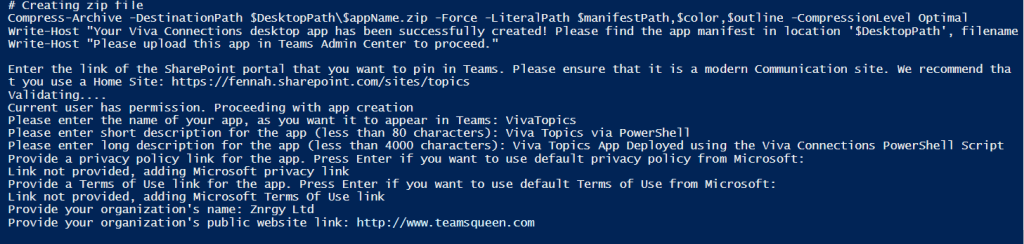
Next enter the name of your app and press enter. Spaces are fine, but I decided to go without, so that if we get an official app in future, this one is subtly different.
Next enter your short description for your app. This needs to be under 80 characters including spaces. This will be the description in the Teams app store.
Next enter your long description for your app. This needs to be under 4000 characters including spaces. This will be the displayed in the Teams app store.
You now need to provide the URL for a privacy policy in relation to this app. If you leave it blank and press enter the default Microsoft provided policy will be used
You can do the same for the Terms of Use. Here you can see both were left blank and the Microsoft provided policies were used.
Enter your company name for Organization. Again this is a good way to differentiate if we get an official app in future.
You MUST provide a publicly available website in this next step. I’ve used this blog in this example
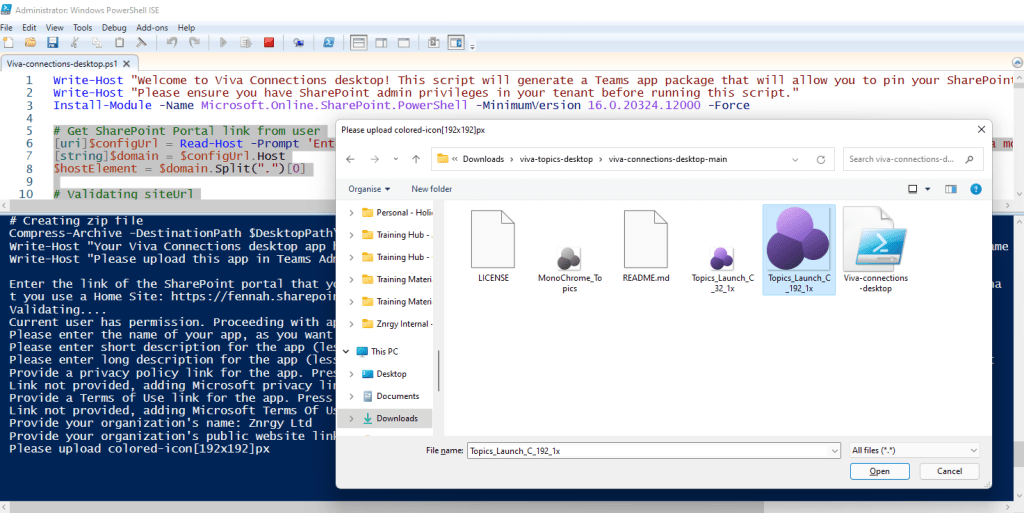
Finally you can upload the icons. The colour icon will be used in the Teams App Store. I’ve used the Viva Topics logo here, but would suggest you use a custom logo to avoid confusion with any future official app. It is also easier to create the MonoChrome version.
Here I’ve used a greyscale version of the logo reduced to 32×32 pixels. However, ideally you want white outline. If you do not have graphic designers available the symbols in Microsoft Office make great icons!
The final step will let you know where the app manifest zip file has been created. Make a note of this before closing the PowerShell window
Deploying the App in Teams Admin Center
To add the app for your users, you need to upload. You can add apps in a number of ways, but to make available for all your organisations users, you should upload via the Teams Admin Center. Top deploy the new app, go to Manage Apps and choose Upload
Select Upload on the next dialog
Locate the package and select Open
In the New app added box follow the link (text is this link) to view the properties for the app you have just added
Ensure the app is set to Allowed
Now your users can add the app themselves or you can add the new app into an App Setup policy and deploy to your users by default. In the appropriate app set up policy you will need to install and pin the app for it to appear by default.
When users nest open teams they will see a message informing them of the changes to their apps
They can then locate and use the new app you have deployed.
Teams Developer Portal
An alternative method to deploying in the Teams admin center directly, which also allow you to make any additional edits to the app is to load the app manifest package into the Teams Developer portal at https://dev.teams.microsoft.com/
Select Apps
Choose Import app
Located your app package and choose Open
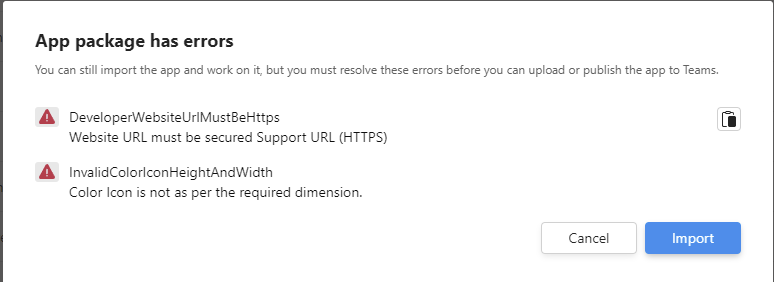
If there are any errors with your app you will be shown these errors, but you can still Import and then fix before deploying.
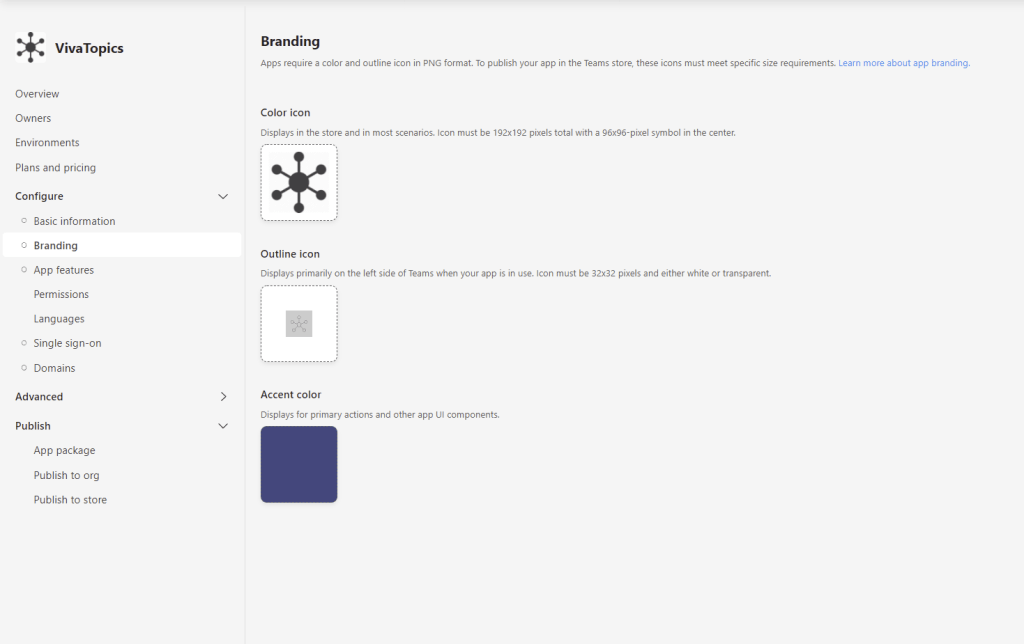
The app properties will load and can be edited
For example here you can see that I have elected to change my app icons. To do this I also needed to update the version number shown in the image above on the Basic Information page
Then select Publish and choose to Publish to your org
Choose Submit an app update
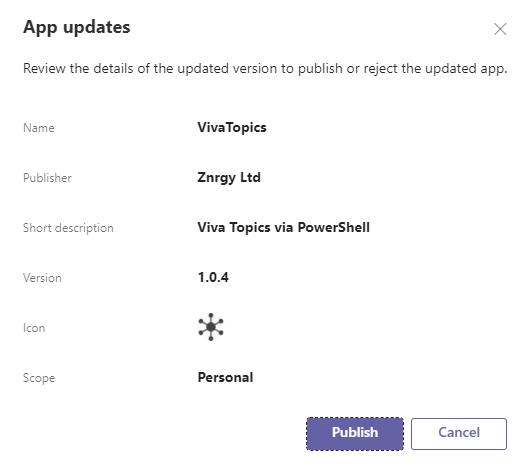
Once it has published you will need to approve the update from the Teams Admin Center, so locate your app in Manage apps and open the app page by clicking on the name
Select Publish update to push out to your users
Confirm by clicking Publish
When your users next start Teams they will have the new app.
Teams Panels are designed as meeting room companion devices to show when meeting rooms are booked, what meeting they are booked for and to allow for ad-hoc bookings. After the family complained that my existing busy light solutions didn’t let them know what I was working on to decide if they could interrupt, I decided to see if the panel might work.
My Conclusion
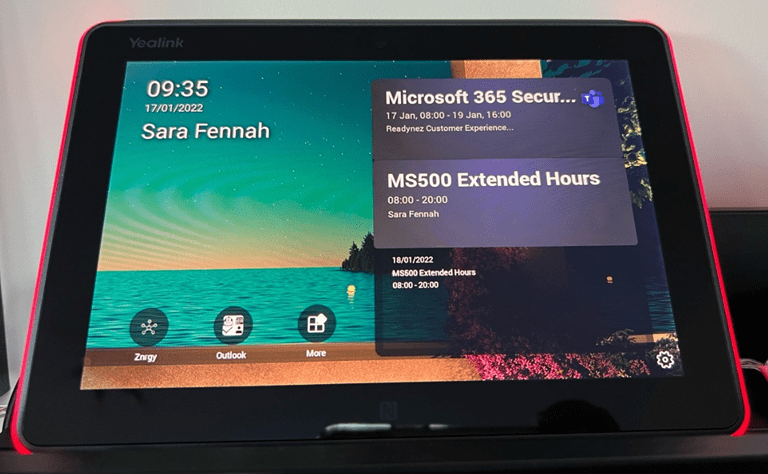
Teams Panel showing current meeting, current date and time with username
It’s a neat solution to display your schedule outside the room BUT it doesn’t respond to status changes, so not the whole answer.
A Bit More Detail
Let’s look at how you can set up a Teams Panel as a personal device and then consider the pros and cons.
I purchased and am using the Yealink RoomPanel (details here)
Step 1: Admin Preparation
Before you even have a device you can configure the device configuration profile in the Teams Admin Center. This is not essential. If you do not configure a profile the default settings will be used or the settings can be configured on the device itself. No additional licenses are needed to use the device as a personal device.
General and Device Settings Sections in Teams Panel Configuration Profile in Teams Admin CenterNetwork Settings Section in Teams Panel Configuration Profile in Teams Admin Center
Step 2: Unpack and Power Up
Using the supplied power adapter, plug in the device and power on. It’s best at this point to also connect an wired internet connection. If your ethernet cable is PoE (Power Over Ethernet) you can dispense with the power supply. I wanted my panel to use WiFi after set up, so I started with both power and ethernet.
Team Panel powering on showing Yealink logo
Step 3: Device Set Up and Login
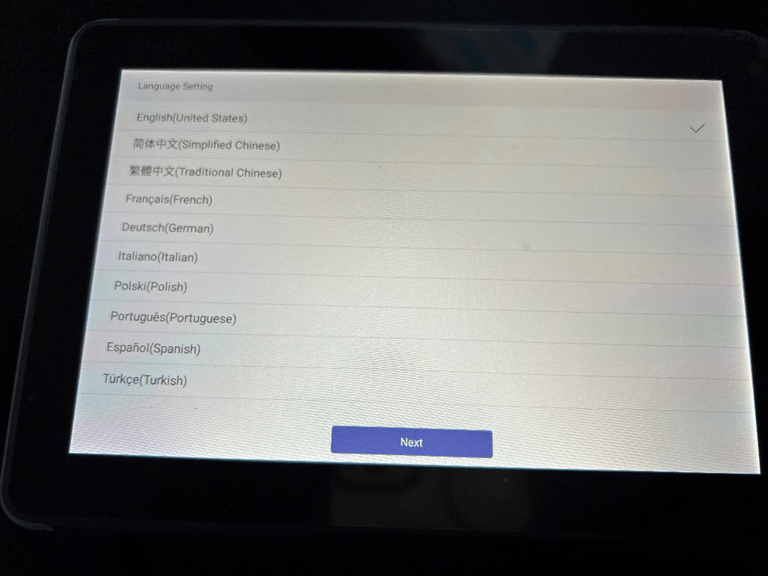
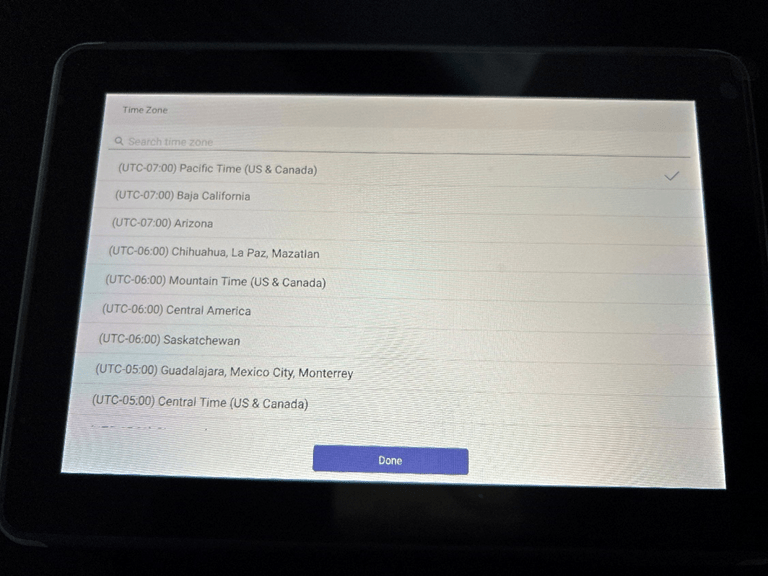
The device has a series of screens to set up. Choose the language and then time zone.
Teams Panel showing Language Setting OptionsTeams Panel showing time zone options
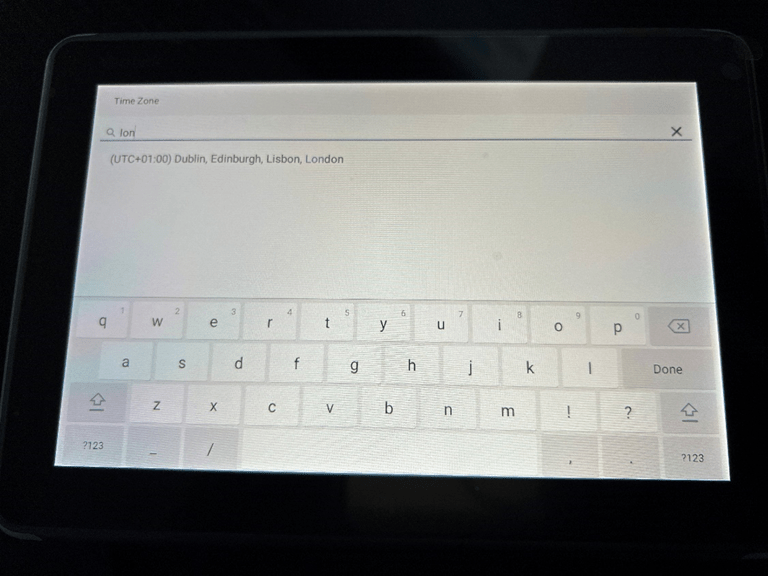
I really like the way you can search for the time zone.
Searching for London time zone by typing “lon” on the time zone options screen
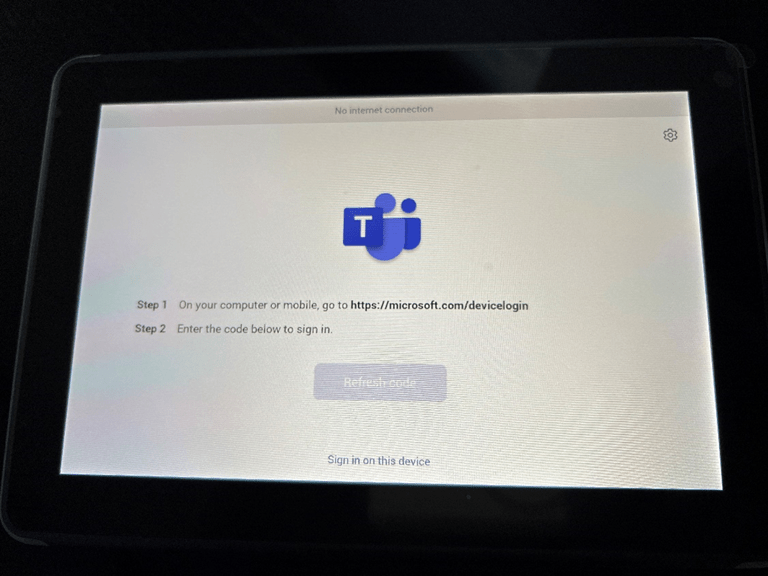
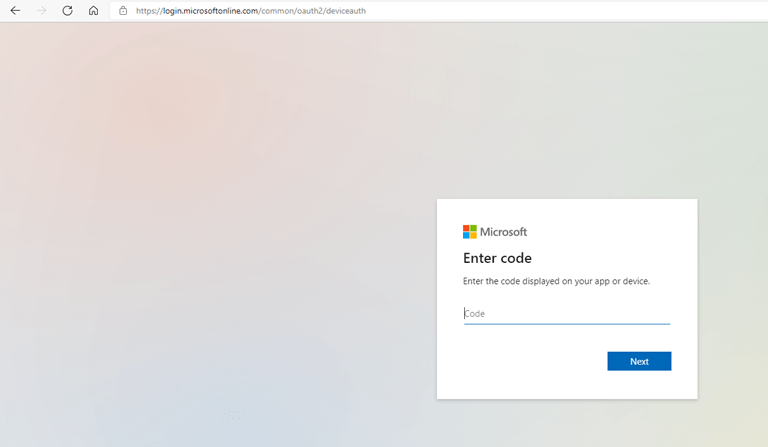
Then you need to sign in. You can sign in on the device or wait for the code to come up on screen and use the device log in on a different device via the website https://microsoft.com/devicelogin
Teams Panel showing device login screenDevice login portal in the web browser showing entry box for device code
Here you can sign in with a personal account, the same as you use with Microsoft Teams on any other device. No additional licenses are needed to use the device with your account. Once signed in wait for the login process to complete and your calendar will load.
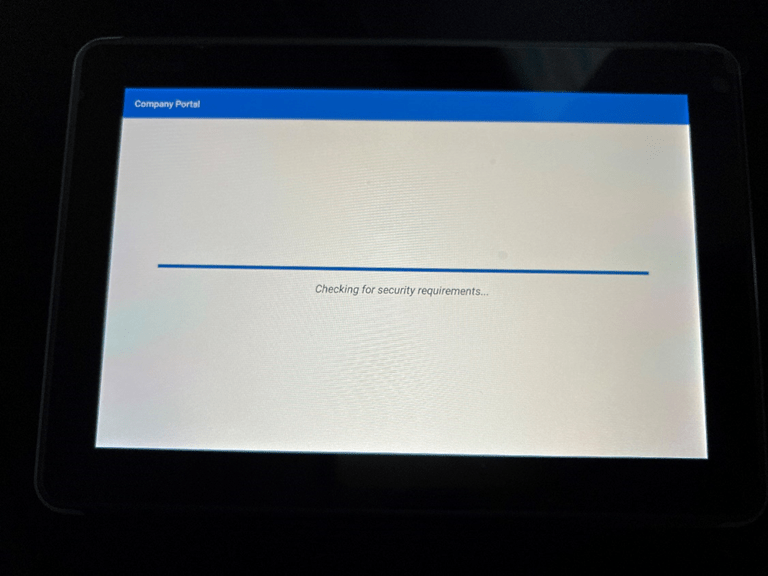
Teams Panel showing Company Portal screen whilst signing in. In this image the configuration is checking for security requirements
Step 4: Custom Configuration
As an administrator you can sign in to the Team Admin Center, and assign a configuration profile to the device as soon as it shows in the Panels section of Devices.
If you are not assigning device configuration you can configure settings on the device. There are some settings such as LED Brightness for the status light which can only be configured on device and not in the configuration profile.
To assign a configuration in the Teams Admin Center:
Navigate to Devices and Panels
Select the panel to apply the configuration to
Select the Assign configuration button
Search for the require configuration and Apply
Teams Panel with settings cog in the bottom right hand corner of the display highlighted
To edit the settings on the device:
Tap settings cog
Navigate the menu to find the chosen settings
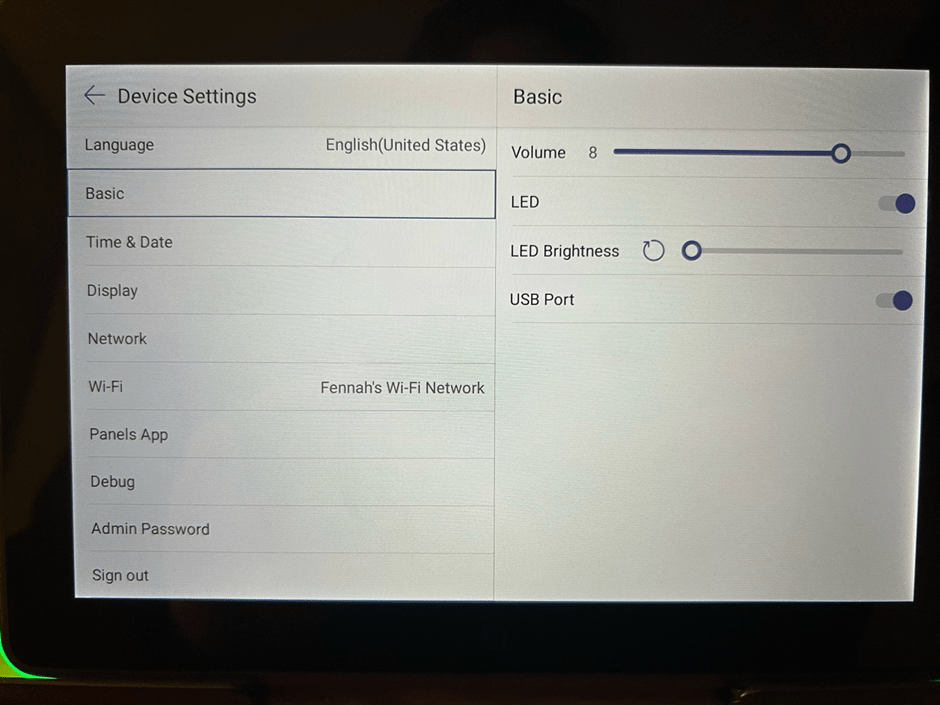
For example under Basic you will find the LED brightness settings or you can choose the link WiFi options to switch to WiFi. For both you will need the device admin password, which is one setting you can set with the configuration profile.
Teams Display showing Basic options including LED brightnessTeams Panel Panel app settings screen
You can also connect a device via the panel app settings. This may solve my issue with the light not changing with status in Teams app, but I do have issues with this for some reason with my account and haven’t yet managed to get the panel to find my computer.
Using the Device Day to Day
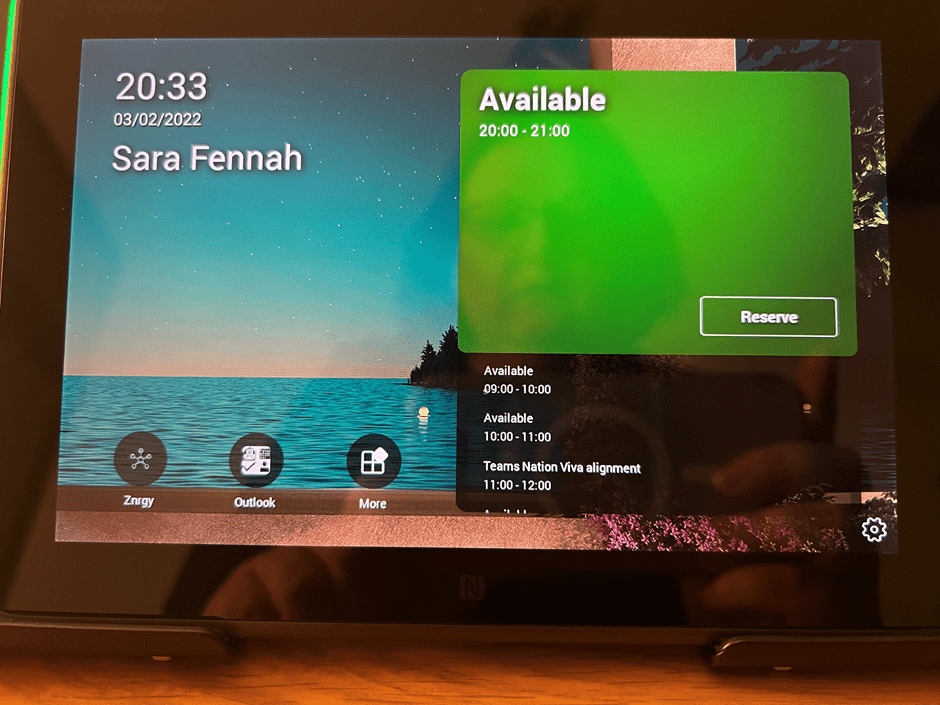
Sitting outside my home office the device now shows my calendar and even allows people to reserve the current slot in my diary, by tapping Reserve
Teams Panel with Reserve option
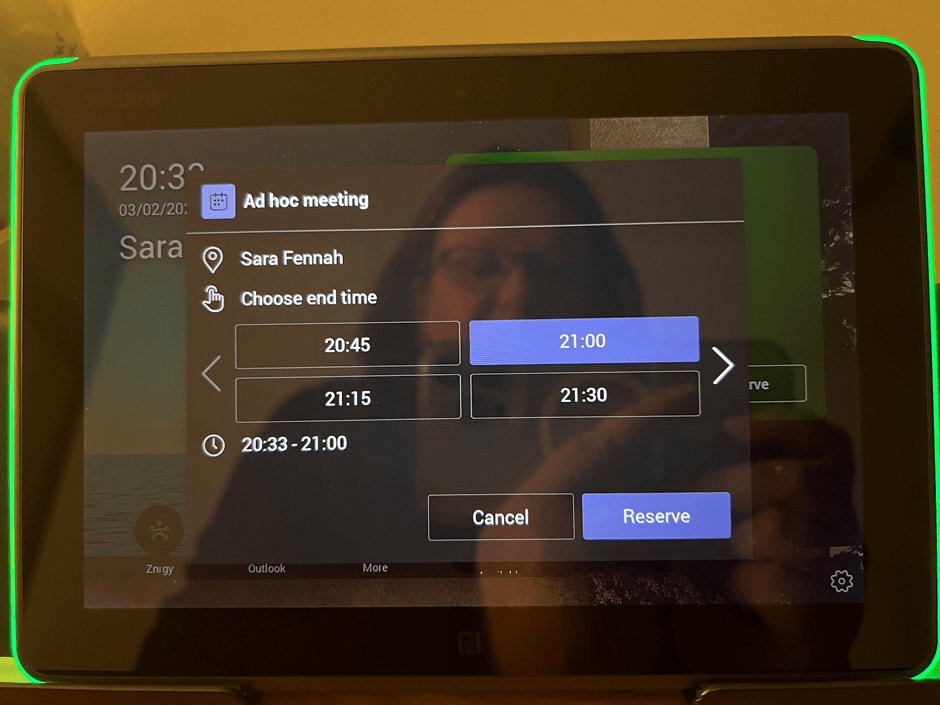
Choosing the required end time, then tap Reserve again
Teams Panel showing end time selection
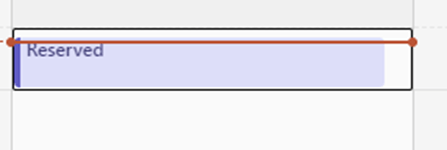
Which then pops into my calendar and turns the LED on the panel to red.
Appointment in Teams Calendar
Wish List
Two things would makes this the ultimate home office or executive office busy light
If the LED responded to my Teams status
If the panel could be used to book times in advance with ability to edit the name of the meeting. Though I guess we could use the Teams app on a mobile device to create a meeting invite whilst stood outside the office.
The new compact mode in Microsoft Teams, let you see more of the conversation in one Screen.
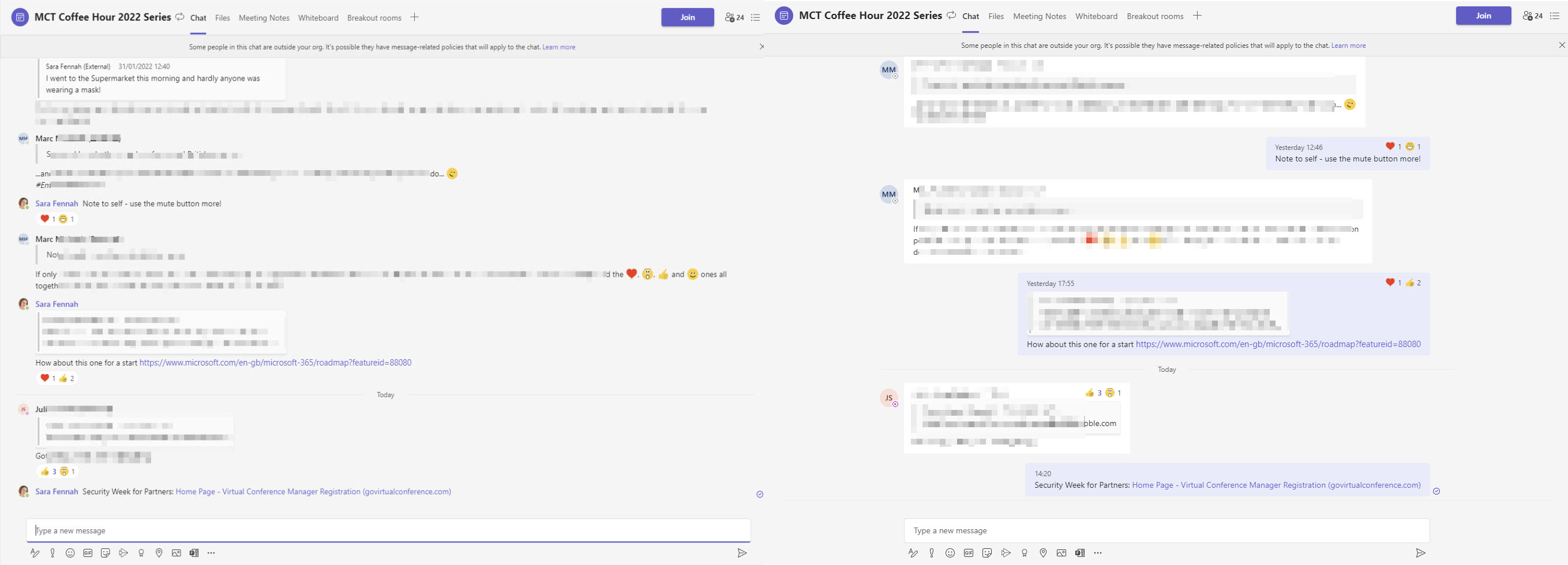
Here you can see both side by side. I’ve used the same size window and the same chat so you can see some of the differences. Now I know it’s not the easiest to see in this image unless you have a giant screen, but the comparison will give you an idea of how many more messages are shown in the compact mode.
Showing the same chat side by side with 8 messages visible in Compact and 6 in Comfy. Actual messages are blurred
Apart from being more tightly packed you will notice that in Compact mode the reactions are displayed under the message and that your own messages no longer right align, but do have your name on them.
Compact mode showing compressed display. Actual messages are blurred
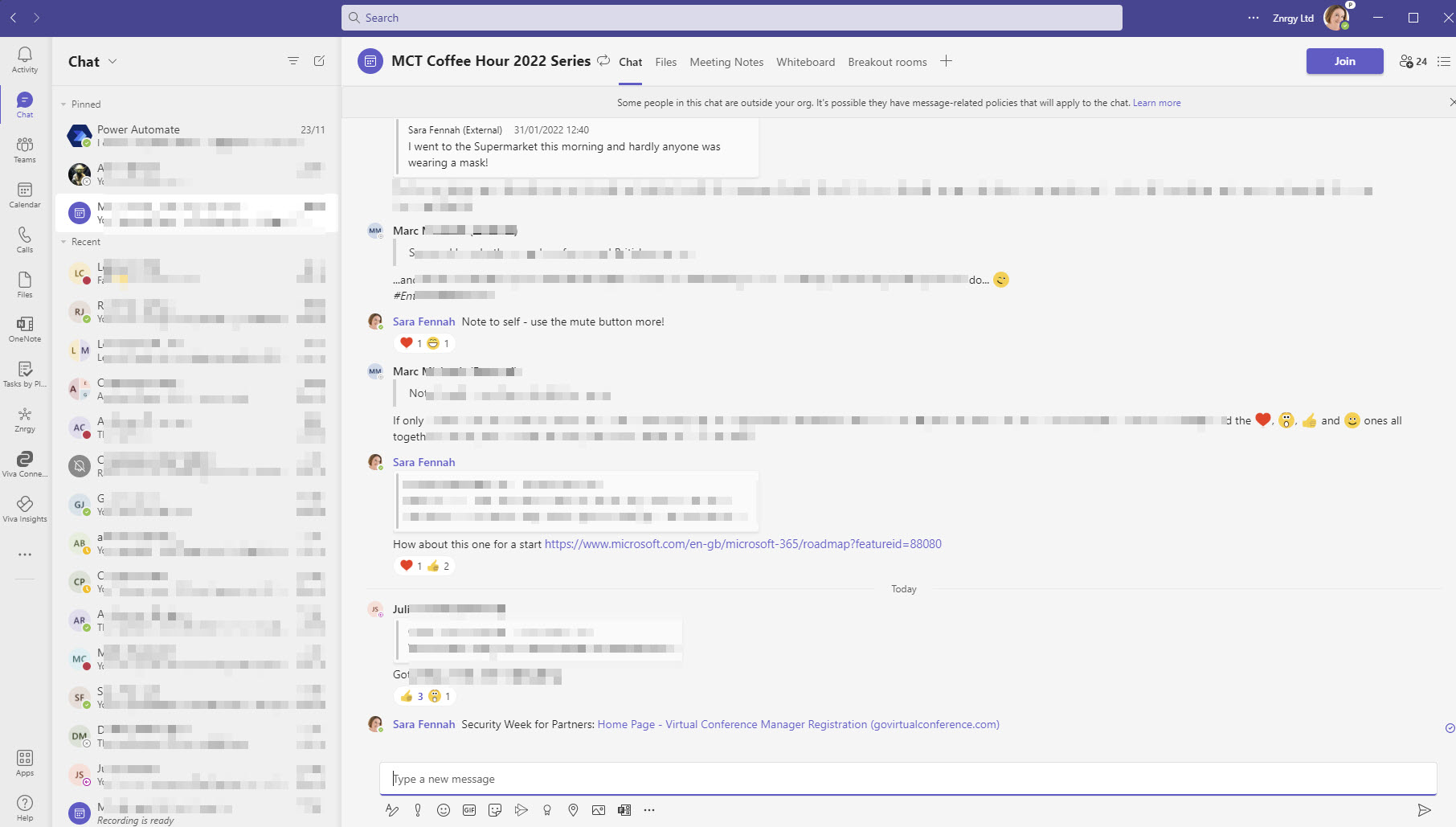
Compare this to the standard or Comfy mode
Comfy mode showing standard display. Actual messages are blurred
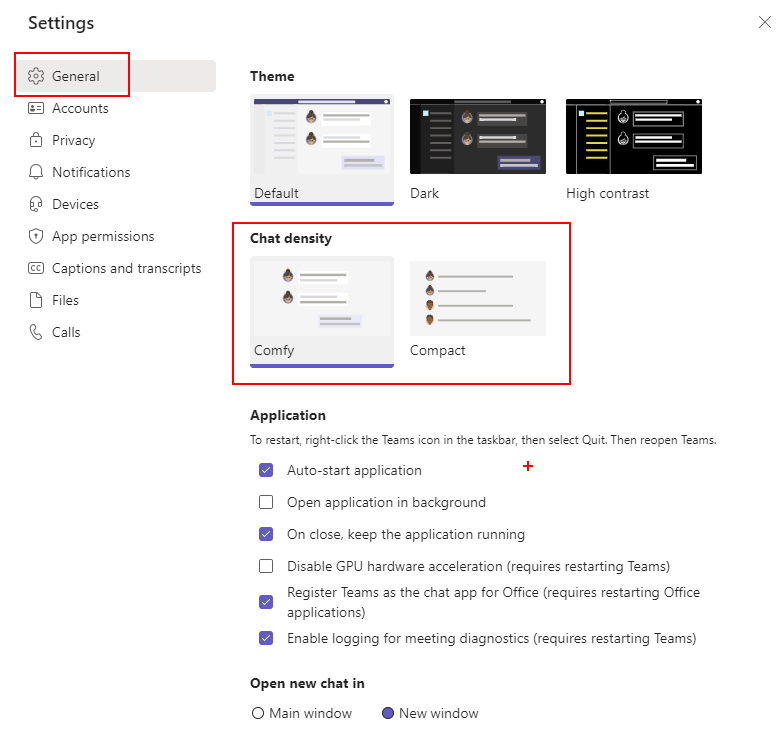
To switch between the modes in Teams got to … menu on the title bar and choose Settings then in General choose your chat density.
General Setting screen with Chat Density options, Comfy & Compact highlighted
As at January 27th 2022 the hide my camera option is rolling out in public preview, so if you don’t have the feature yet, it will be coming soon to a Microsoft Teams app near you. This is going to be a great tool to help avoid distractions in meetings and virtual training events, especially when combined with the Focus on Content view.
Distractions in virtual/hybrid meetings and training courses are a big pain point, so make the most of these tools to help you get the most of the event. These features are in both Microsoft Teams meetings and webinars, not Live Events.
Hide Your Own Video
The purpose of the Hide My Camera feature is prevent you needing to have you own video visible and potentially blocking shared content too.
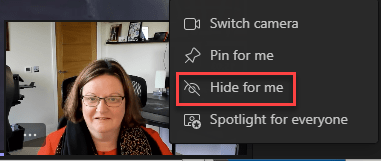
To hide you camera either click the … button on your video thumbnail or right click in your video thumbnail and choose Hide for me
Video thumbnail context menu with Hide for me option highlighted
Once hidden your video will minimised to show only the very top portion of your video. It’s not completely hidden so you do not forget you are sharing your video.
Minimised video. Has up arrow icon to expand
Focus on what you want to see
But it’s not just your own camera that is distracting. It is also the other meeting participants. You can pin the presenter(s) using the Pin for me feature, and then hide all other attendee cameras using the Focus on content view.
To pin a meeting participant either click the … button on their video thumbnail or right click in their video thumbnail and choose Pin for me
Participant video thumbnail context menu with Pin for me highlighted
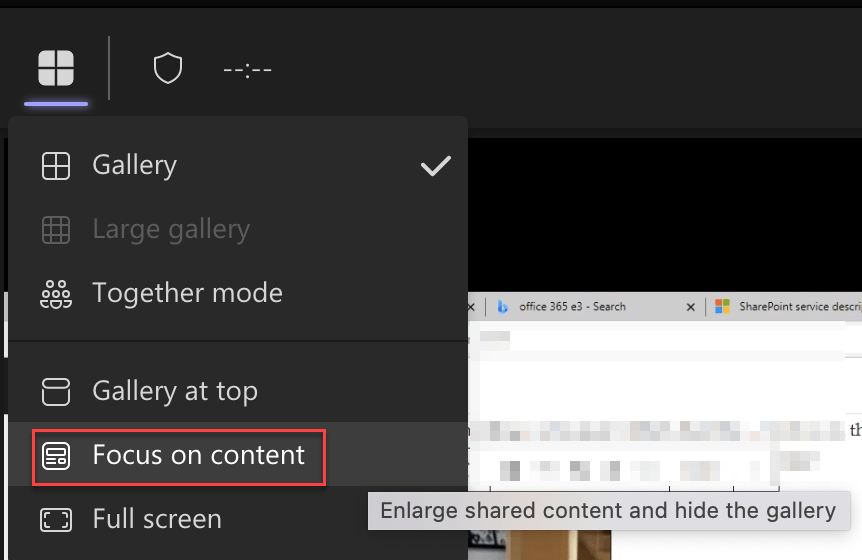
Then with the videos you wish to see pinned, choose Focus on Content from the view switcher in the top right of the meeting window. You will then see only the pinned participants and any the shared content.
View Switcher menu with Focus on content option highlighted
You do not have to pin a participant to use Focus on content if you prefer to just show the shared content.
But also, …
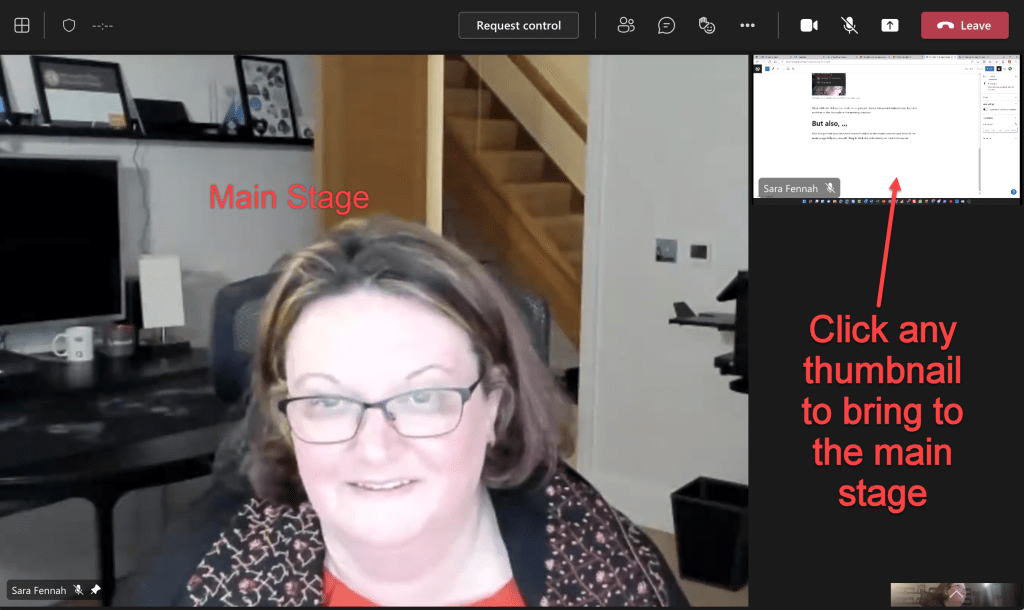
Don’t forget that you can select anyone’s video or the shared content and make it the main image for just yourself. Simply click the video feed you wish to focus on. When you want to change to a different focus perhaps back to shared content, click that video instead. Just a simple single click on the thumbnail of what you want to see full screen.
Teams meeting showing participant video in main stage (main part of the screen). Click any of the video thumbnails to bring into the main stage.
And there is also the Spotlight feature which bring the chosen video to the main stage for everyone.
Participant video thumbnail context menu with Spotlight for everyone highlighted
For Trainers/Presenters
If you are a trainer or a presenter, I’ve put together a slide to use at the start of your event showing participants how to use these features. Download below⬇️
There is a new feature rolling out to Teams to allow you to mute most Teams notifications when you are in a meeting or on a call.
You can either switch it on for all meetings on on a meeting by meeting basis.
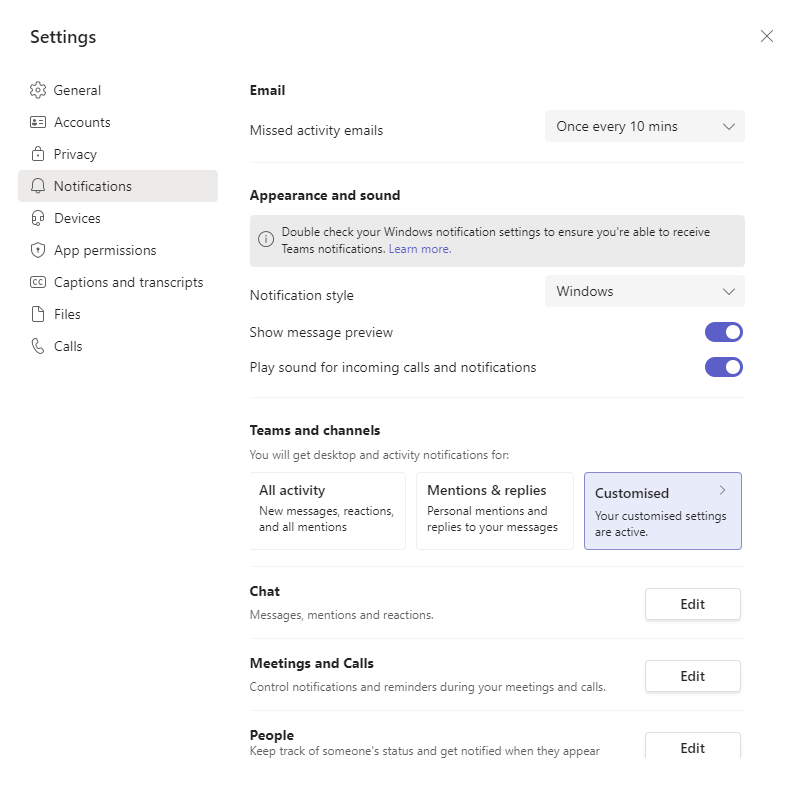
To mute for all meetings and calls go to Settings, choose Notifications then click the Edit button next to Meetings and Calls, you will then see the screen below where you need to switch the toggle to on for Mute notifications during meetings and calls
Meeting and Calls notifications screen showing the toggle to mute notifications
To mute notifications in a single meeting, open the menu from the … on the meeting toolbar and choose Mute notifications.
Meeting menu with Mute notifications option highlighted
As I regularly work as a guest in different tenants, and when training mostly need meeting notifications on, I have found the per meeting option the best for me.
All notification settings are per organisation, so if you do find yourself switching tenants (organisations) a lot you should either use the per meeting setting or change the notification settings in each organisation.
Another tactic to consider is muting individual chats. This can be especially helpful when in a large meeting with an active meeting chat. To mute the one chat, go to the Chat app in Teams and locate the meeting chat then click the … on that conversation and choose Mute from the chat menu, as shown below.
Showing the chat menu with Mute option highlighted
If you haven’t already had a look at the notification settings in Teams, please do. Especially if you are downing in notifications a few simple changes could make them a lot more useful.
Start with the main settings menu from the … on the Teams app title bar and then choose Notifications.
Teams Settings dialog on the notifications screen
Next consider customising notifications in channels within each Team. For example, you could change the settings so that you receive notification from important channels for all activity and on busy channels for only items where you are mentioned.
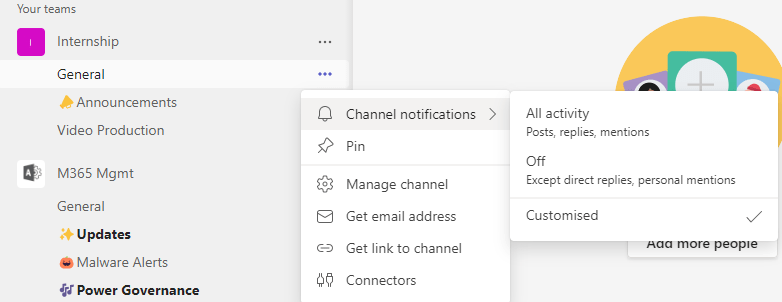
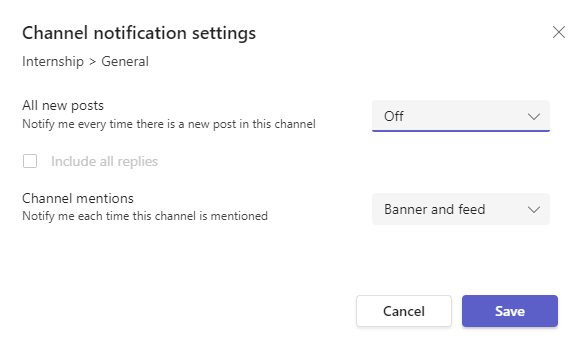
To edit notification settings for a single channel, from the … menu for the channel choose channel notifications and Customised then edit the settings. Or instead of Customised you could choose All Activity (for notifications of all activity) or Off (for no notification except direct replies and mentions using your name)
Showing channel … menu with Channel notifications selected to display sub menu options of All Activity, Off and CustomisedCustomised channel notifications dialog box showing options to switch on or off all notifications for all new posts, plus tick box to include replies. Second setting in this box is Channel mentions with options to notify via banner and feed selected.
For accessibility, I have included descriptive image captions in this article, rather than alt text. I hope to make the image descriptors available to all in this way. However I do not use a screen reader. If you do, please let me know if this works well or not.
As we approach 2 years of intensive virtual meetings, the debate about cameras on or cameras off still rages on. This is especially true with virtual training and I’ve had numerous debates about requiring cameras for attendees.
As a trainer, I can give a better delivery if I can ‘feed’ off those attending the course. This includes questions and debates but also facial expressions and body language. One of the most challenging things in the virtual training world is training a group of “circles” where everyone had their cameras off, as you loose that visual feedback.
Yet, when you look at it from the other perspective, it can be even more draining to be on camera all day, especially when you have to look at yourself too and are aware that the other course attendees are watching you too. Plus those other attendees can be very distracting when you want to focus on the presenter.
Fortunately Microsoft Teams has several new features coming which will help improve the situation for all parties.
Hide your own camera
Unless you enjoy looking at yourself, seeing your own camera feed in meetings can be very draining and distracting. This update, due Jan, will allow you to hide your video. The only issue may be that you forget you are on camera, so look out for the visual indicator (a cropped part of your own video image) which will show that your camera is on which will roll out with this new feature.
Manage what attendees see
This update is due January 2022 and, although full details are to be confirmed, should allow us to limit attendees to viewing specified presenters and shared content. Hopefully presenters will still be able to see anyone who is allowed to share their camera.
I am concerned this feature will not go far enough and I would like the ability to set meeting options to hide all attendee cameras but not disable them. Hence I added this feedback item
Virtual Reality Meeting and Avatars
Microsoft Mesh will bring virtual reality meetings and avatars to Microsoft Teams. You can read more about it in this article.
I think the avatars, especially, will be very helpful in the virtual training space. For the days when you do not want to be camera ready, your avatar will mimic your movements and facial expressions. Whilst this wont give the same visual feedback as a proper video it is better than no faces and will help remove some of the pressure and anxiety being on camera continuously can cause.
If you are an iPad or iPhone user, try out the Memoji video messages to get an idea of how avatars can reflect a person’s reactions and expressions. More info on Memojis is in this help guide.
As of 8th December 2021 update the Teams Display supports portrait mode for Meetings and calls, as shown in the extract from Message Center post below.
Message Center post 302457 stating Teams Displays support Portrait mode in Calling & Meeting Screens
You will note that this is only for Calling and Meeting screens. I’ve been eagerly awaiting this release, so I thought I needed to try this out, as the camera position in the Teams Display is a weak point for me. Even though it is situated on a shelf on my desk, the camera is till a little low.
As my display does not support screen shots, I’ve used photos of the device. I’m not a photographer.
Conclusion: Nearly solves the limitations of the smaller Teams Display device, but really needs to be for all areas, not just meeting & calling.
After doing the update you will notice that most screens do not work in portrait mode, this includes the calendar, home screen, chat, teams.
Device in portrait orientation with calendar screen displaying in landscape mode
However as soon as you join or start a meeting/call with the device in portrait orientation, the device detects the orientation and rotates the screen automatically. Portrait mode is not really supported on the join screen, but it is still useable in either orientation.
Once in the meeting both Landscape & Portrait mode work well.