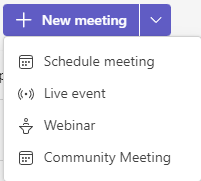
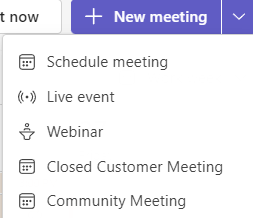
Meeting templates will help users create meetings with the correct settings in meeting options as the template applies those setting automatically. The meeting templates also help with governance as they enforce the meeting options set in the template. Templated meetings published to the user show up on the New Meeting button in the Teams client, which is what the Community Meeting option shown in the image below is.
Create a Meeting Template
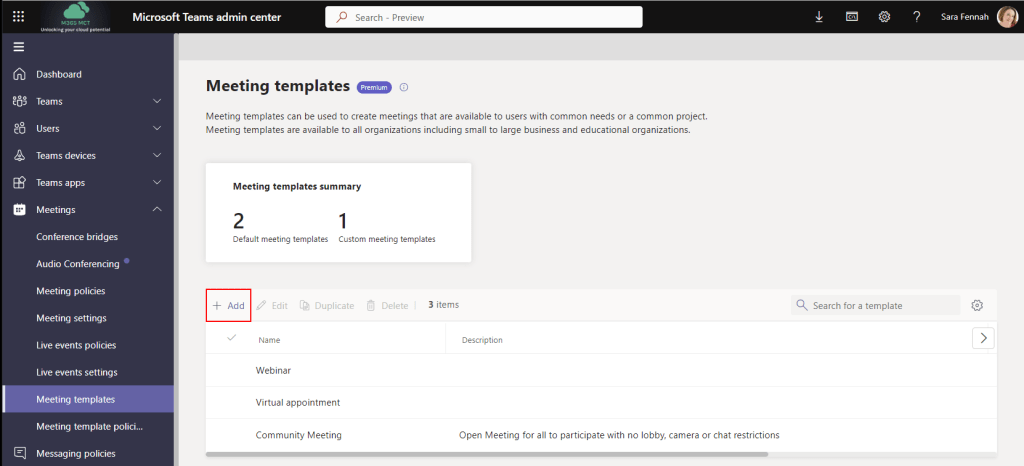
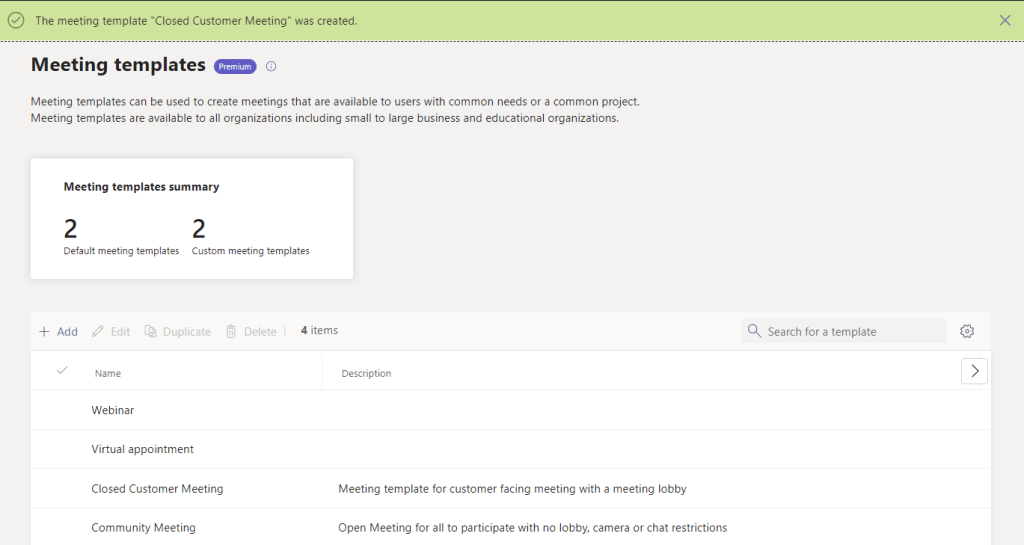
To create a meeting template, in the Teams Admin Center choose Meetings > Meeting Templates and select Add
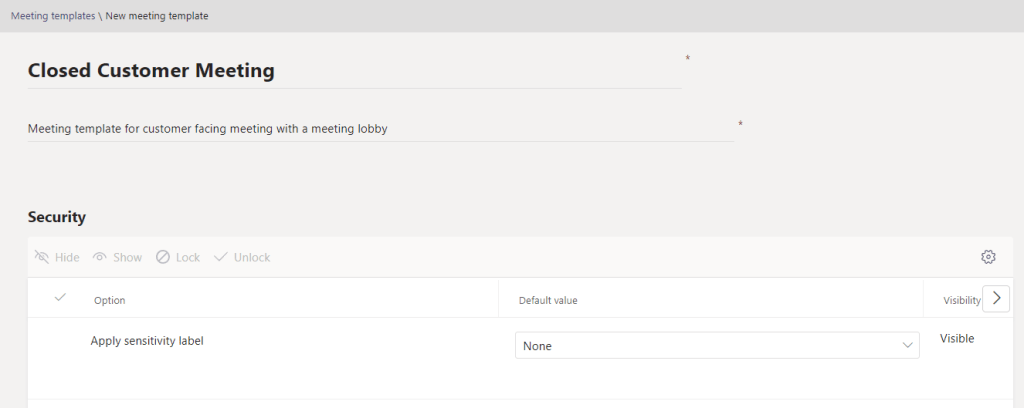
Add a name and description then select settings as desired, before saving the template. The normal restrictions on which options can be set in combination apply within the meeting template. e.g. Meetings using end-to-end encryption cannot be recorded.
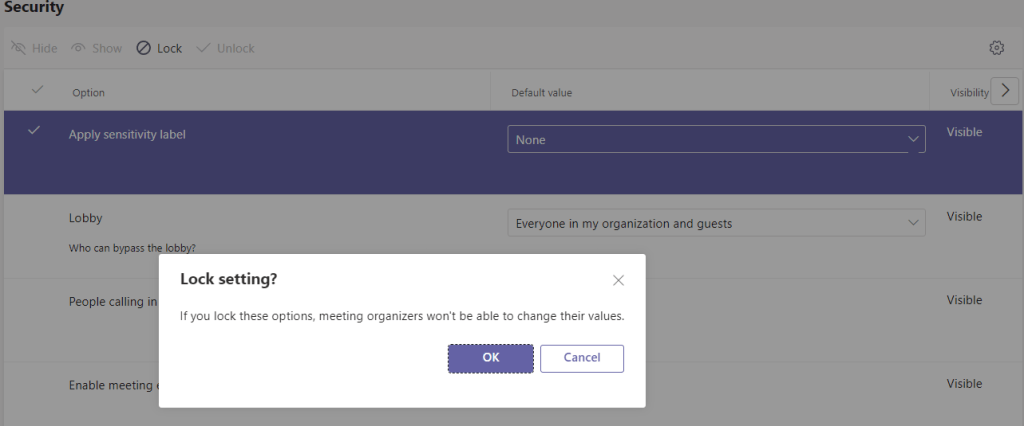
As well as configuring the default settings for each option, the chosen setting can be locked so it cannot be edited by the meeting organiser.
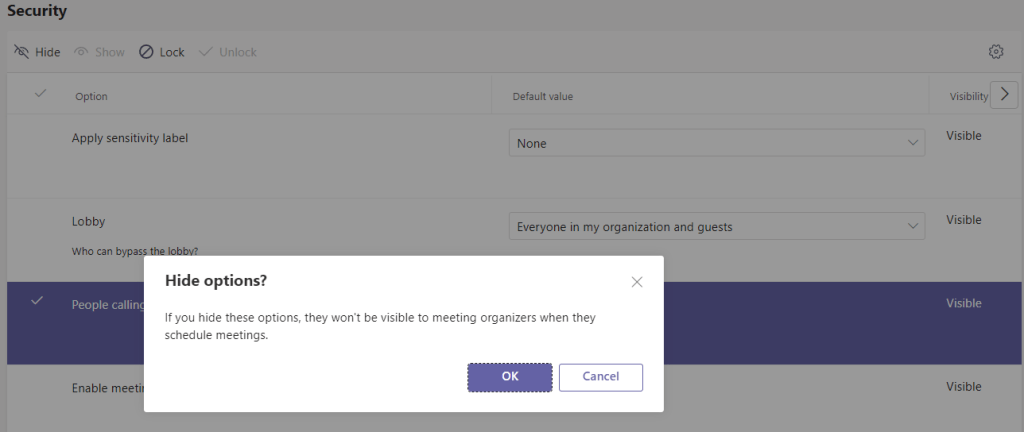
Some settings can also be hidden, effectively making them unavailable for users
Whilst hiding an option may seem like a good thing to do and minimise the options available to users, it can lead to confusion with users familiar with the meeting options and a lack of clarity as to the features available in the meeting. When users are aware that settings have ben configured for specific security or governance reasons this avoids the belief that there is a bug or problem.
Options are grouped into categories:
Security
Audio and Video
Recording and Transcription
Roles
Meeting Engagement
Security Options
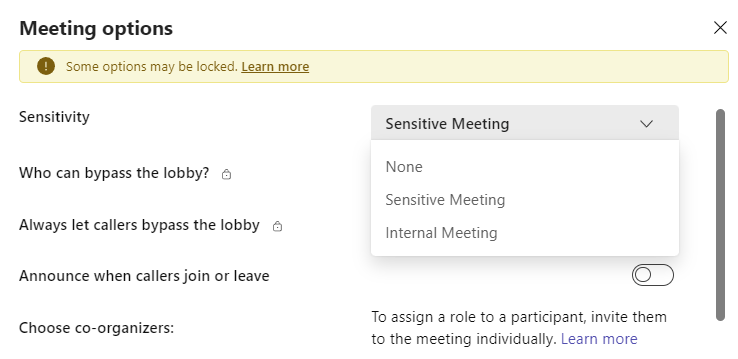
Applying a Sensitivity label to a meeting enforces settings for the other options and those options set by the label will be greyed out (unavailable to set, hidden or locked) in the meeting template.
Templates which apply sensitivity labels would be expected to lock the label in place, so it cannot be removed and the options altered, unless the label is a recommended setting. Sensitivity labels are created and managed in the Microsoft Purview Compliance Portal. Available labels will depend on the configuration of labels within your tenant. The sensitivity label option cannot be hidden, but can be locked once set.
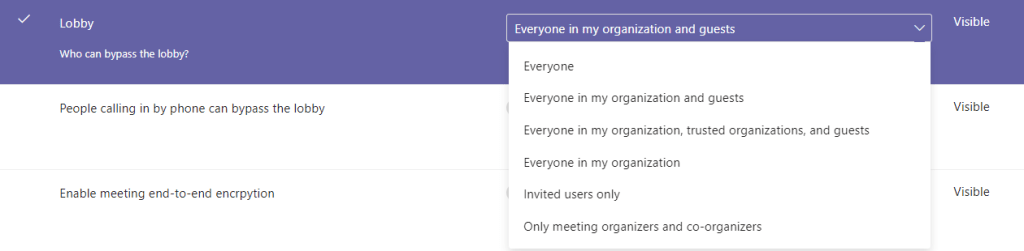
Lobby options include all the settings for the lobby in standard meeting options. This option can be hidden and also locked once set.
The option to permit People calling in by phone from bypassing the lobby is controlled partly by the lobby bypass setting chosen. If this option is set from the lobby bypass it cannot be locked nor hidden, if it can be set manually then it can be locked and/or hidden.
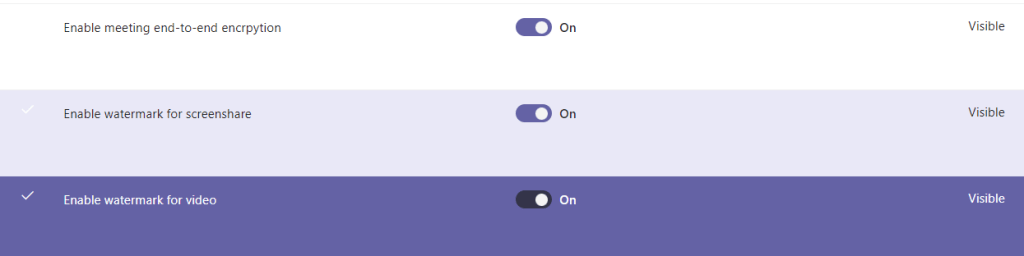
Enable meeting end-to-end encryption, watermark for screenshare and watermark for video can all be locked and hidden.
Audio and Video Options
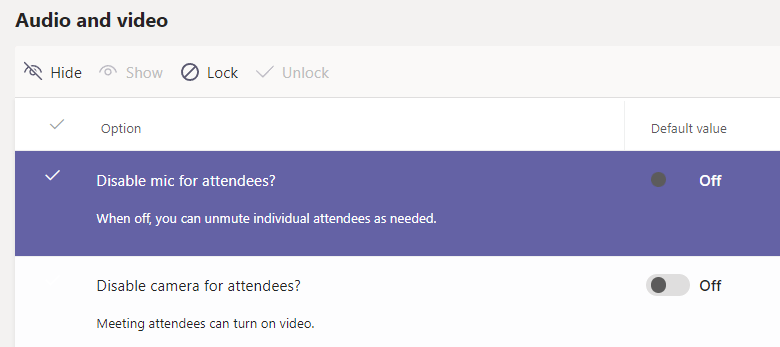
Both disable mic and camera for attendees can be locked and hidden in the template
Recording and Transcription Options
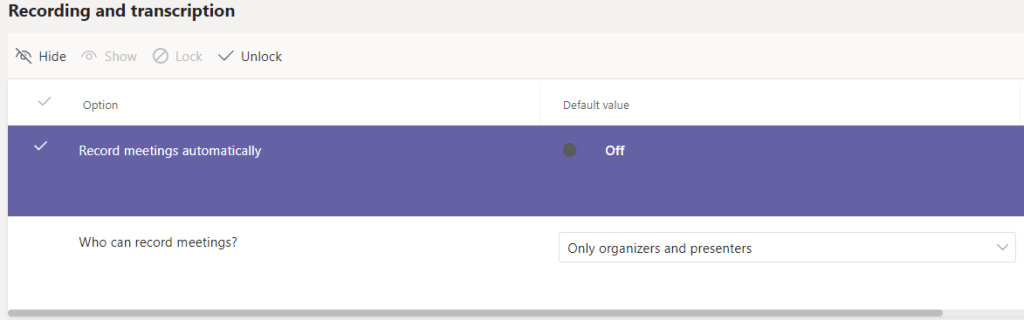
Recording and transcription options can both be locked or hidden.
Roles Options
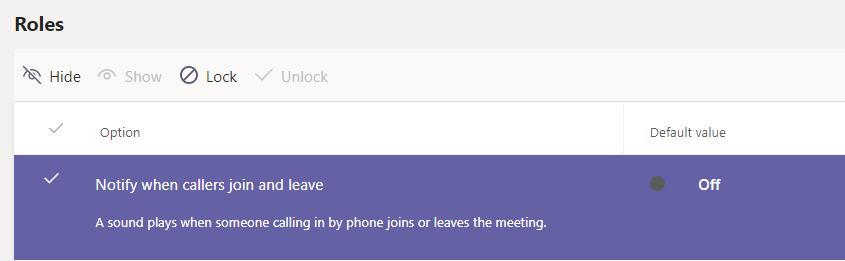
The caller join notification option can be hidden and/or locked.
Meeting Engagement Options
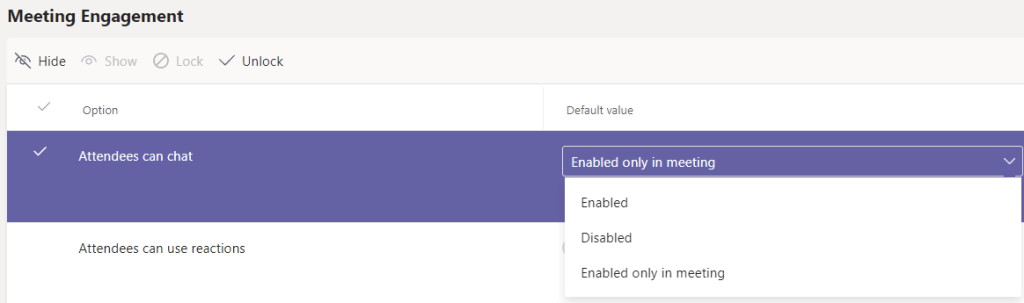
Attendee chat option includes standard chat availability settings and can locked and/or hidden.
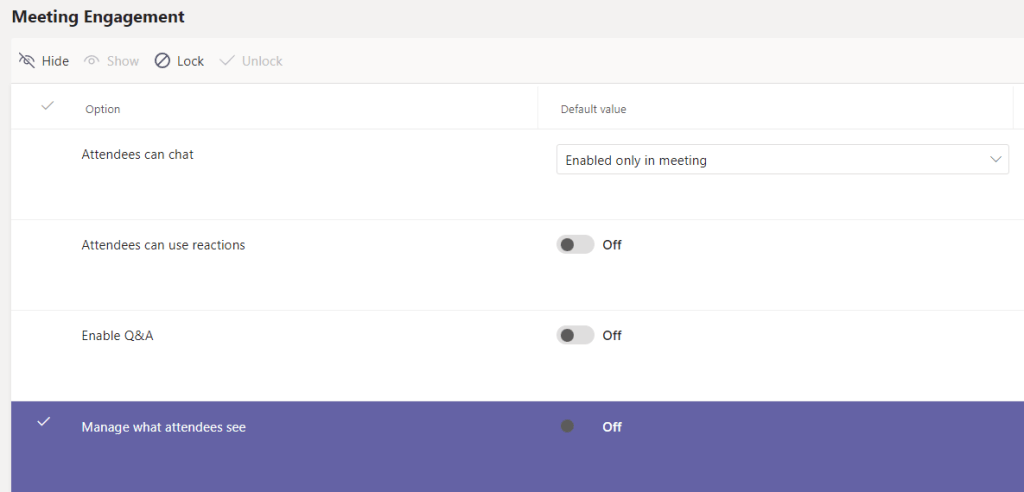
The remaining three options in the Meeting Engagement category, Reactions, Q&A and manage what attendees can see toggles, can all be hidden and/or locked.
Once the meeting template is saved it needs to be published.
Publishing a Meeting Template
To ensure the availability of a meeting template, in the Teams Admin Center go to Meetings > Meeting Template Policies. By default new templates are automatically added to Global meeting template policy.
Custom meeting template policies can be created and used to give different users different sets of templates.
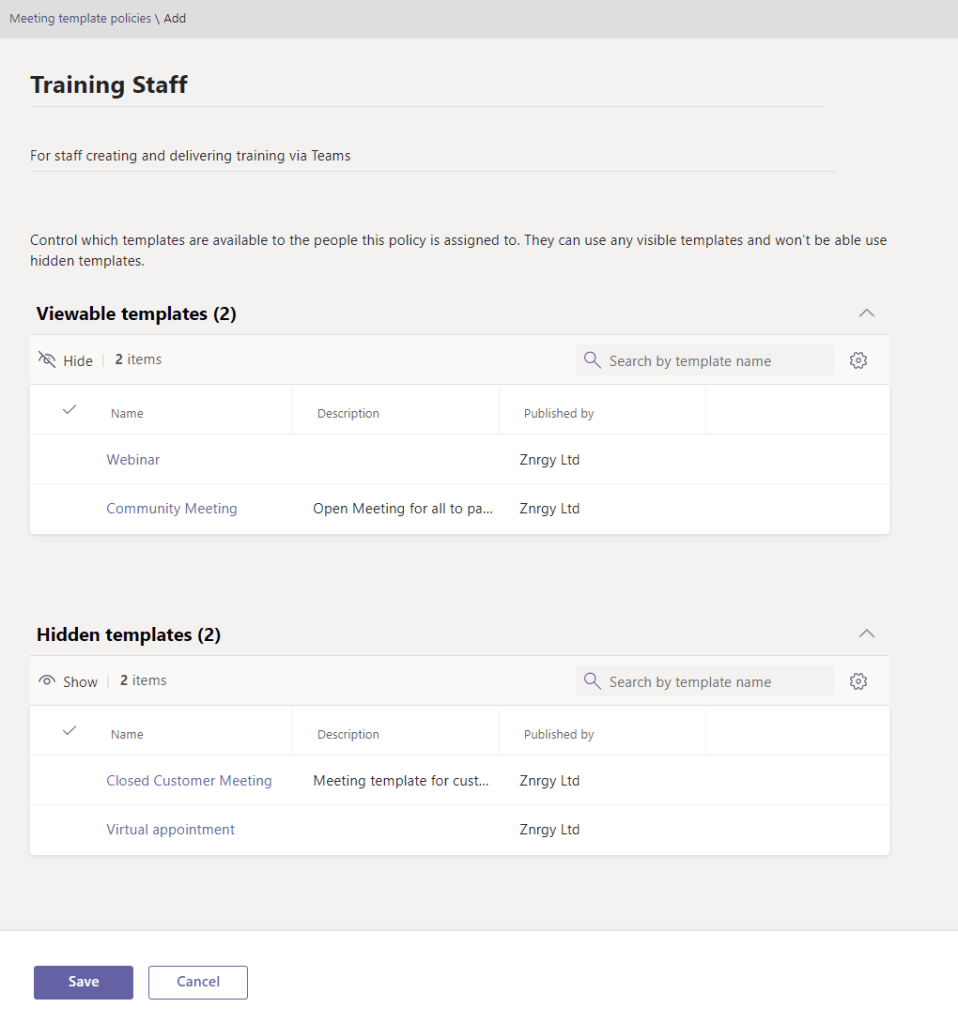
To create a new meeting template policy select Add. Name the policy and include a description.
To hide a template from the policy, select the template and choose Hide
To move a policy from hidden templates to viewable templates select the template and choose Show
Save the policy and assign to users. Meeting template policies do not support assigning to a group.
New templates do take some time to populate through to users. As with some other policy driven settings this can be between 10 minutes or up to 24 hours.
Create a Meeting from a Meeting Template
To create a new meeting from a template, select the arrow nest to the New meeting button in the Teams calendar and choose the required template.
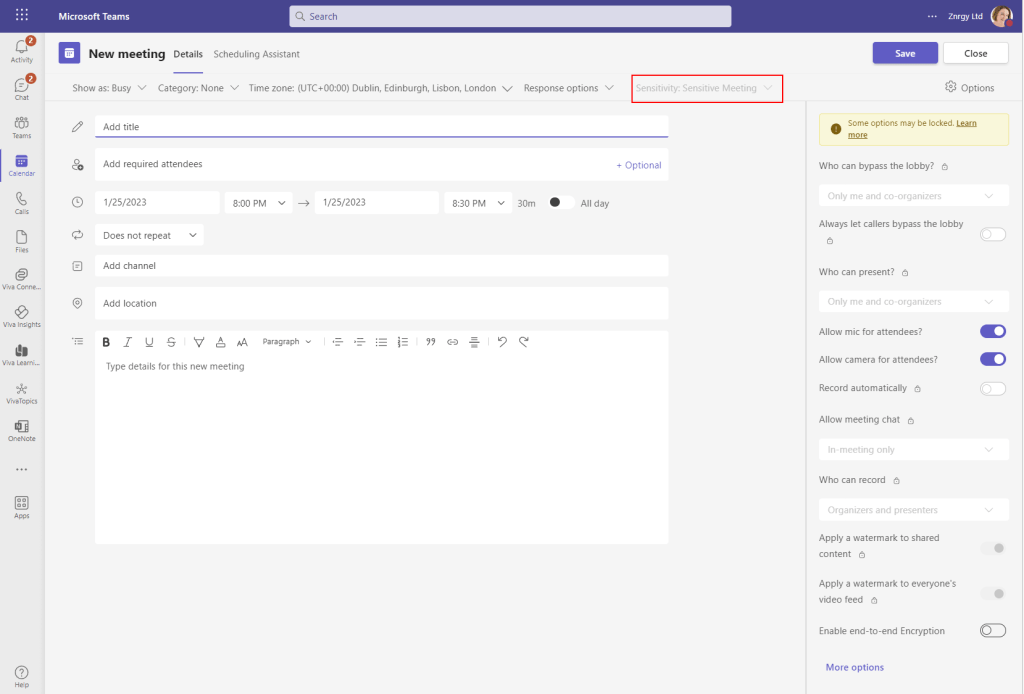
Create the meeting with title, invitees and other details as normal. In the image below you can see the Closed Customer Meeting template has applied a sensitivity label and is showing the options applied by the label in the options pane.
In this case the label is not enforced, so it can be removed and the settings changed.
Licensing
Meeting templates are only available to users who are assigned a Teams Premium license. Any user can join the meetings created with the template, subject to the meeting options defined in the template.
Platforms
Templates are supported across web, windows desktop and MacOS apps for Microsoft Teams, but not yet mobile apps
Admin and Set up
As a Teams admin, you will create templates and then publish them via a template policy to the users. This process is detailed above in this article. Templates including sensitivity labels will require the meeting organiser to also be assigned a Microsoft 365 E5 license, as part of the licensing requirements to use sensitivity labels in meetings.
Spam and Phishing messages in Microsoft Teams are an unfortunate reality. Just like unwanted email, once your contact details are proven more tend to arrive everyday. Thankfully this feature will help. At the time of writing (January 2023) confirmation for new message from user of Teams from a personal account (i.e. not managed by an organisation) have had this acceptance feature, but not this is rolling out for messages from users of work & school accounts too.
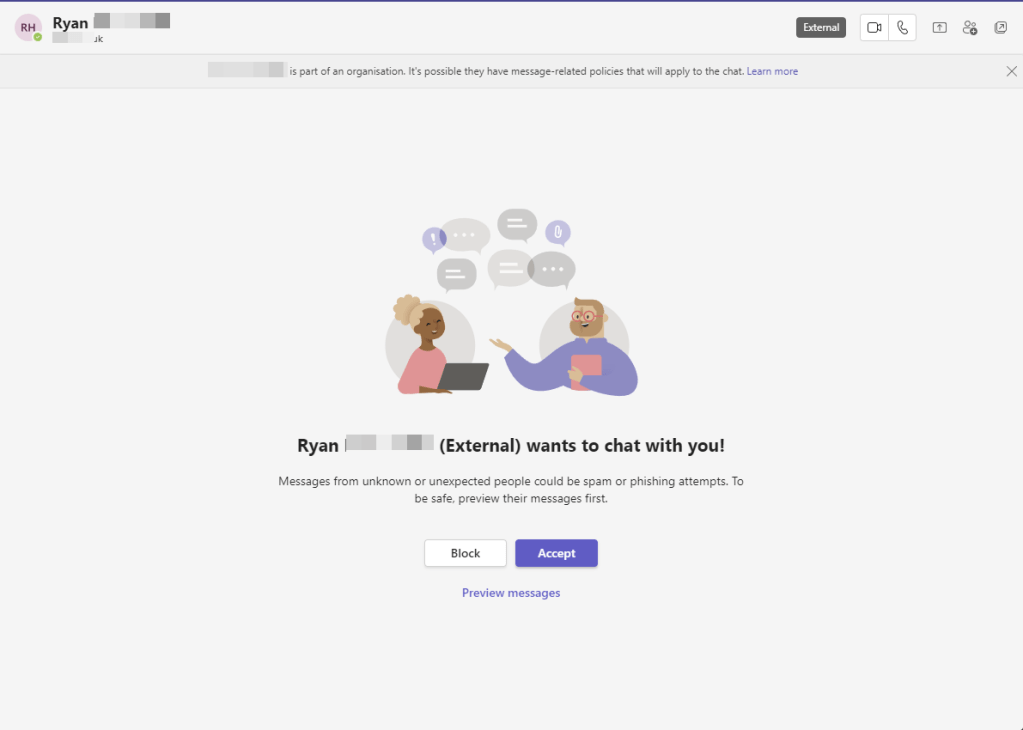
When you receive a first message from a new contact with whom you have not chatted before you get a warning the message is displayed, meaning no read receipt is sent regardless of your settings.
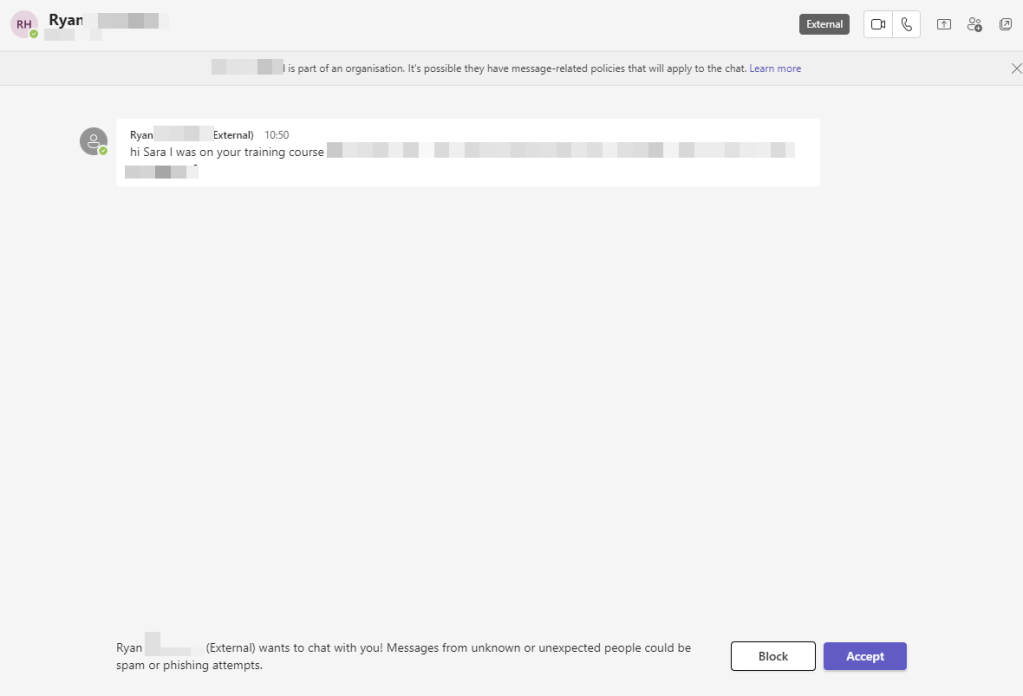
If you are not certain who the message is from you can click Preview messages to read the message and decide if it is legitimate before accepting or blocking the message.
At this point you can Accept the message and reply as needed or Block the message and sender.
This message was marked as unexpected as it was the first time Ryan had messaged me. Thankfully the message was not spam or phishing, so I was happy to accept and start the conversation.
Custom Video filters are rolling out to Teams Public Preview ring at the time of writing.
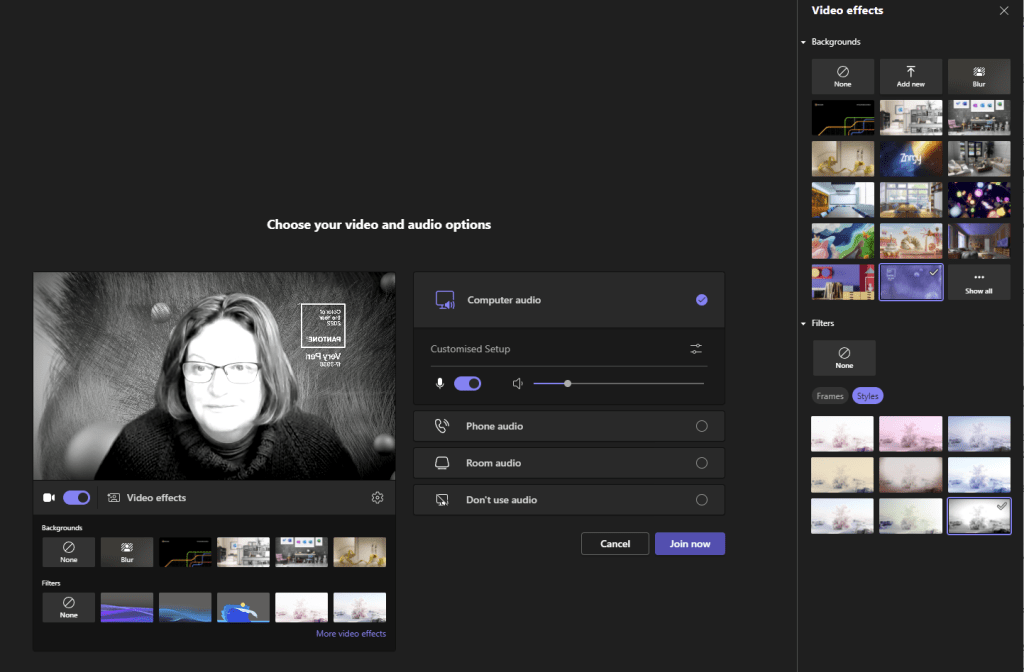
The Microsoft provided filters enable applying colour filters to your video feed such as Black and White
And also applying a overlay
Both work with virtual backgrounds and video, but will not support the upcoming Avatars.
Whilst this feature as is doesn’t have an obvious business benefit it is still interesting for two reasons:
The opportunity to have custom apps with organisation or event overlays, which adapt to web cam configuration will offer additional branding options for organisations and events.
The way in which the filters are enabled is an excellent example of app governance in Microsoft Teams
This feature is currently only available in public preview. A tenant admin needs to allow you to switch to public preview (Admin guidance) and then you can enable it from the … menu in your Teams client (user guidance).
WARNING: As things stand during the preview, the Custom Filters app does appear to be a little difficult to track down. Since it started rolling out and whilst I’ve been writing this article over a number of days, the app keeps appearing and then hiding in the client and admin center. I am certain, this will be fixed before rollout to general availability. Just be aware if testing early release.
Authorise the App – Teams Admin
The Microsoft Custom Filters app is available in the Teams Admin Center and enabled by default in commercial tenants and available in education tenants but disabled by default. Additional apps from third parties are expected such as Snapchat and Mabelline.
To allow any of your users access to the Microsoft provided custom filters, you need to first enable the app at tenant level. In the Teams Admin Center choose Apps > Manage Apps. Locate Custom Filters in the list and ensure it is set to Allowed.
The app also needs to be added to the appropriate App Permission policies so users can add the app to have the feature in their client. The app is listed under the Microsoft Apps in permission policies.
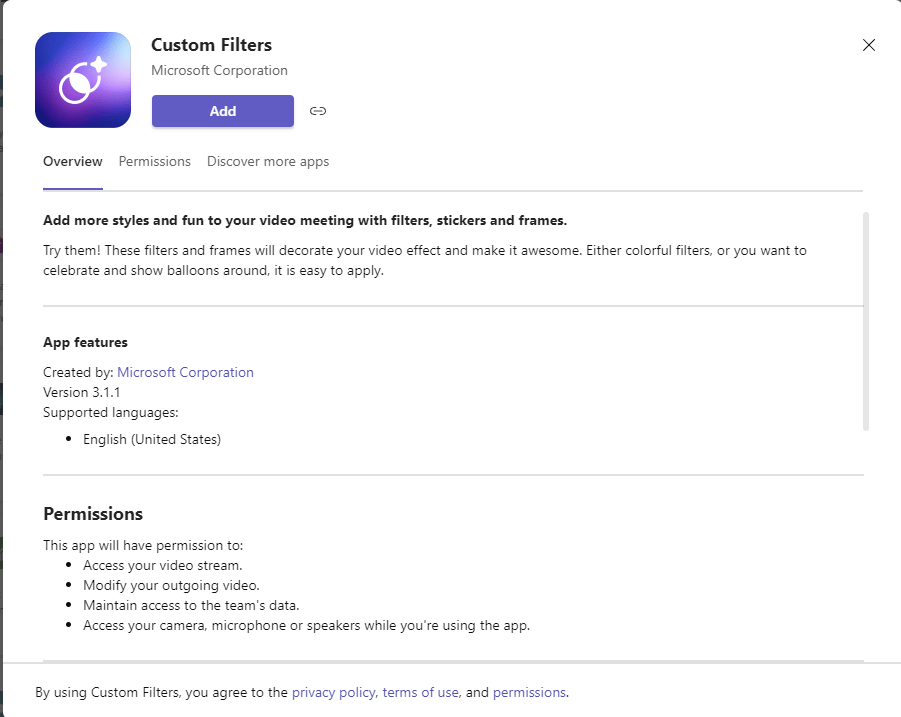
This app cannot be added to the App Set up policies as each user needs to grant it permission to access their video. This is due to the AI process which analyses the video and overlays the filter and therefore is considered a potential impact to individual privacy and as such needs the individual to consent.
The Video Filters settings in the Meeting Policy only apply to virtual backgrounds and do not impact this new filter functionality.
Add the App – Teams User
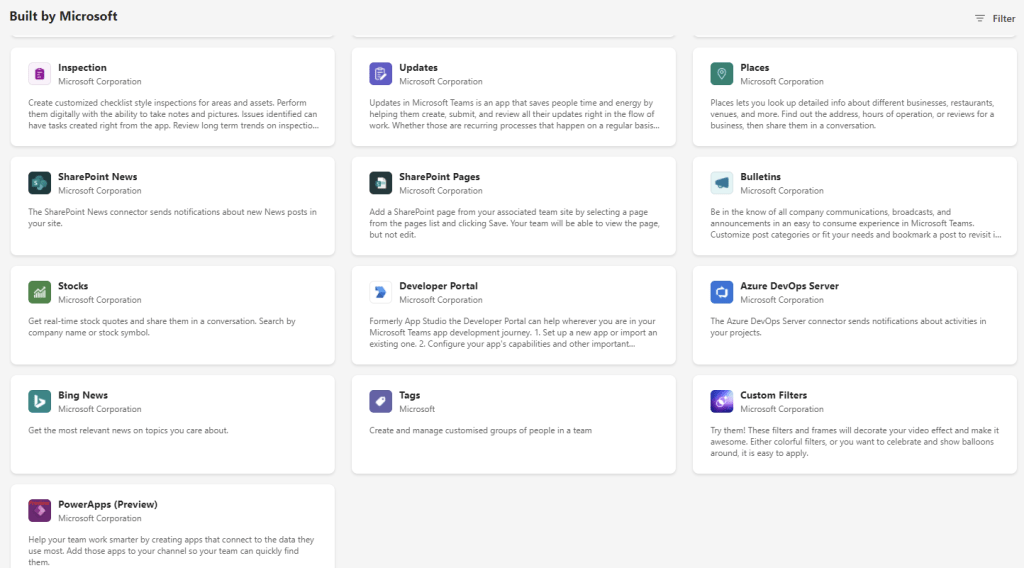
The Custom Filters app is added from the Teams App Store and can be found under the Built by Microsoft category
As you add the app, you will need to give the app permission to access your video and thus the app will need to be added by each user. In doing so you give the app permission to analyse and modify your video. For more details on the exact permissions you are granting this app follow the links to the Privacy policy, terms of use and permissions link in the dialog box.
Applying a Filter
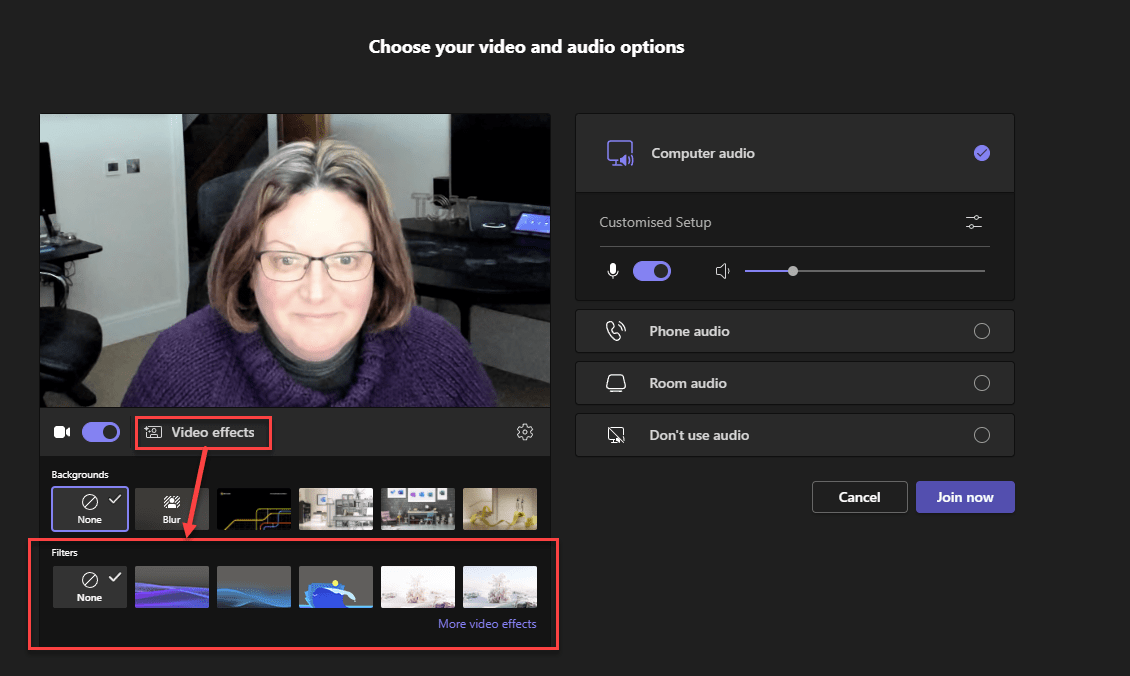
The filters can be applied from the Video effects button under the video preview on the meeting join screen
This is also available on Mac
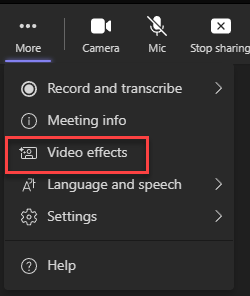
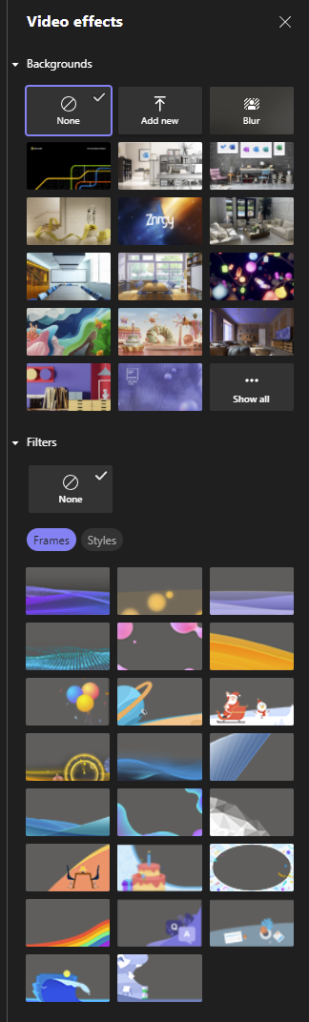
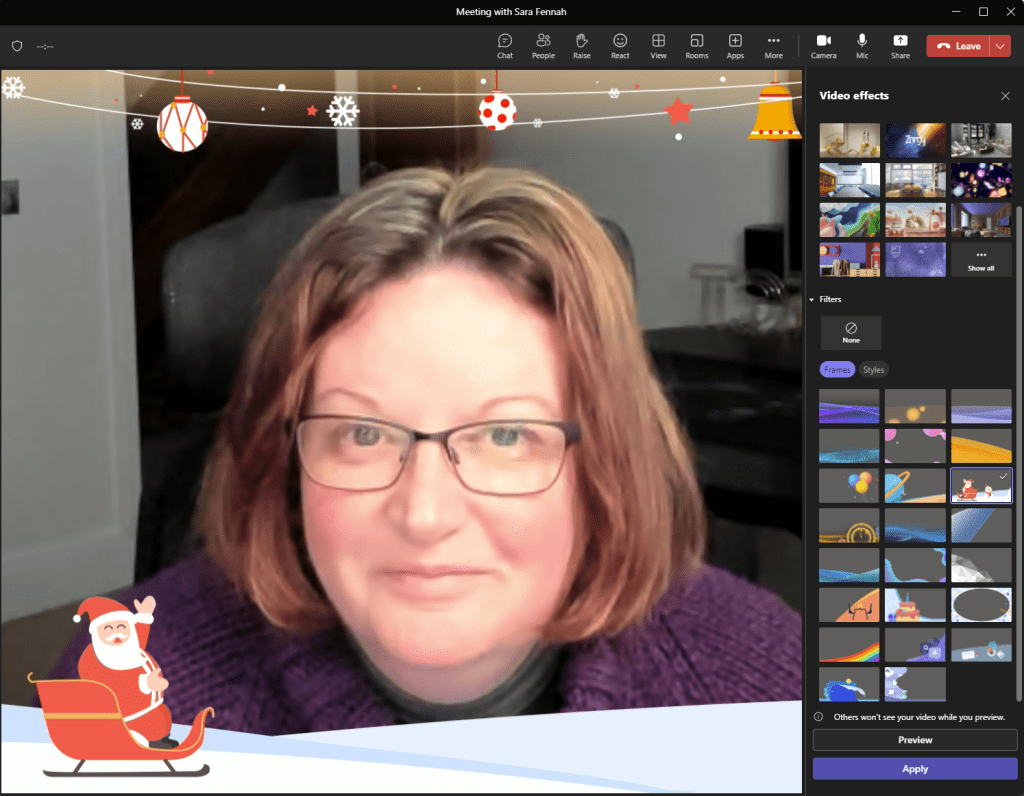
And once you have joined the meeting filters can be added, removed or changed via the More menu and Video effects. The Video Effects pane, also includes virtual backgrounds.
On the meeting join screen selecting More Video Effects, opens the Video Effects pane, complete with all virtual backgrounds and filters. The filters in the Custom Filters app include frames and video styles.
The frames apply an overlay to the video, mainly along the lower edge, but some are complete 4 sided frames, whilst styles change the colour of the video.
Once applied the frame overlays the image. Shame it’s too late or too early (depending on your perspective) for the festive frame!
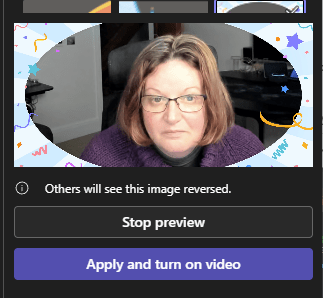
Changing the filter once you are in the meeting, shows a small preview, but be aware that whilst you are adjusting the filter your camera is off.
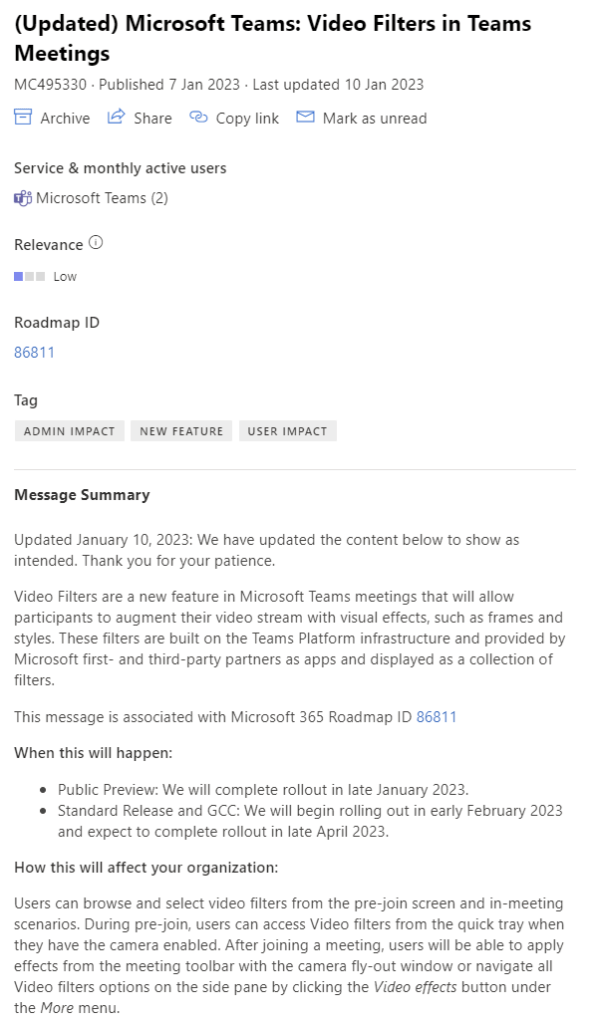
Message Center Announcement Post for 7th Jan 2023 is shown below for reference
Sensitivity labels can now be assigned to meetings as part of Teams Premium. This provides the ability to limit access to the meeting invite and responses in Outlook and Teams as well as the meeting and chat in Teams as well as enforce meeting options for the meeting. Sensitivity Labels will be best used in conjunction with meeting templates for the majority of users, whilst advanced users may wish to manually set the label on the meeting with or without meeting templates. More on meeting templates to follow.
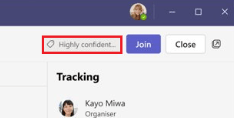
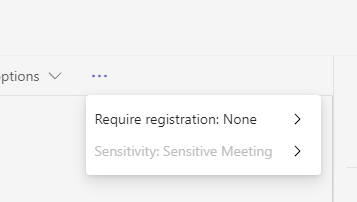
The Sensitivity Label is visible on the meeting in Teams, though not currently in the position shown in the documentation, but rather under the … menu on the meeting edit screen.
In the official documentation, and presumably coming soon this should be showing next to the join button
If the label includes item encryption the meeting invite is encrypted. This encryption works in the same way as email encryption. Meaning that recipients using a mail client which can decrypt the message (such as Outlook) will be able to see the message whilst those using other clients will need to use Outlook on the Web or the encryption portal to access the invite.
There are some practical limitations to consider as well. They key ones:
Sensitivity labels cannot be applied to instant meetings (Meet Now), Webinars or Live Events
Automatic labelling is not supported
Mobile clients cannot decrypt the meeting invite in calendar applications including Outlook mobile and as such a link to the encrypted content will be displayed
Copy chat restriction is currently not supported for external users, nor in all browsers when using Teams for Web. In this case external users means anonymous users and external users who are NOT guests in your organisation.
If the label is changed during a meeting, the changes will not apply unless the meeting ends & restarts
Labelling meeting using the graph API is not supported
As these limitations are very likely to change as the product evolves, please do review these here for up to date information.
Create a Meeting Sensitivity Label
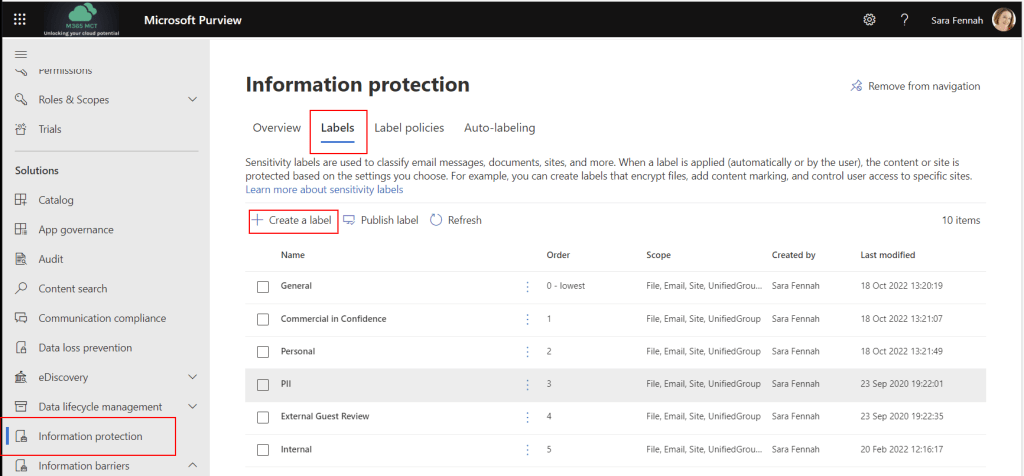
Sensitivity labels are created from the Microsoft Purview Compliance Portal (https://compliance.microsoft.com/) under Information Protection > Labels. General instructions on creating sensitivity labels is available in the documentation on Microsoft Learn.
To create a label for a meeting, choose Create a Label
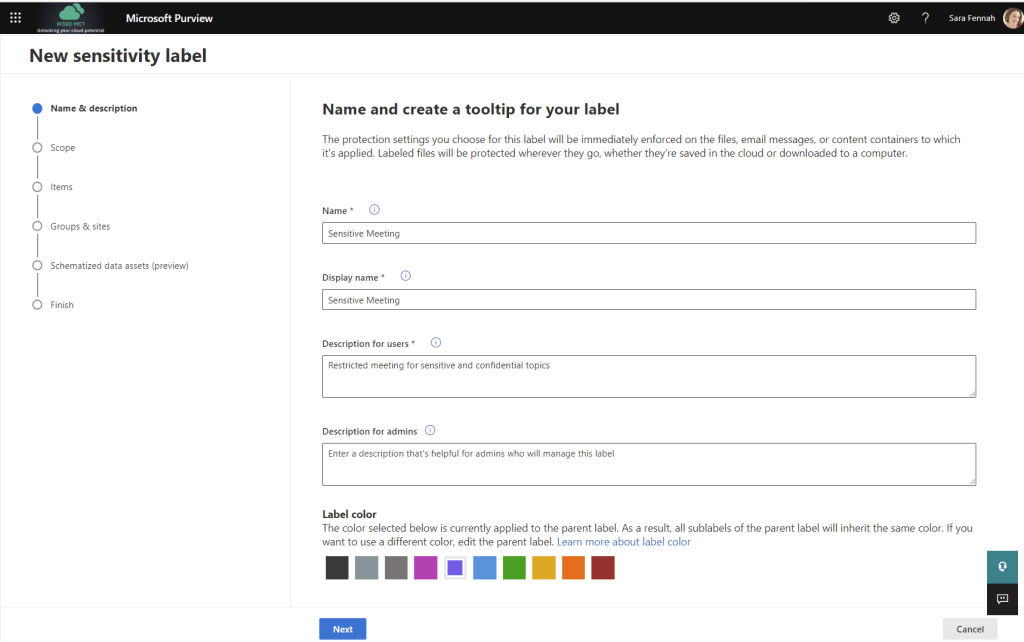
Enter an appropriate a Name and Display name. The reason for two names is so that the display name can be reused when an updated label is required with different settings (a new version of a label) but to the users it should look the same. For example Name = SensitiveMeetingV1 and Display name = Sensitive Meeting. Add appropriate description for users and include version detail in description for admins. Finally (optional) pick a label colour. Click Next on each screen to advance to the next.
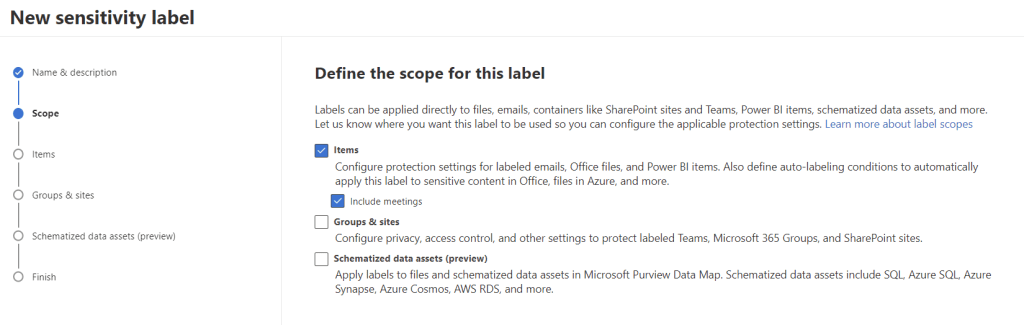
For a meeting label choose a scope of Items and Include meetings. Click Next to advance to the next screen
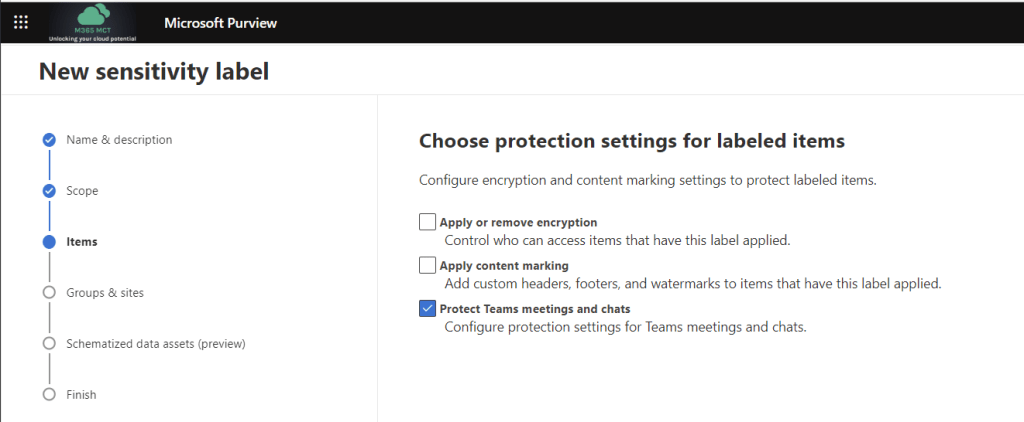
In protection settings encryption is used to control who can access the meeting invite, content marking is used to put header/footer into the meeting invite and Protect Teams meeting and chats is used to configure the meeting options and protection for meeting chat.
Encrypting the meeting controls access to the meeting invite, meeting details and join link, which can help ensure your meeting join information is not shared further than those invited by the organizer of the meeting. Encryption and content marking settings are the same as for all other item sensitivity labels, so here we will focus on the new settings, those for meetings and chats. Click Next to advance to the next screen
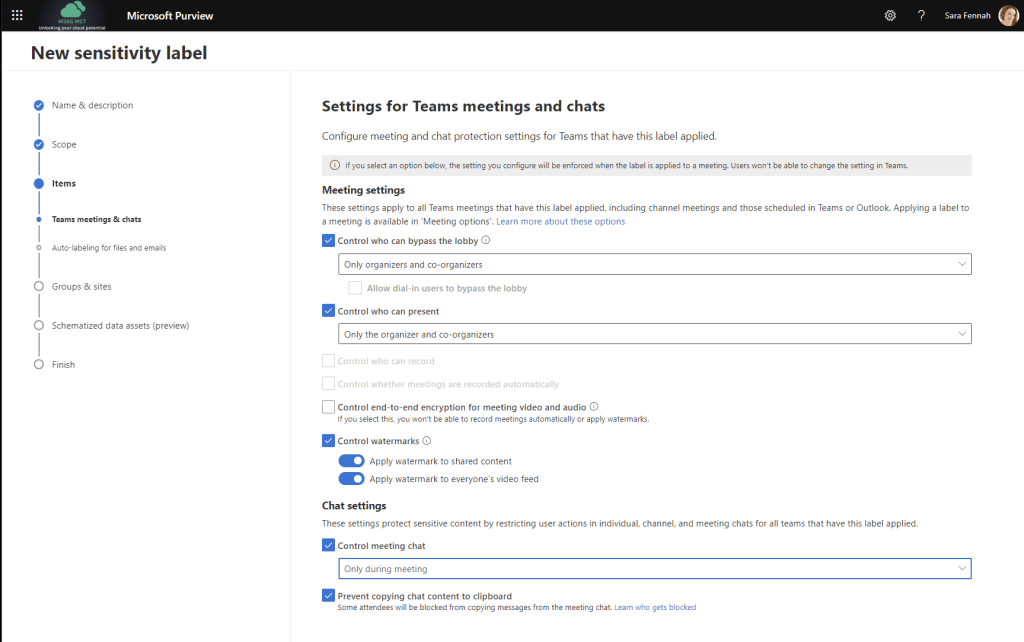
These controls set the meeting options on meetings with the sensitivity label assigned to the values set in this screen and prevent the organizer from altering those settings. After the walk through of creating the label this article discusses these options in more detail. Click Next to advance to the next screen
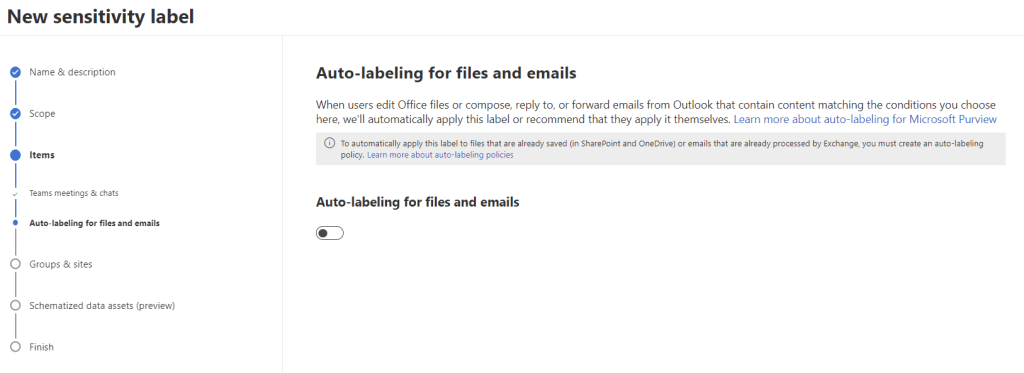
Auto labelling is not supported for meeting labels, so leave this option off. Click Next to advance to the next screen
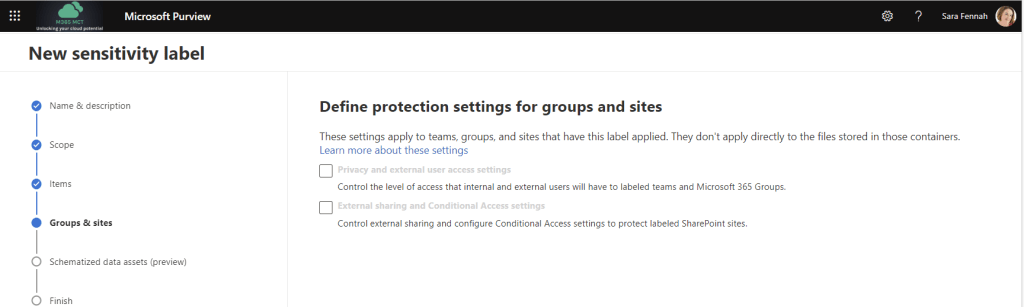
As groups were not selected in the scope at the start, the group options are greyed out. Click Next to advance to the next screen
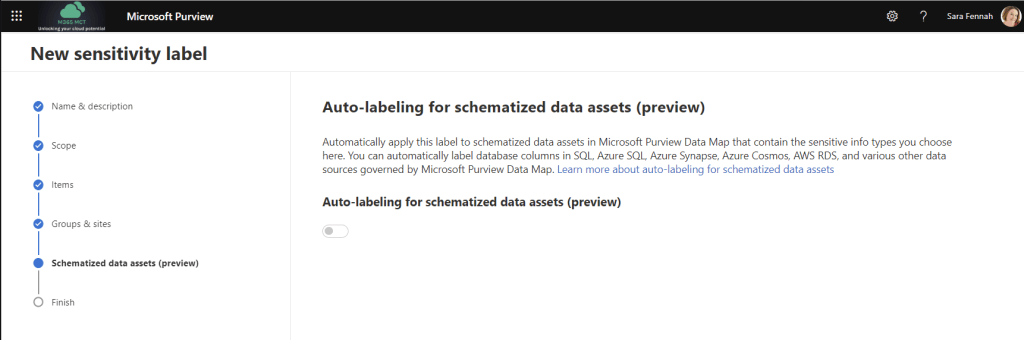
Options for schematized data assets were not selected in the scope at the start, the group options are greyed out. Click Next to advance to the next screen
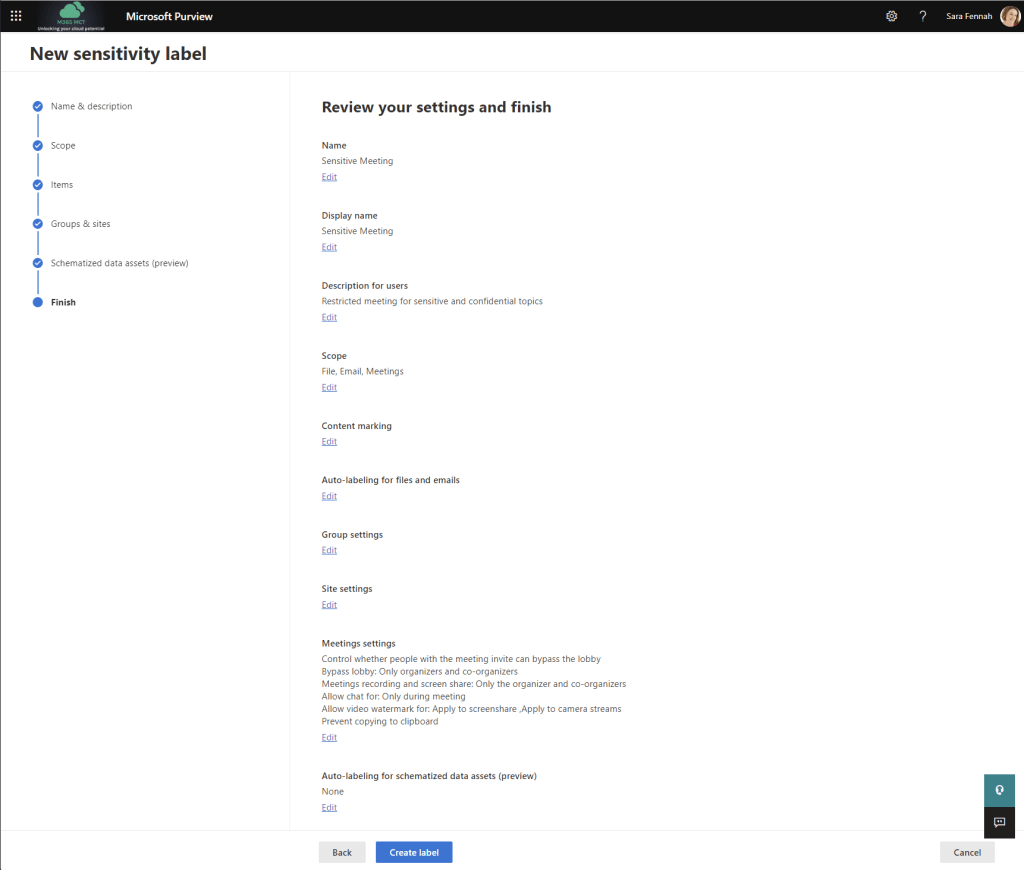
Review the summary of chosen settings. You can return to any step and edit the settings if they do not look right using the Edit link on each section or click Create label if all settings are correct to create and save your label.
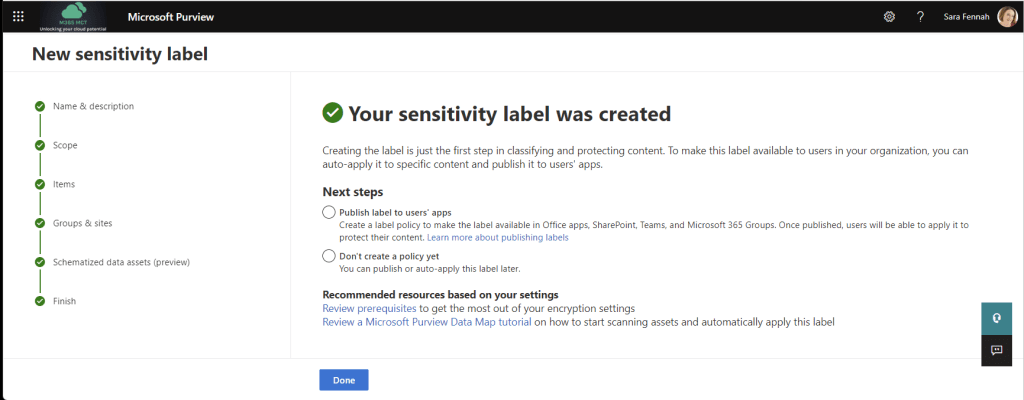
Once the label has been created it needs to be published to be available to users. Publishing a label is no different for a meeting label as other labels. Assuming your organization already uses sensitivity labels and you wish to add this label to an existing policy this is covered later in this article. To learn about label policies and publishing sensitivity labels see the documentation on Microsoft Learn.
Meeting Options Controls for Meetings & Chats in a Sensitivity Label
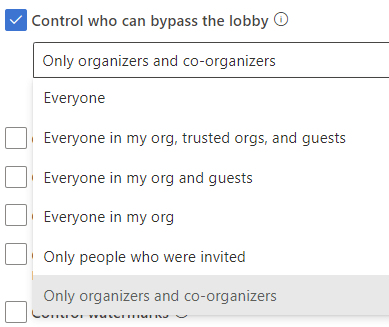
The first setting is to set the meeting lobby controls for the meeting.
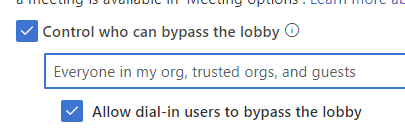
When selecting people who can bypass the lobby to Everyone in my org, trusted orgs and guests, you can also choose to allow dial in users to bypass the lobby
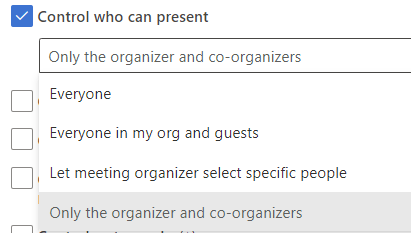
The label can also be used to set who can present in the meeting.
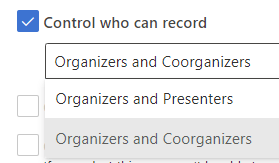
By default anyone from the same organization as the meeting organizer with presenter rights in a meeting can start the recording. The recording will then be stored in the OneDrive of the user who starts the recording with the meeting organizer having owner rights and ability to change permissions, expiry date and video settings. This can lead to confusion, so it can be preferable to limit recording to the meeting organizer and appointed co-organizers.
Automatic recording of meetings is helpful in some situations, such as when the organizer cannot join at the start of the meeting, or when it is important that no-one forgets to start the recording.
Of note on this control is that the wording changes when the toggle is switched. With the setting off the wording reads Don’t record automatically and with the setting off it reads Record automatically.
End-to-end encryption can be enforced from the sensitivity label. This toggle, as with the automatic recording toggle, changes wording as it is set. When off it reads Don’t apply end-to-end encryption.
When enables the setting reads Apply end-to-end encryption.Remember end-to-end encryption disables recording of the meeting and as such encryption must be off to set recording options in a sensitivity label and if recording is set to automatic within the label then encryption cannot be switched on.
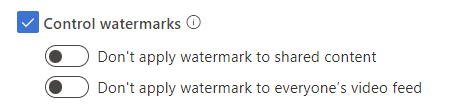
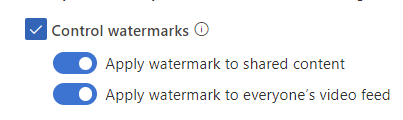
Watermarking can also be set by the sensitivity label. Remember watermarks disable recording of the meeting and as such watermarks must be off to set recording options in a sensitivity label and if recording is set to automatic within the label then watermarks cannot be switched on.
Water mark settings also change their wording within the controls from Don’t apply … to Apply…
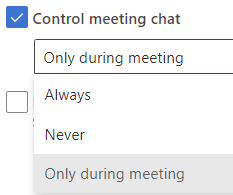
As in direct meeting option controls the sensitivity label can be used to limit availability of meeting chat. The chat can be set to be disabled for the meeting, available only during the meeting or Always which means from the time the meeting is created.
A control which is only available via the sensitivity label currently and not directly in meeting options is to prevent the copying of the meeting chat. Please note that this restriction is currently not supported for external users, nor in all browsers when using Teams for Web and it is recommended you read the learn who gets blocked link for more information: Prevent copying chat to the clipboard label setting
Publish a New Label Using an Existing Policy
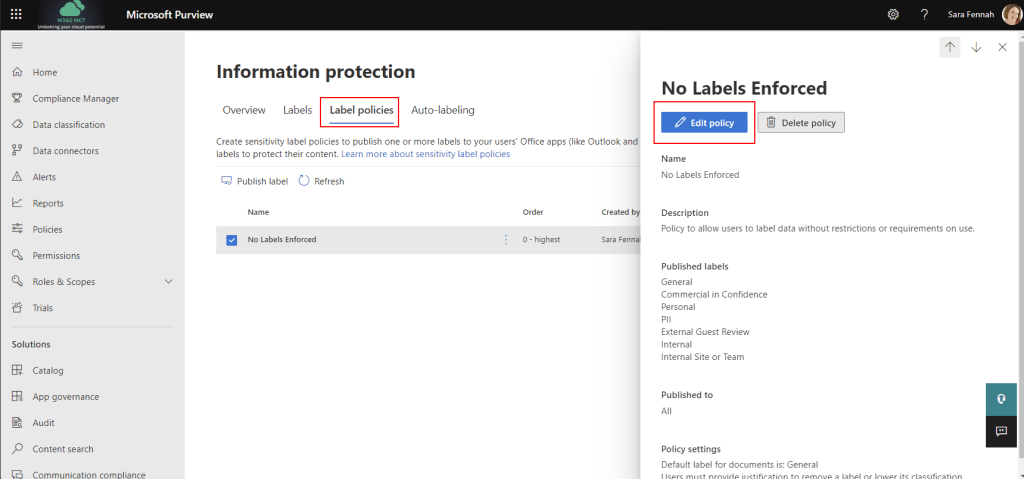
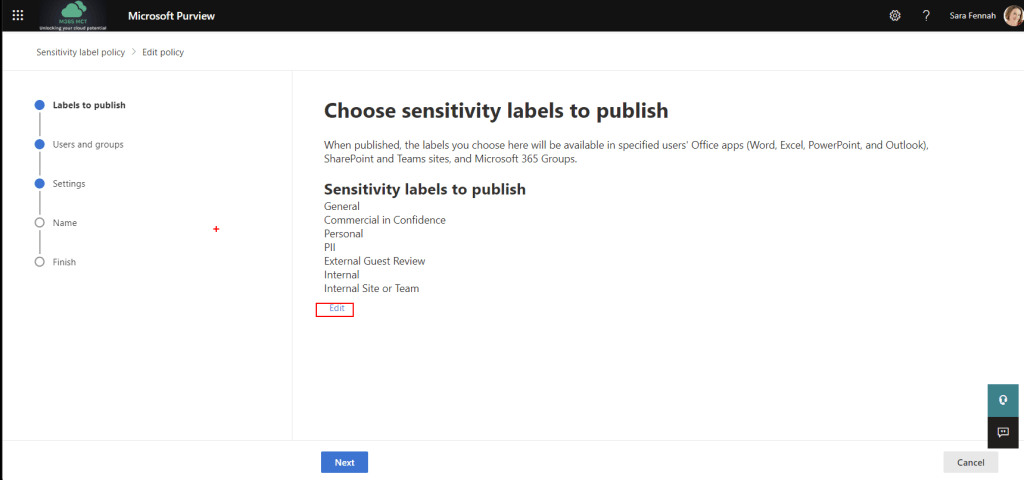
To add your new label to an existing policy choose Label policies in the Information Protection page within the Microsoft Purview Compliance Portal. Select the label policy to be edited and choose Edit policy
To add a new label move to the Labels to publish page and choose Edit below list of labels
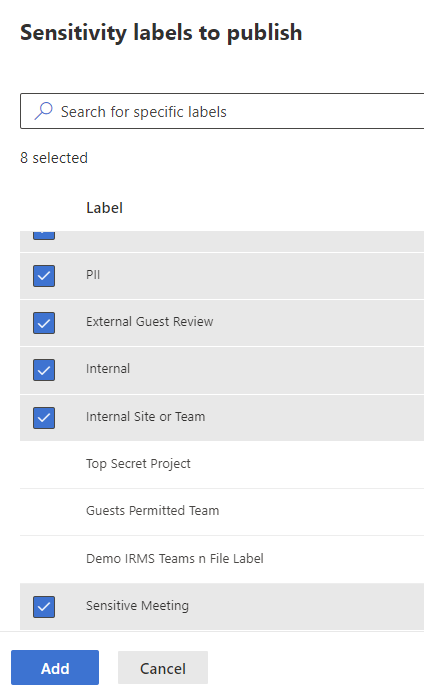
Search for and select the new label then click Add
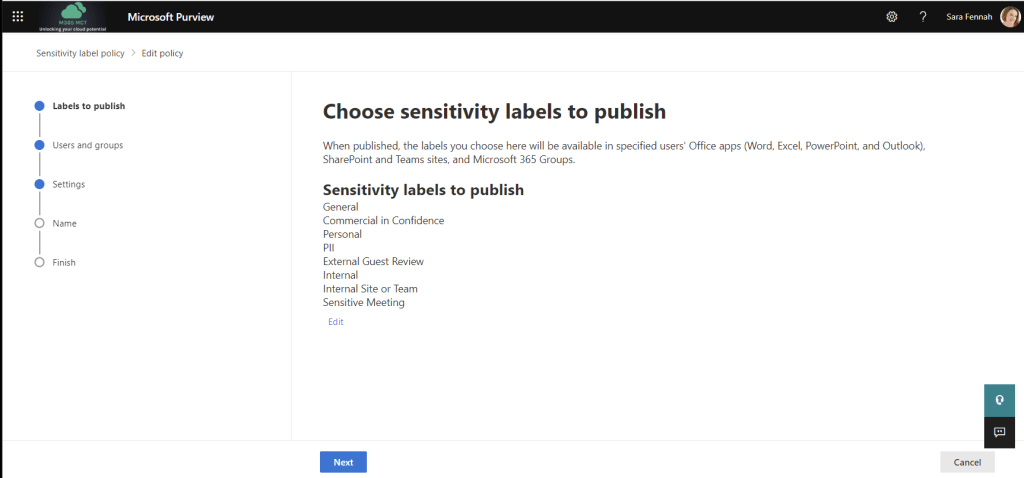
Verify the list of labels is correct and click Next
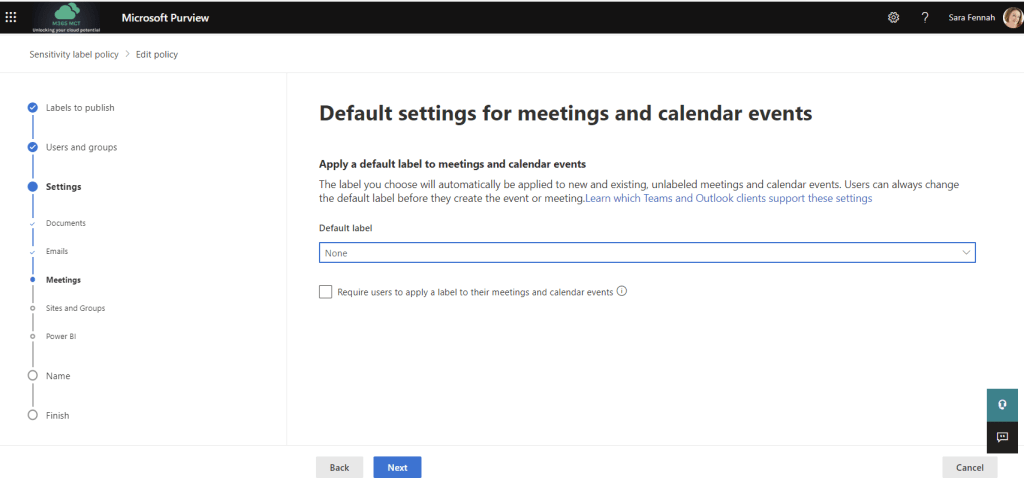
Assuming you do not need to make any further changes to the policy at this point other than for meetings click Next until you reach the Default settings for meetings and calendar events, choose the default label to be applied or leave blank. If not all users in your organization will have Teams Premium and E5 licences it is likely to cause confusion setting a default as users without the licenses will not be able to see the sensitivity label assigned not change it, and therefore I would recommend not setting a default.
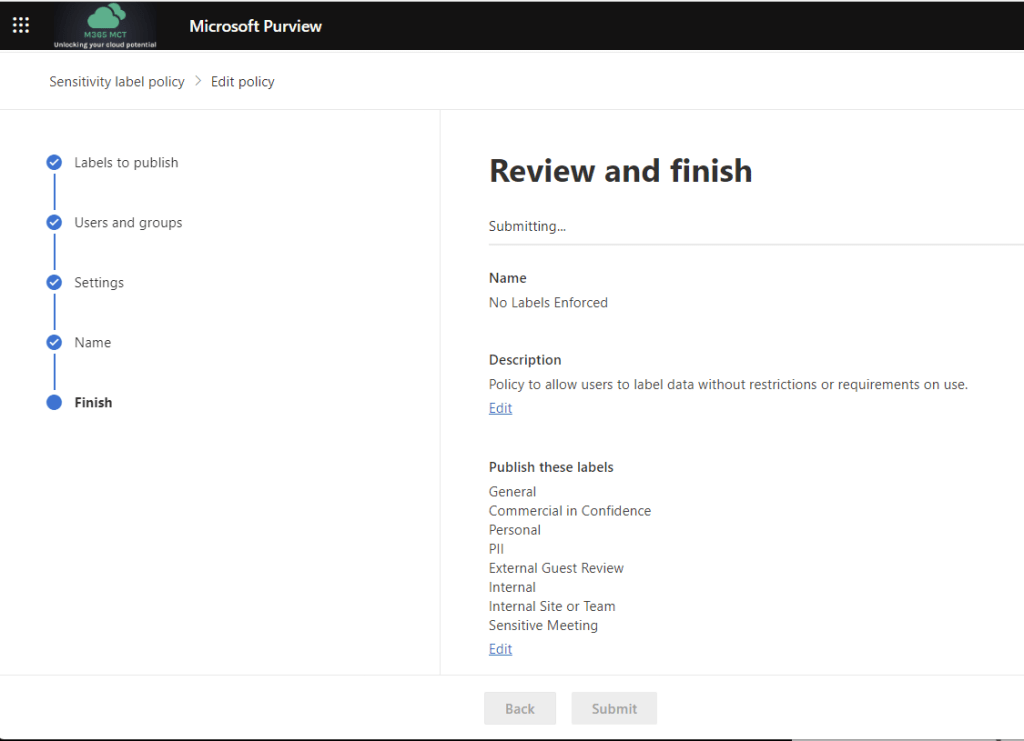
Review the settings and click Submit if all are correct.
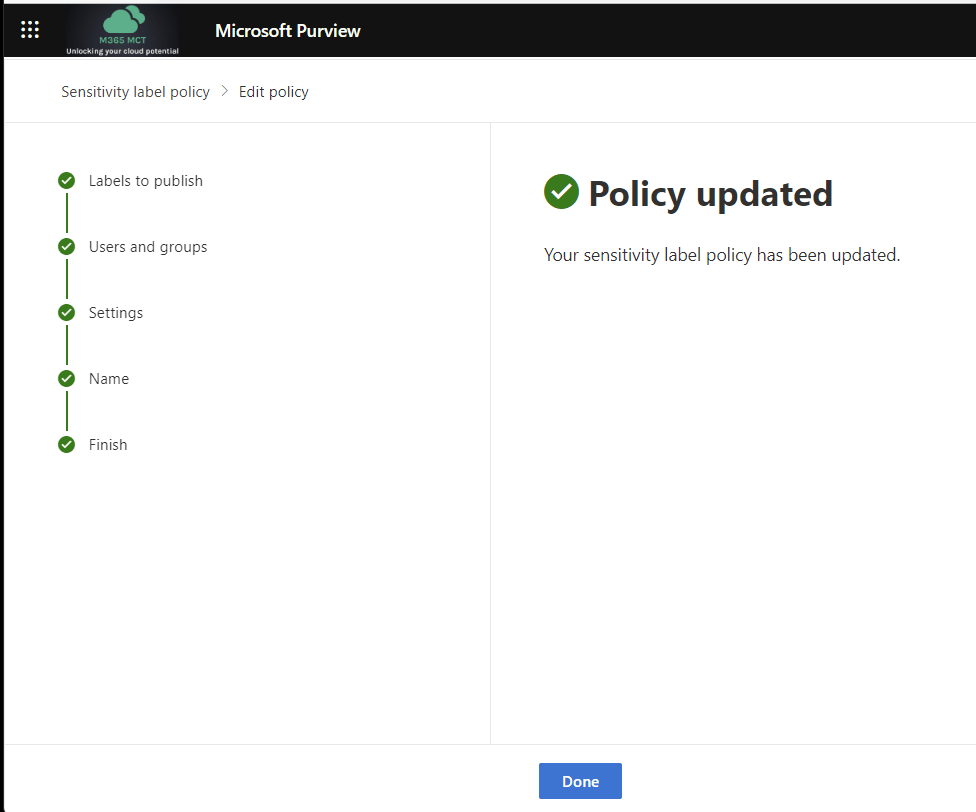
Wait for confirmation that the policy has been updated before navigating away from the page.
Add Sensitivity Label for Channel Meetings
You will first need to create AND SAVE a label that applies to a meeting before choosing that label as a default for channel meetings.
If (and that’s a big if), you want create one sensitivity label to apply to items (incl meetings), groups and channel meetings, you would need to create the label with the scope set to items incl meetings plus groups. Once created you will then edit that same label and set the label itself as the default for channel meetings in a Team with the label applied.
Too muddled? Then just make it simple and don’t set multiple scopes within the same label.
For example to use sensitivity labels to restrict files, meetings, groups, teams and sites to internal use only, I would:
Create a label called Internal scoped to Items (excl meetings) and applying only encryption, with encryption limiting access to internal users. This label could also include marking with a watermark/header/footer, as required.
Create a label called Internal Meeting scoped to Items (incl meetings) with encryption enforced and limited to internal users plus meeting options with lobby bypass limited to only People in my organisation, along with any other meeting options you wished to apply. This will limit access to the meeting invite to internal users only and ensure anyone else who is given meeting join codes is sent to the meeting lobby.
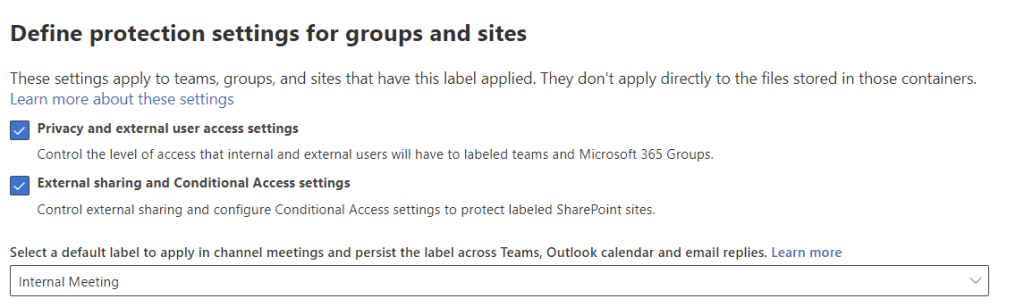
Create a label called Internal Team scoped to Groups & sites with controls on Privacy and external user access settings which sets the group to a Private group and does not allow external users; External sharing and Conditional Access settings which sets sharing to Only people in your organization; and pick the Internal Meeting label as the default for channel meetings.
Publish the 3 labels to required users
Apply a Meeting Sensitivity Label to an Individual Meeting
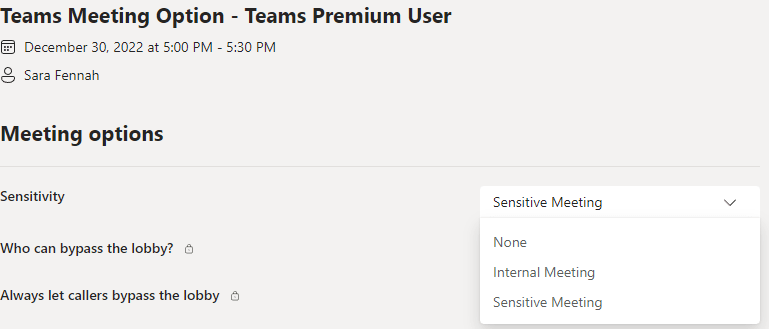
To manually assign a sensitivity label to an individual meeting, open the meeting options before the meeting starts and choose a sensitivity label, then Save the changes.
Whilst you can change the sensitivity label from meeting options within the meeting the changes do not apply until the meeting ends. So if you need to change the label during meeting the organizer should make the change and then end the meeting, which will remove everyone from the meeting. When people rejoin the meeting, the updated meeting options will apply.
Licensing
Only the meeting organiser needs the Teams Premium licence applied to be able to set a sensitivity label on a meeting. However they also need to be assigned a Microsoft 365 E5/A5/G5 or Office 365 E5/A5 license.
Platforms
Applying, changing and viewing a sensitivity label on a meeting is supported in Teams for web, Windows and MacOS. You can also manage and view the label applied to a meeting from Outlook for web, Windows and MacOS. However note at time of writing no Outlook for Mac versions have been released with this support, see Requirements for details of supported version numbers.
Admin and Set up
To ensure the feature is available for users to apply via meeting options the labels need to be created and published by a Compliance Administrator. There is not additional set up for the Teams Administrator.
End-to-end encryption for meetings provides an additional layer of security with encryption applied at the start of data transmission and decrypted at the end. Audio, video and screen sharing are all encrypted. Whilst standard Teams meeting encryption involves encrypting data in transit, end-to-end encryption allows users to verify the connection is encrypted along the whole transmission chain.
Not all meeting features are available in an end-to-end encrypted meeting. The following features are not available in encrypted meetings:
Meeting recording
Live Transcriptions
Together mode
Large gallery view
Companion Mode
Breakout Rooms
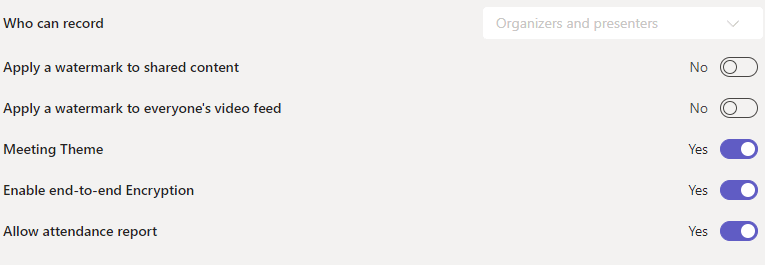
To use end-to-end encryption, enable the option in Meeting Options before the meeting starts. Note that recording options are now greyed out.
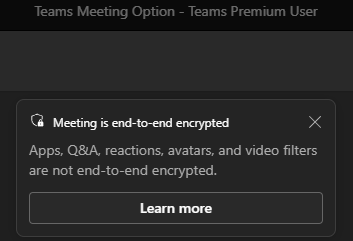
When joining an encrypted meeting you will see a message confirming that the meeting encryption is active.
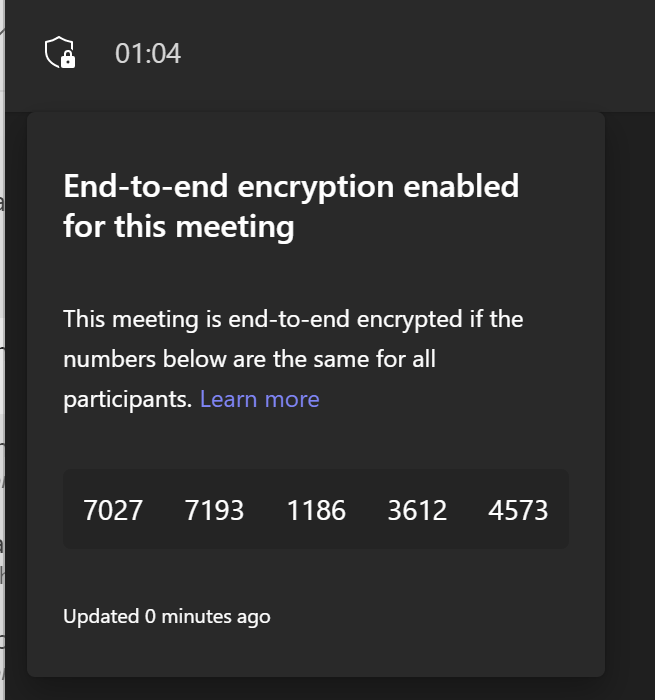
There is also a secure logo in the top left corner of the meeting window.
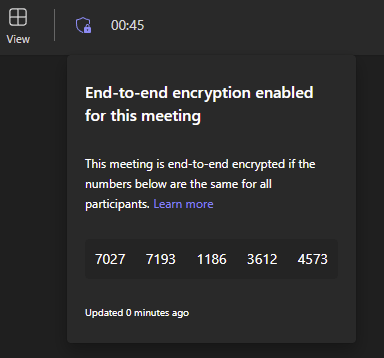
Meeting participants can verify that end-to-end encryption is active by verifying they can see the same number
Licensing
Only the meeting organiser needs the Teams Premium licence applied for the encryption feature to be applied to the meeting.
Platforms
End-to-end encrypted meetings are supported when the parties are on Teams desktop (Windows & Mac), Teams mobile and Microsoft Teams Rooms on Windows.
Admin and Set up
To ensure the feature is available for users to apply via meeting options it must be enabled in the appropriate Enhanced encryption policy/policies.
Watermarking is a Teams Premium feature intended to be used as a deterrent to stop attendees taking and sharing screenshot of meetings and people in the meeting by overlaying their email address onto the incoming video and shared content. This does not block screenshots, but ensures that if screenshots are shared then the source can be easily traced. This is especially useful when using a Teams meeting to share sensitive content or in situations where attendees images should not be shared, such as in education settings.
When watermarks are enabled for either shared content or video feeds the meeting can not be recorded. It appears logical to assume that this is due to challenges determining what watermark should appear on the recording. It will be interesting to see where Microsoft go with this challenge, as I can easily see a situation where you will need both recordings and watermarks.
This is not the only restriction on meeting functionality which comes about from enabling the watermark feature.
When applying a watermark to everyone’s video feed the following features are not available:
Meeting recording
Together mode
Large gallery view
When applying a watermark to shared content the following features are not available:
Meeting recording
Together mode
Large gallery view
PowerPoint Live
Whiteboard
Shared Content from cameras
One final limitation is that when users join from a scenario which does not support displaying watermarks (such as web, Skype for Business users, VDI, where participant is anonymous or when meeting attendees are in streaming only mode) they will have an audio only experience. In the web experience a message is displayed for the user.
To use watermarking, enable the option in Meeting Options before the meeting starts, the setting can be applied during a meeting but seems to only be applied as people join. Note that recording options are now greyed out.
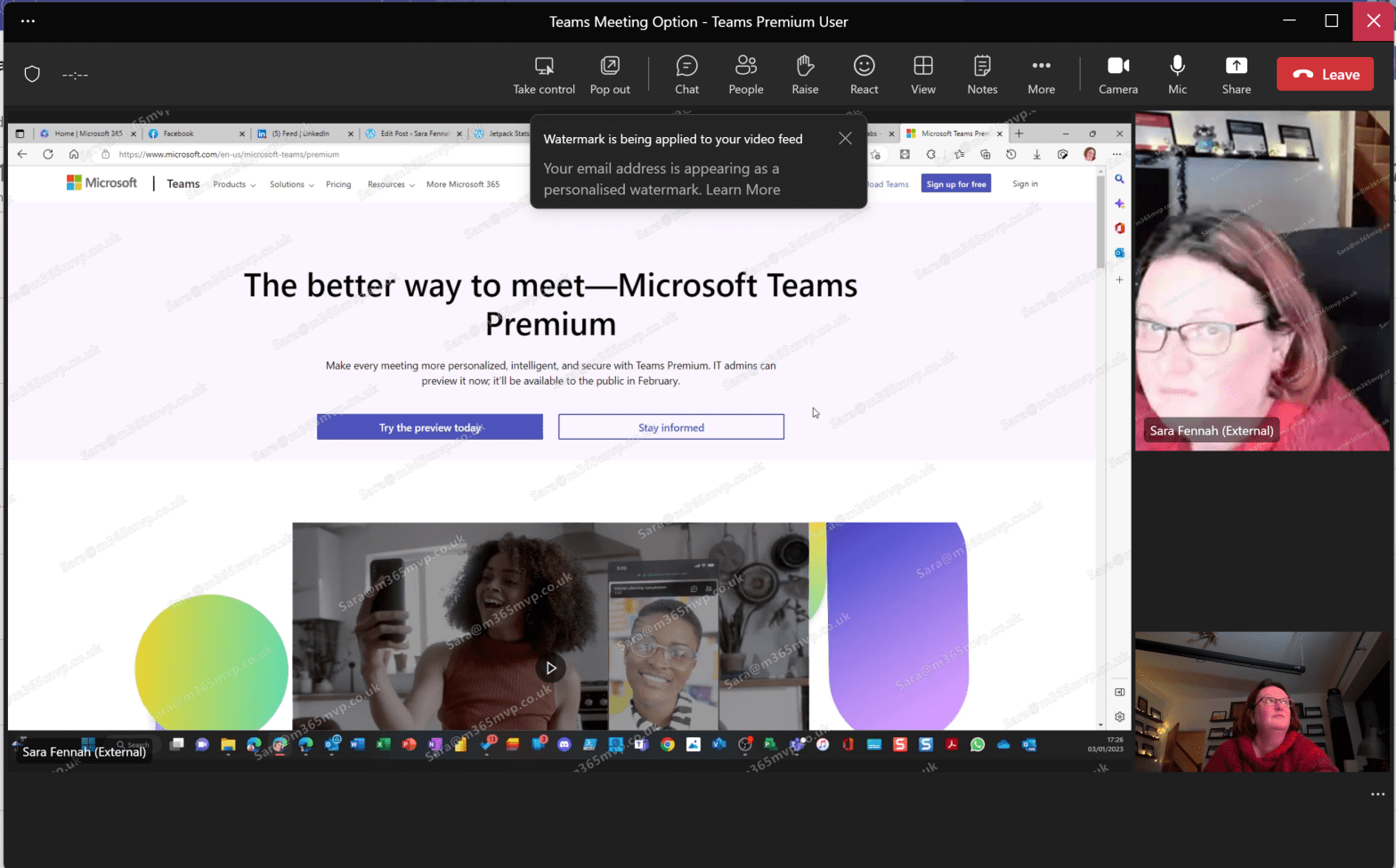
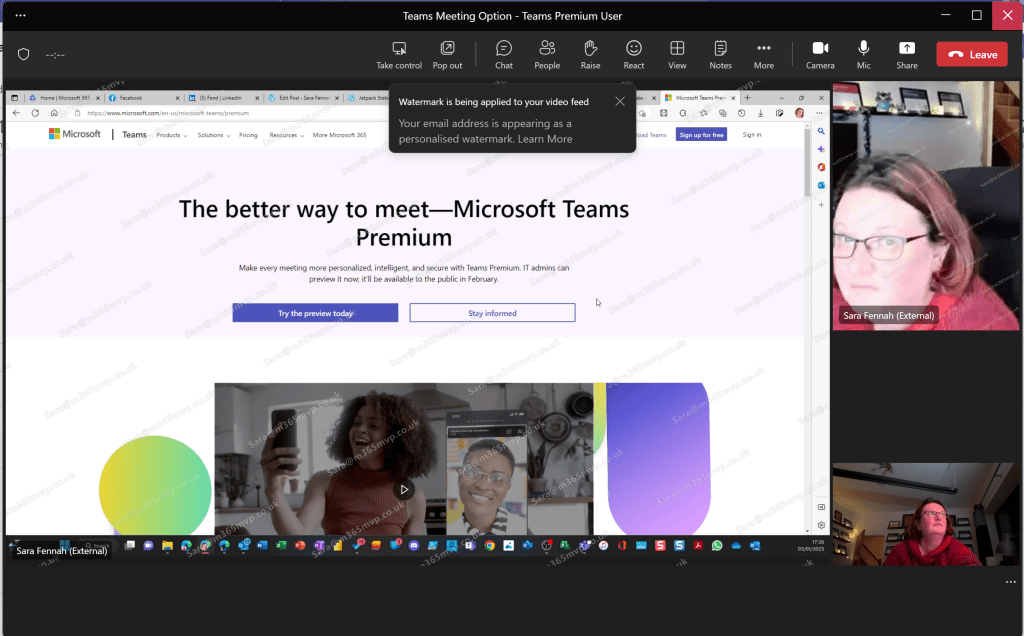
Once others join the meeting they will see the watermark overlayed on content being shared and others video feeds but not their own. A user sharing their screen will not see the watermark over the content they are sharing. So to test this I need to join from two devices and hence I’m looking in two directions at once in the image below which is taken from the user not sharing the content.
Also note the message displayed at the top of the screen, letting them know the watermark feature is being applied.
Licensing: Only the meeting organiser needs the Teams Premium licence applied for the watermark feature to be applied to the meeting.
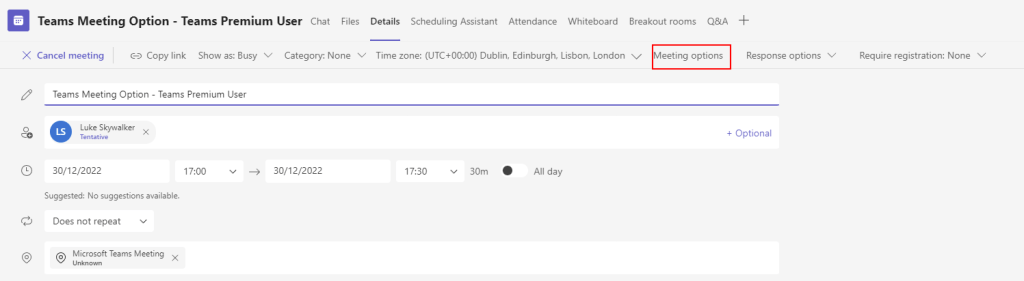
With the launch of the preview of the Teams Premium add-on, many of the options require the user to use Meeting Options, yet many users do not routinely look at these and many are unaware of the features available. This article takes a look at where you can access meeting options.
When creating or editing meetings via the Teams client incl desktop, web and mobile
When creating or editing meeting via Outlook web or desktop client
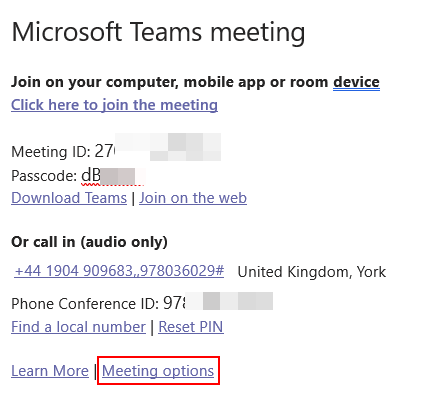
From the meeting invite
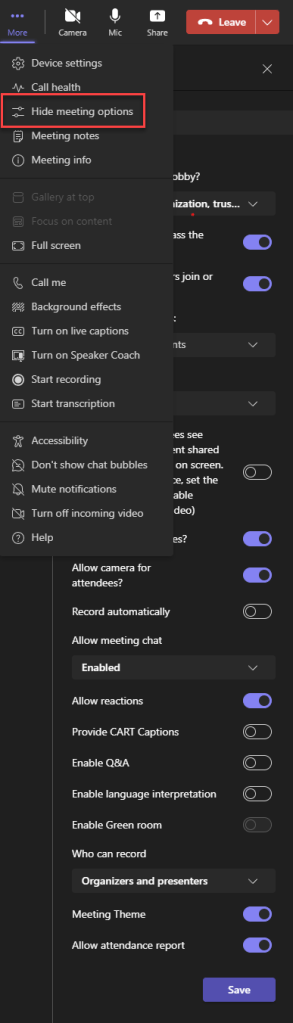
During a meeting, from the meeting menu you can show/hide meeting options in the side pane
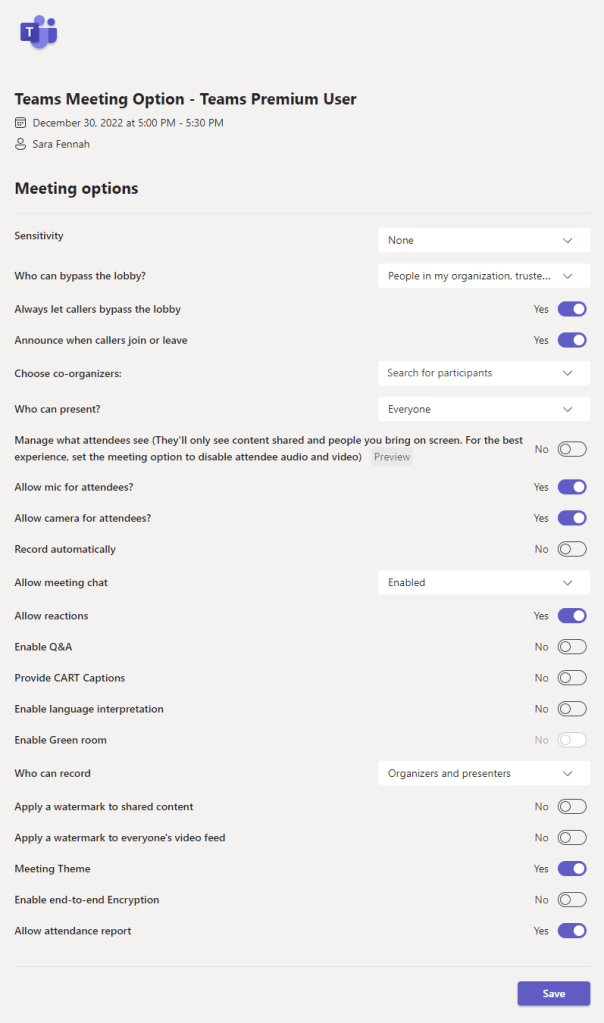
The Meeting Options with Teams Premium License looks like this for a private scheduled meeting ( a standard Teams Meeting)
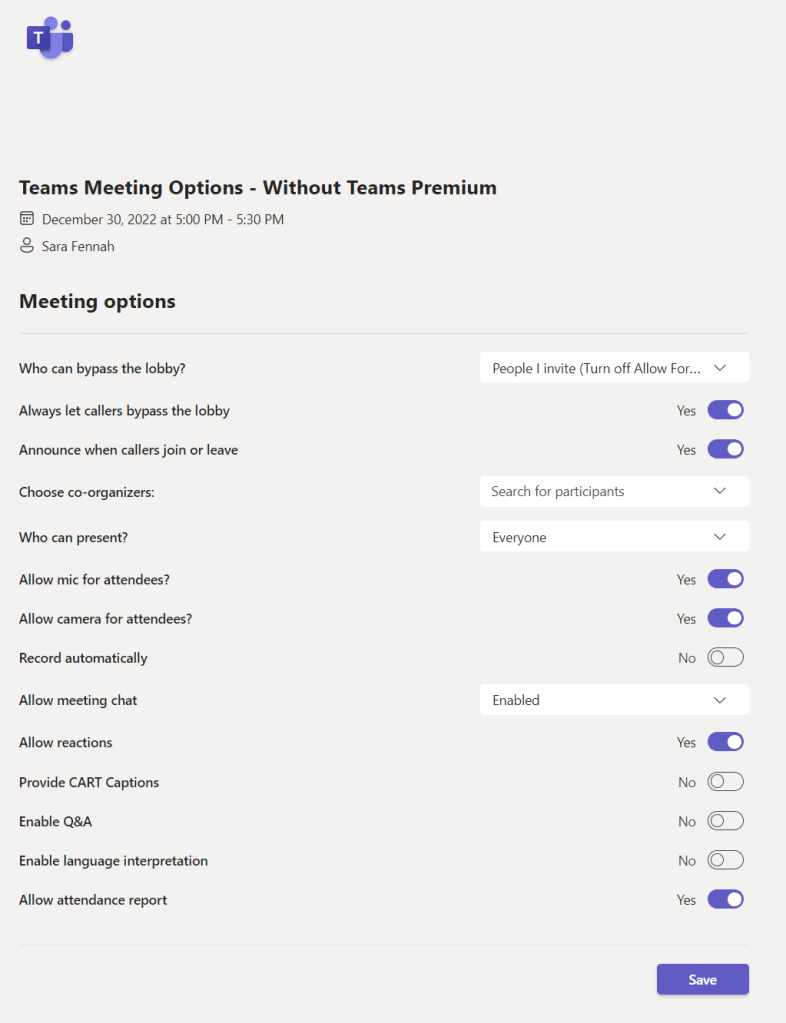
And for a meeting organised by a user without Teams Premium it looks like this
The meeting created by the user with Teams Premium has additional features available in the Meeting Options screen specifically:
Microsoft Teams Premium is an add-on to Microsoft 365 and brings additional features. In this blog series we’ll explore each of the 5 categories of features:
Meeting Customisation
Meeting Protection
Meeting AI Features
Webinars
Virtual Appointments
I’ve also written an overview of Teams Premium and who needs it and a first steps guide for the public preview or all my Teams Premium articles on one place. The official getting started with Teams Premium guide for Teams Administrators can be found on Microsoft Learn.
The Meeting Customization features of Teams Premium allow organizations to add their own branding to meetings with a branded lobby, customized backgrounds, custom together mode scenes, custom meeting templates, meeting themes plus create and assign custom policy packages for easier administration.
Not all of the meeting branding features have been released into the preview of Teams Premium at the time of writing (December 2022). Customization will include a branded lobby and meeting themes which will both be created using Customization Policies in the Teams Admin Center when they are released. In this article we’ll look at the other meeting customization features which are available in the Teams Premium license as at Dec 2022.
Organizational Virtual Backgrounds
One feature of Teams Premium available in the preview are Organization backgrounds. This is a feature which is also part of the Advanced Communications license. To use organizational backgrounds the organisation must have at least one Teams Premium (or Advanced Communications) license and the published images will only be available to those users with the Teams Premium (or Advanced Communications) license assigned.
NOTE: Microsoft have not announced any plans with regard to the Advanced Communications license going forward. However as Teams Premium includes more features than the Advanced Communications license and is expected to be lower cost, I would expect organizations who had adopted the Advanced Communications licenses to move to Teams Premium.
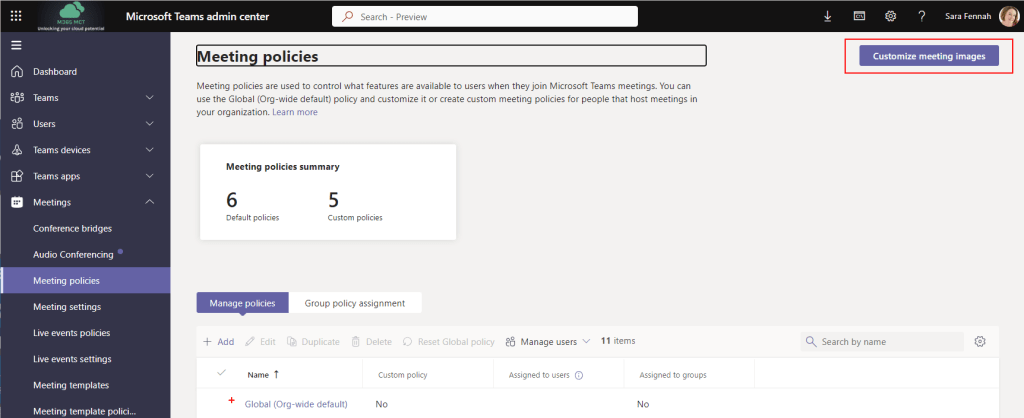
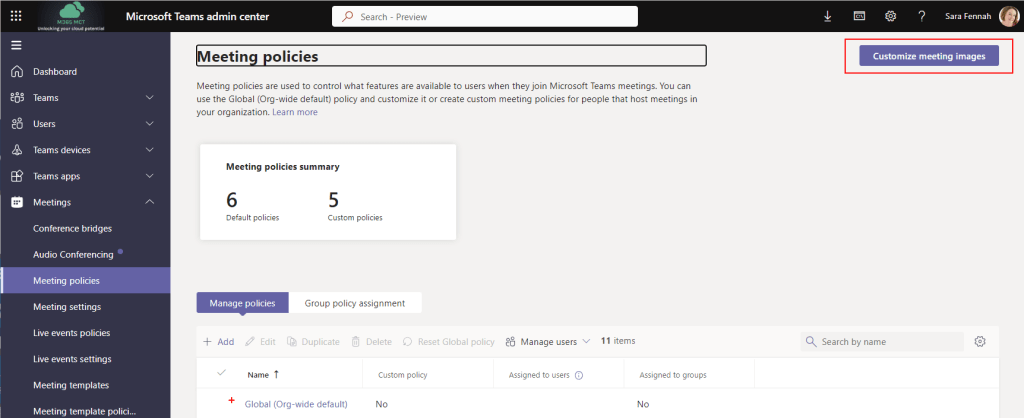
To upload and publish organizational backgrounds in the Teams Admin Center choose Meetings > Meeting Policies and select the Customize meeting images button. This option is expected to move to Meeting Customization Policies when they become available.
Use the Add button to upload images.
Images must be in JPEG or PNG format and between 360 by 360 px and 3840 by 2160 px. You can have a maximum of 50 images per organisation. For more details on custom meeting backgrounds review the official documentation on Microsoft Learn.
Custom Together Mode Scenes
You can also create and publish Custom Together mode scenes for your Teams Premium users. Custom Together Mode scenes can only be applied by those with a Teams Premium license, but a Together Mode scene can be set to be visible for all meeting attendees and this includes custom scenes.
Also note that custom together mode scenes are considered a custom Teams app. And as such the user publishing the scene will need to be permitted to add custom teams apps in your tenant via an app set up policy, the app will need to be approved by Teams Admin and included in the appropriate app permission policies for users who need access. More details on managing custom app in Microsoft Teams is available on Microsoft Learn.
Here’s an article I wrote about creating my first custom scene. Since that blog was written there are some small changes. You still create your custom scene using https://dev.teams.microsoft.com/, but the publication process is different.
Whilst it is recommended that before publishing to the organisation, you test the scene in a meeting, take car how you undertake this. You can deploy the app to a single Teams client using the Preview in Teams button and follow the prompts to install. If using this method I recommend testing on a different device and Teams account to your default or renaming the app after testing. This is to avoid ending up with two copies of the same app once it is published, a sideloaded (preview) and full load (publish). As an alternative with Together Mode scenes, you could publish them and only deploy to limited number of users for testing using app permission policies.
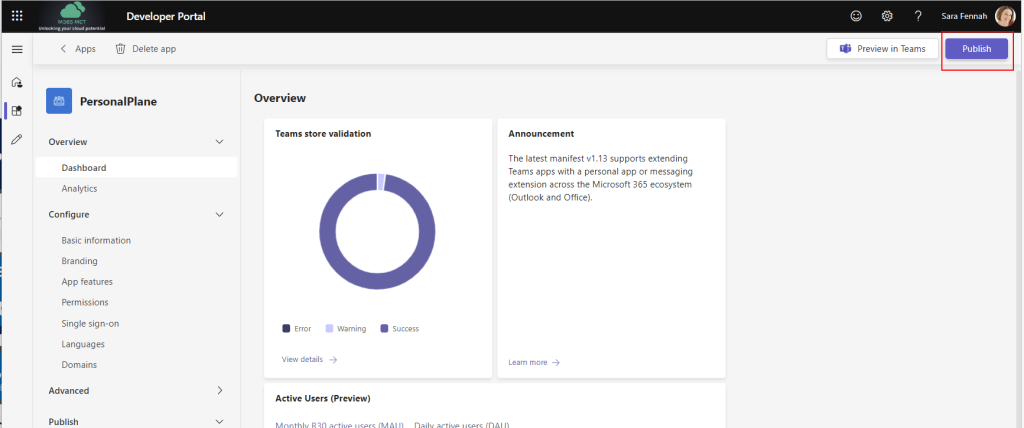
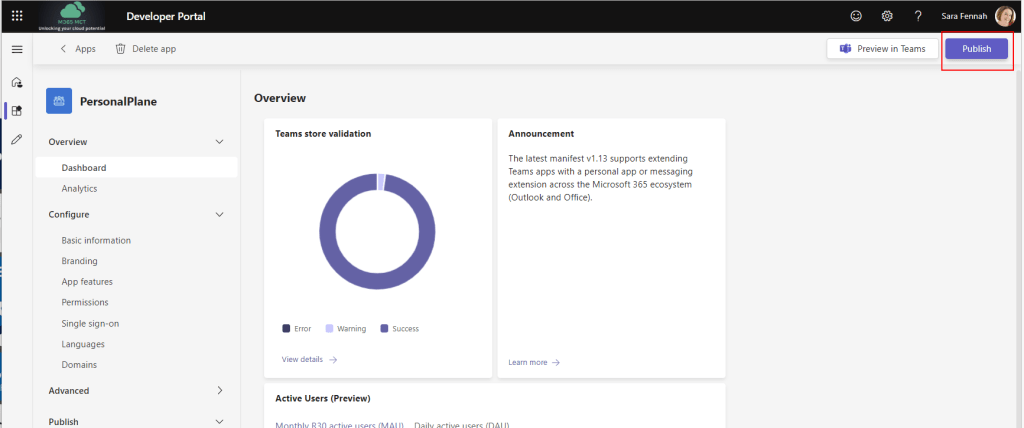
To fully publish a scene, once the app/scene is created choose Publish button
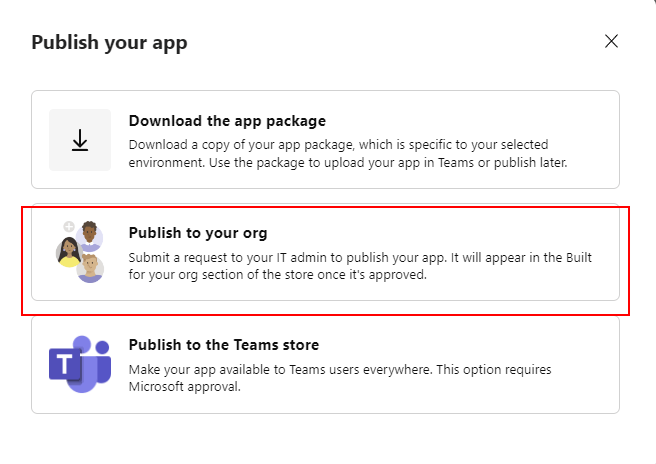
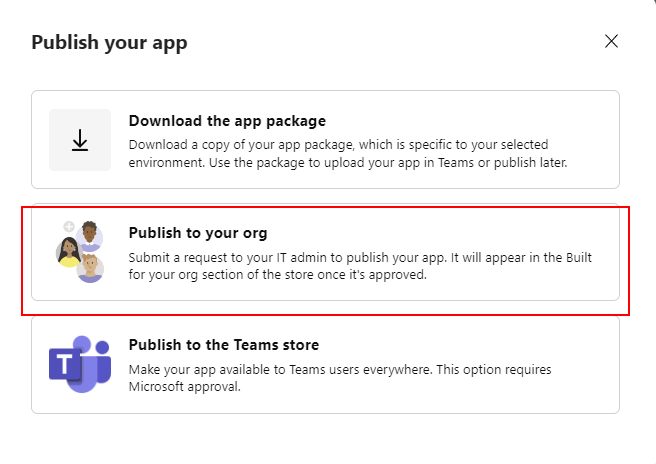
Confirm the publication method. If you are signed on to Developer Portal with an account which is permitted to publish app you can Publish to your org directly. Otherwise you will need to download the app package and submit for upload by a Teams Administrator using your internal processes.
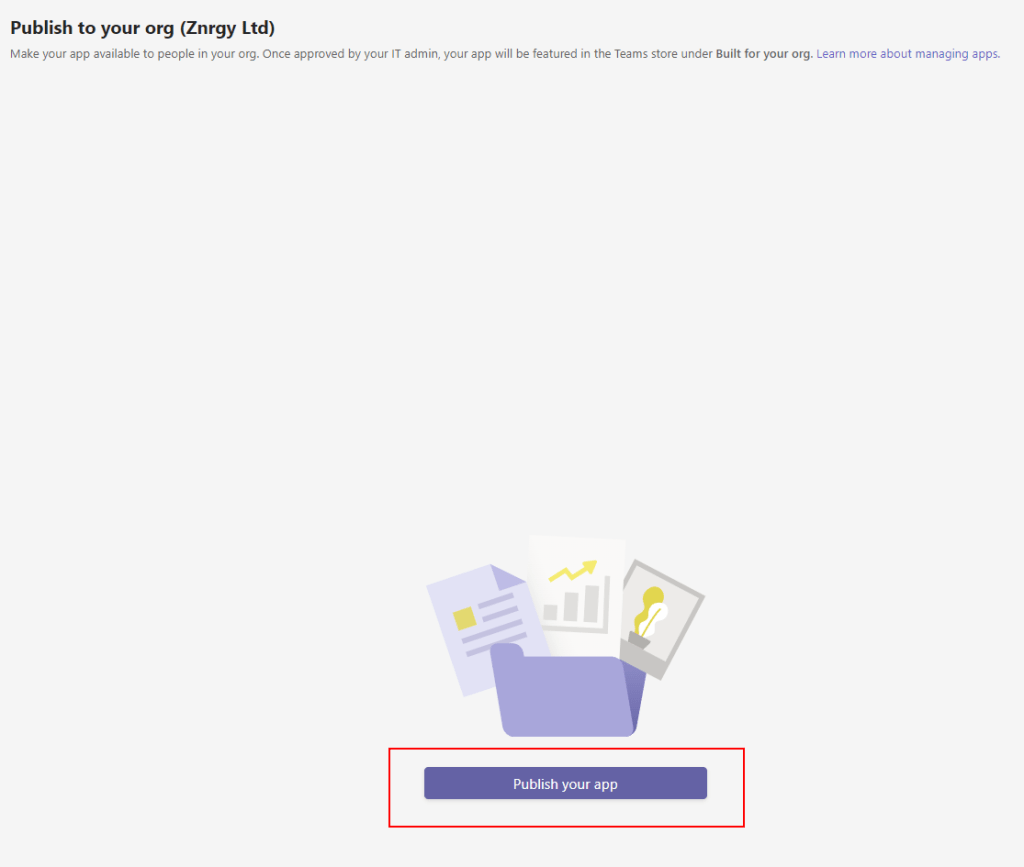
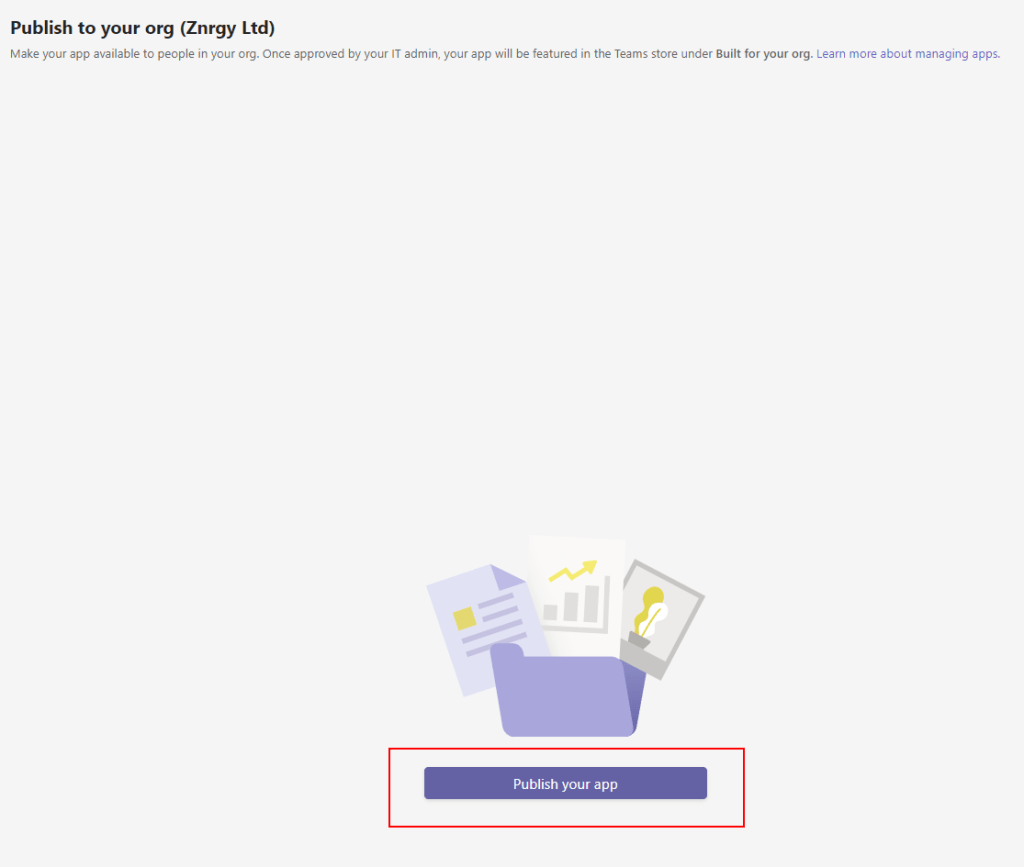
If you chose Publish to your org you will then confirm this by clicking the Publish your app button on the next screen.
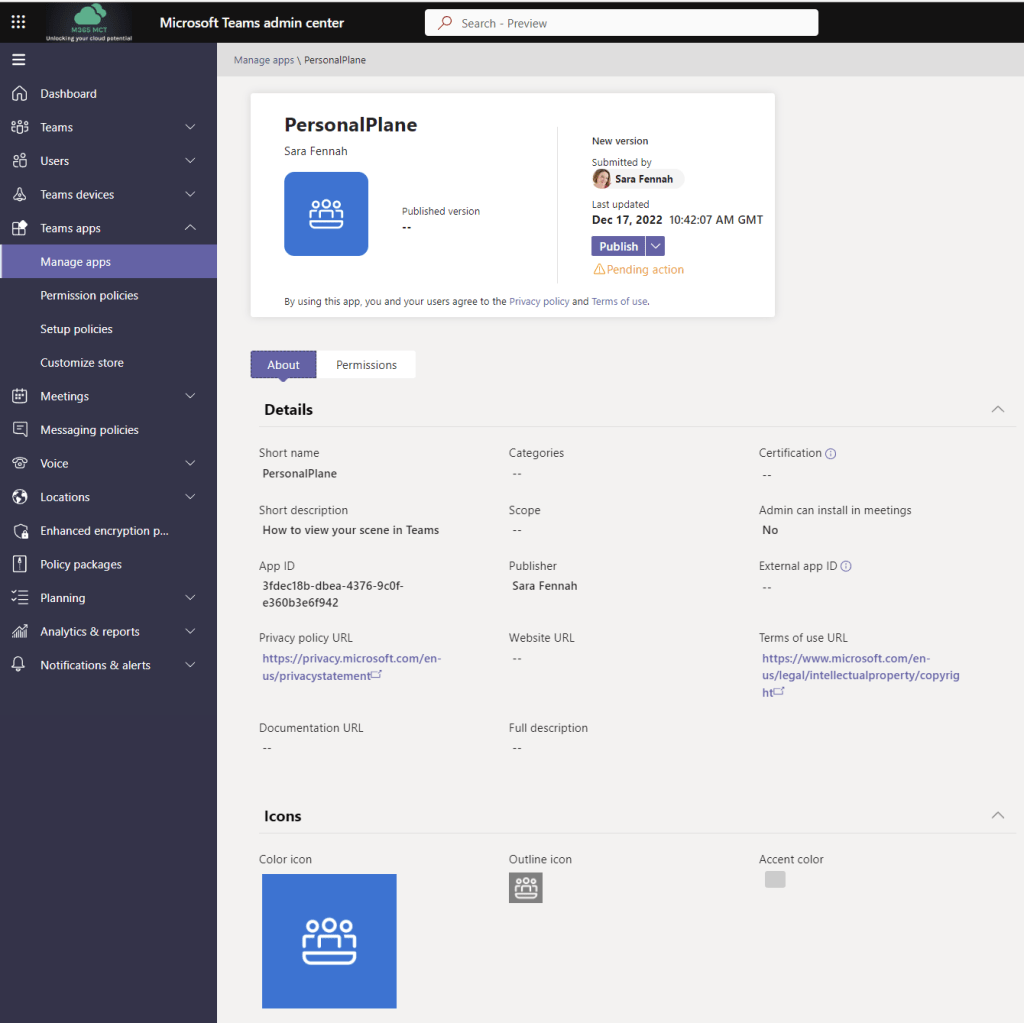
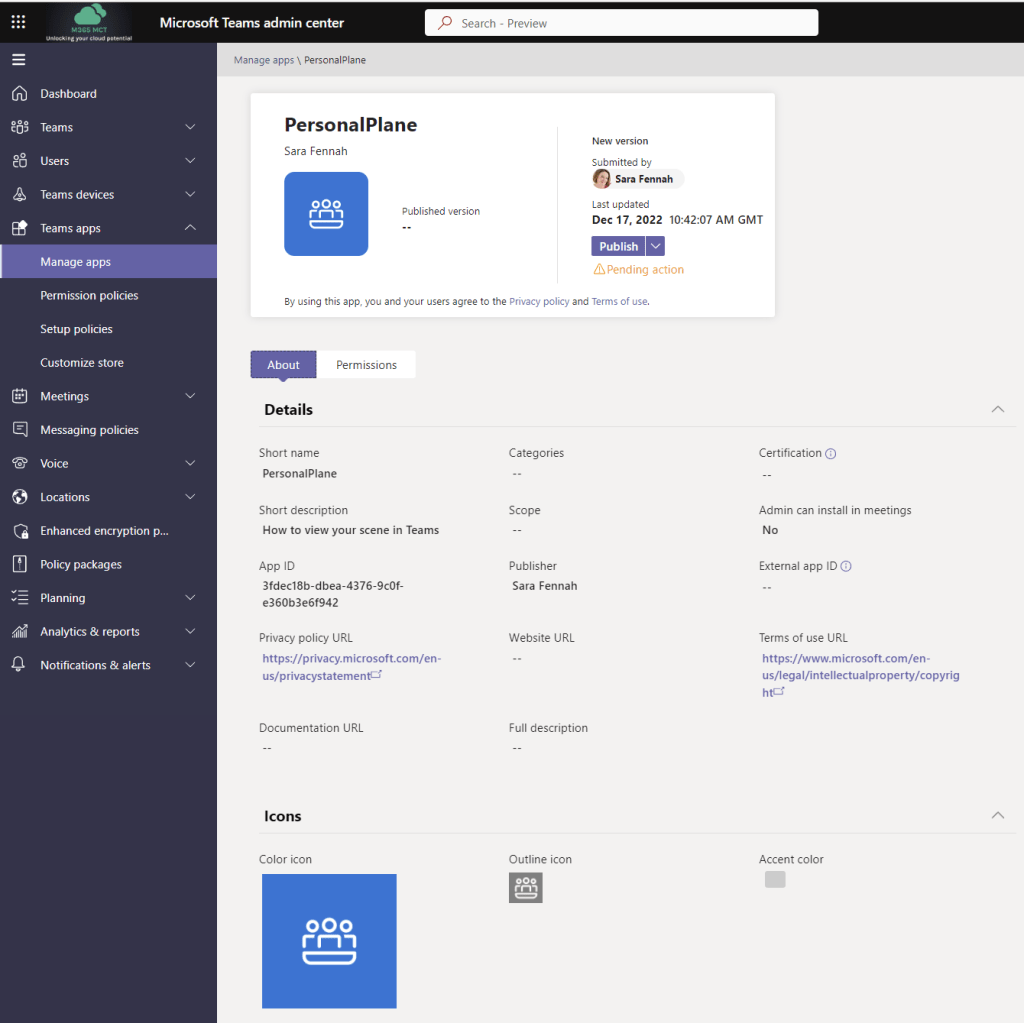
Once published to your org, the app will need to be approved before it becomes visible to your users and ensure it is not blocked by an app permission policy. The screen shown below is used by the Teams Administrator to publish the app, thus approving it for use with the organisation. To reach this screen in the Teams Admin Center choose Teams apps > Manage apps, locate the app in the list and click the app name.
Once published and approved, users can add the apps from the teams client. Or, as an admin, you can add it for your users via a Teams App Setup Policy.
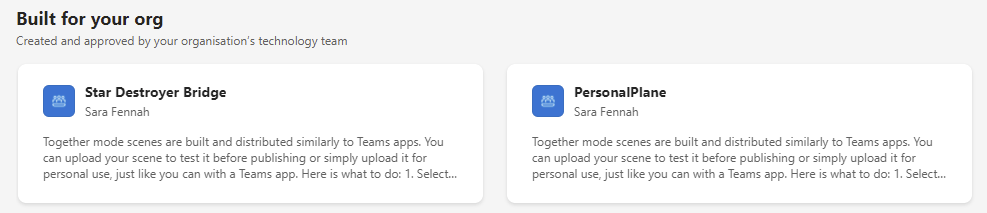
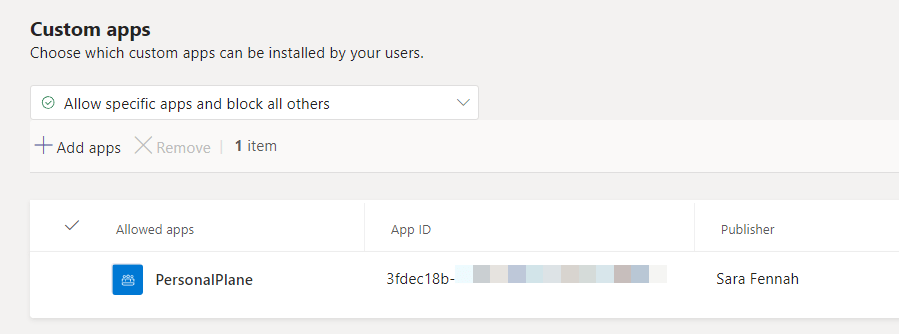
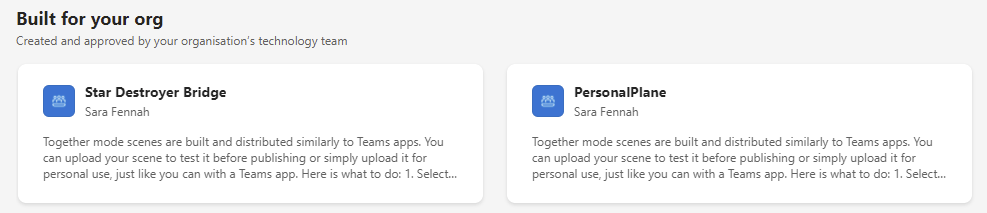
If the app does not appear for users in Microsoft Teams under Apps in the Built for your Org section then check to ensure the app is allowed in the App permission policies under Custom Apps section.
You can view the official guidance on Together Mode scenes on Microsoft Learn
Microsoft Teams Premium is an add-on to Microsoft 365 and brings additional features.
Not everyone will need Teams Premium, but most organisations will find that there people in the organisation who will benefit, especially those who organise virtual and hybrid events or hold sensitive meetings. As a trainer it’s definitely something that will be of benefit to me.
The features can be seen as falling into 5 categories:
Meeting Customisation
Meeting Protection
Meeting AI Features
Webinars
Virtual Appointments
Meeting Customisation features allow organisations to add their own branding to meetings with a branded lobby, customised backgrounds, custom together mode scenes, custom meeting templates, meeting themes plus create and assign custom policy packages for easier administration.
Meeting Protection features include adding a watermark to videos and shared content to help protect sensitive shared information by adding the email of the attendee so any screenshots taken or video captured shows who took the image/recording. Sensitivity labels can be used to restrict features in a meeting such as apply watermarking, limiting lobby bypass, restricting recording, preventing copy & paste from chat.
Meeting AI Features are not available in the preview, as at launch. These include automatically generated chapters in meeting recordings, time markers in meeting recordings showing when you joined/left plus when you were mentioned and the much anticipated auto generated tasks.
Webinars are also getting some new features with a refreshed webinar creation screen rolling out to everyone which includes the ability to limit numbers who can register. The advanced webinar features with Teams Premium are a green room for presenters only to use prior to meeting start, ability to control which presenters are visible on screen, a wait list for registrations once webinar is at capacity, manually approve registrations and reminder emails to registered attendees.
Virtual Appointments are aimed at businesses who have customers scheduling appointment to be held over Teams. Premium features in this space do include the SMS notifications, analytics in Teams admin center and scheduled queue view which were previously announced and now only to be in Teams Premium. Additional features include customised waiting room, chat with attendees in the waiting room and post appointment follow ups.
Some features are licensed by meeting organiser and can be applied to meetings they create, believed to be those set in meeting options, such as adding watermarks and preventing recording. Other features are per user and only available where the individual is licensed for Teams Premium such as assigning or being assigned custom policy packages. Many of these details will be confirmed as the preview phase comes to an end. It should also be noted that Sensitivity Labels for meeting also requires a Microsoft 365 E5 license for the users creating the meetings and assigning the sensitivity label.
The public preview of Teams Premium is now available and you can read the official launch blog here. In this blog I’ll look at how to sign up and how to enable Meeting Encryption, Water Marking, Meeting Templates, Advanced Webinars plus some of the meeting branding experiences. This blog is aimed at Teams Administrators.
Other features will follow in future blogs, as the settings update in my tenant and I get to test them out.
The trial is currently only available for up to 3 users in a tenant, though this should increase as we get closer to launch which is expected in February 2023.
Some of the upcoming Teams Premium features are not yet included in the trial. Custom branding is due to roll out into the trial in Jan 23, but intelligent recap is not included in the preview and RMTP in to webinars is not mentioned in the blog launching Teams Premium Preview.
There is a nice comparison of the features in Microsoft Teams as standard and in Teams Premium in the documentation around Teams Licensing on Microsoft Learn.
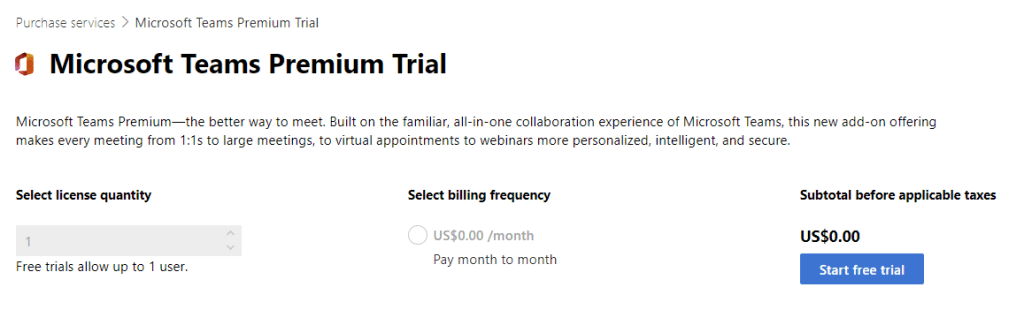
If like me you could not find the Teams Premium trial licences in your tenant, there is a way to add the trial. As per the Trial Licensing FAQ’s at the bottom of the blog, log in to your tenant and then visit https://aka.ms/tpdlnk. This will allow you to redeem one trial licence. You can use the same link to get the 2nd and 3rd trial licences.
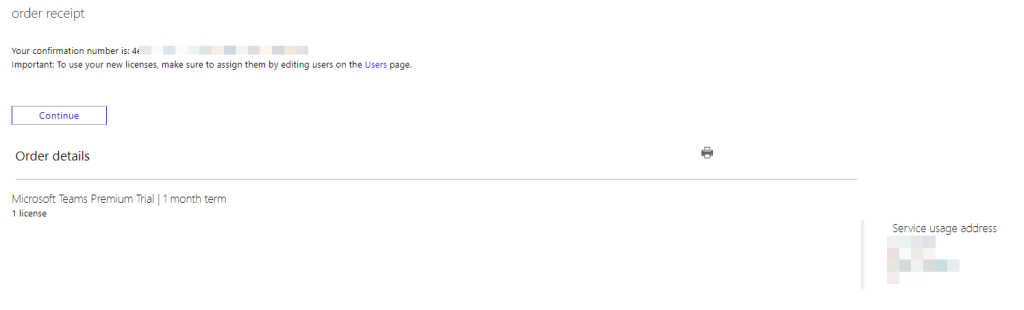
Click the Start free trial button.
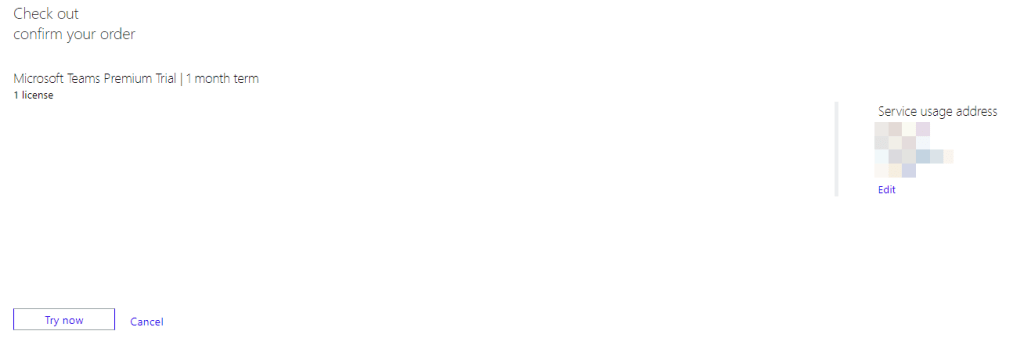
Confirm the service address and click Try now button
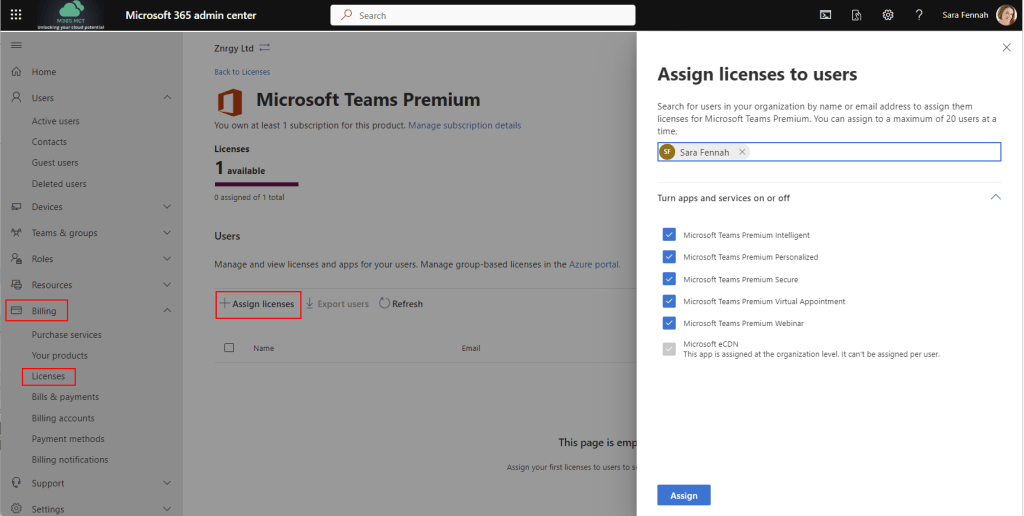
Once confirmed you can assign license to the user who will use the trial.
I recommend you redeem at least two trial licences. One for an admin to create meeting sensitivity labels and one test user to trial the features.
Once you have assigned the licences you can explore the features. As an admin you may need to enable features in policies which are assigned to the test users. That trial launch blog has a good amount of detail on each of the features, how to use them and how to enable them. However I have found that the images in the official blog are a little different to what I am seeing in my production tenant currently hence I’ve included my screen shots here.
Meeting Encryption
To test out meeting encryption change the appropriate encryption policy to allow users to apply encryption to meetings
Watermarking for Content & Video
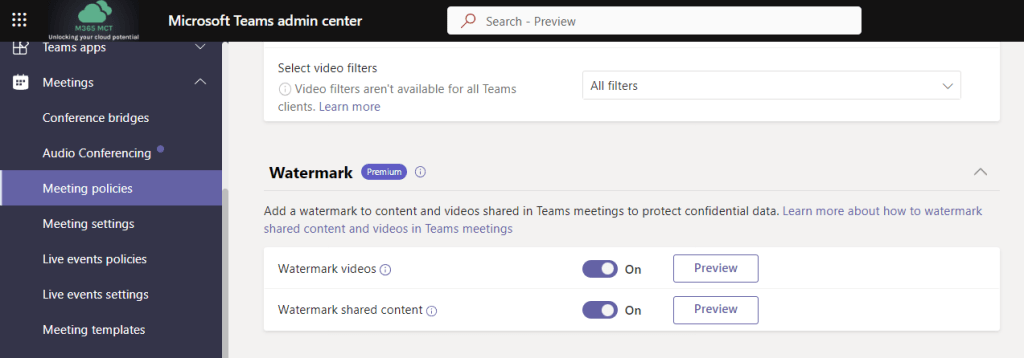
Watermarking adds the email of the attendee as a water mark on videos and/or shared content in meetings to discourage screenshots or the sharing of such when sensitive content is shared in meetings. To ensure the feature is available for users to apply via meeting options it must be enabled in the appropriate Meeting policy:
Meeting Templates
Meeting templates provide pre-set configurations for meeting options. They can be set up under Meeting templates in Teams Admin Center and published to users with a Meeting template policy. By default all new templates are added to the global policy and are only available to those licensed for Teams Premium, so there is no need to create a custom policy for testing purposes.
Custom Meeting Branding
Not all of the meeting branding features have been released into the preview of Teams Premium as yet. Customisation will included a branded lobby and meeting themes and be created using Customization Policies in the Teams Admin Center when they are released. However for now you can try out pushing Organization backgrounds from the Customize meeting images button in the Meeting Policies page. This has been in my tenant for a while by virtue of having the Advanced Communications license.
You can also create and publish Custom Together mode scenes for your Teams Premium users. Here’s an article I wrote about creating my first custom scene. Since that blog was written there are some small changes. You still create your custom scene using https://dev.teams.microsoft.com/, but once built you publish your app to your organisation by following the 3 steps shown below.
Once published to your org, the app will need to be approved before it becomes visible to your users and ensure it is not blocked by an app permission policy.
Once published and approved, users can add the apps from the teams client. Or, as an admin, you can add it for your users via a Teams App Setup Policy.
Advanced Webinars
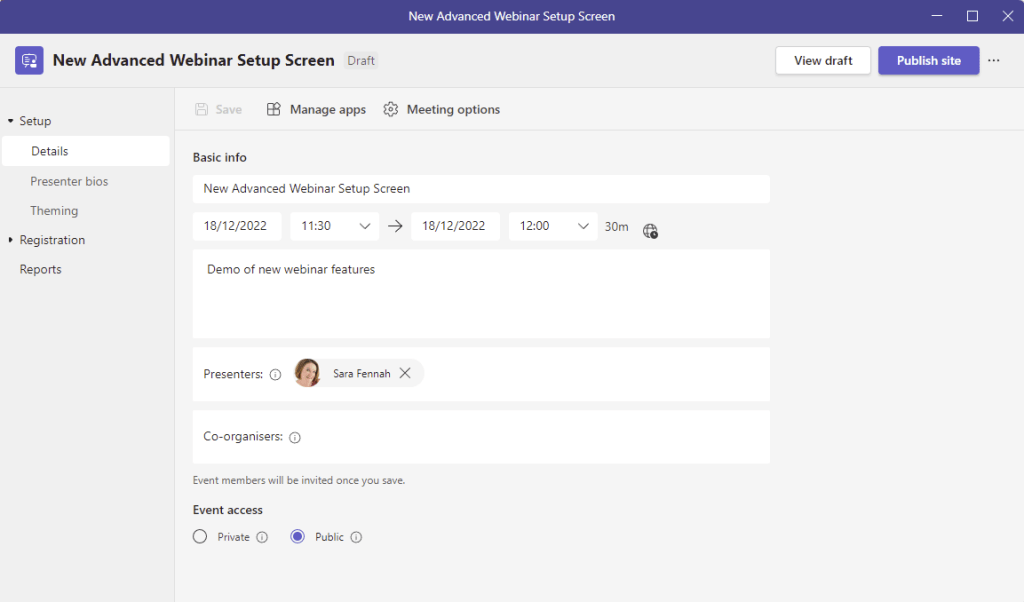
To use the advanced webinar feature with the new set up screen, users will need to have the Meeting Registration feature enabled in the meeting policy, which can be set via Teams Admin Center. However a second setting in the new Events policy which can only be set via Powershell enables the new features. This is AllowWebinar. With both settings enabled the webinar set up screen looks like this:
The default Events policy has AllowWebinar enabled by default.
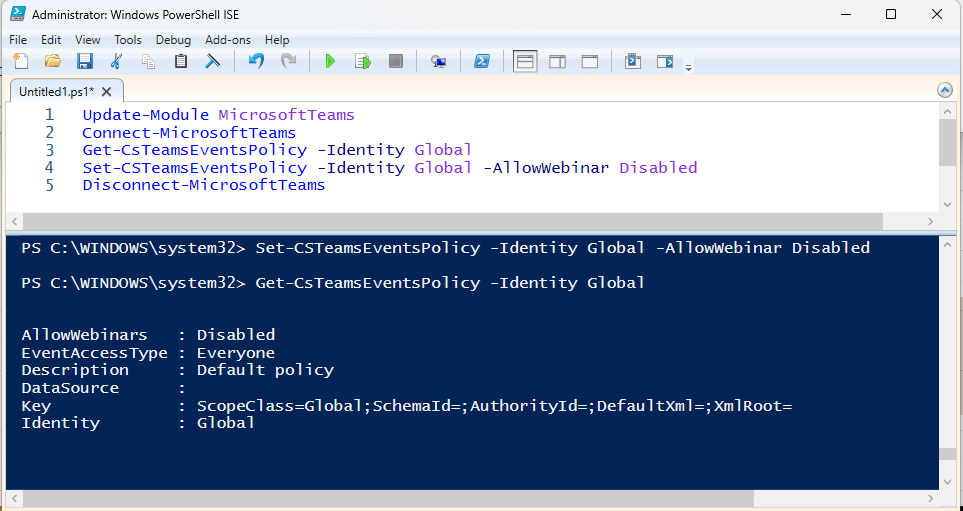
The following PowerShell will disable allow webinar in the default Events policy:
Update-Module MicrosoftTeams Connect-MicrosoftTeams Set-CSTeamsEventsPolicy -Identity Global -AllowWebinar Disabled Disconnect-MicrosoftTeams























 The Teams Queen Blog